
1. Overview
Weighted Item Unit Setup controls which Weight units are available when selling weighted items in the selected store. The configured units and default unit are used by the Desktop POS after synchronization.
2. Navigation
Go to: Store & Operations → Weighted Item Unit Setup.
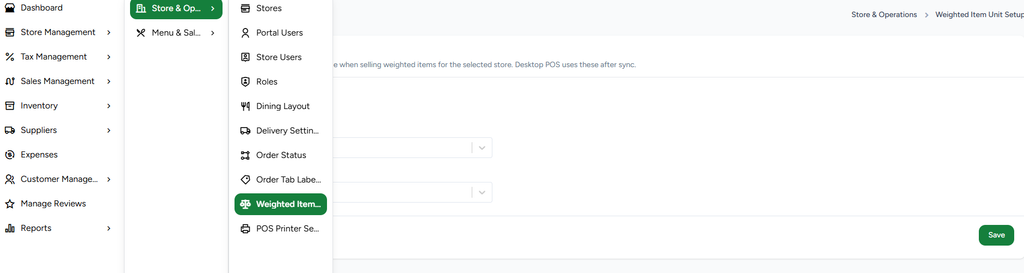
Figure 1 – Weighted Item Unit Setup available under Store & Operations
3. Configure Allowed Weight Units
The Allowed Weight units field lets the administrator select the units that can be used for weighted item selling.
Select one or more allowed units.
Example units shown: Kilogram, Gram, and Milligram.
Multiple units can be selected at the same time.
Only the selected units should be available to the POS for weighted selling.
4. Select Default Weight Unit
The Default Weight unit determines the unit selected by default when the POS is working with a weighted item.
The default unit must be one of the allowed weight units.
Example: Gram can be selected as the default when Kilogram, Gram, and Milligram are allowed.
The dropdown displays the available configured units.
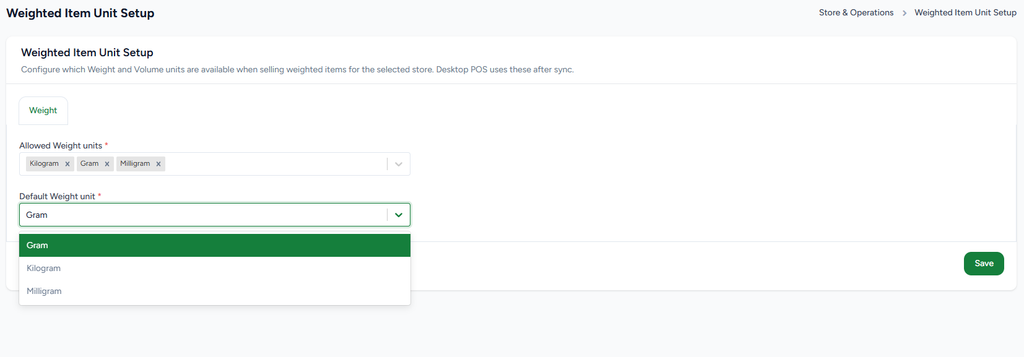
Figure 2 – Allowed Weight units and Default Weight unit configuration
5. Save and Synchronization Flow
1. Select the required Weight units.
2. Select the Default Weight unit.
3. Verify that the default unit is included in the allowed units.
4. Click Save.
5. The configuration is stored for the selected store.
6. Desktop POS receives the configuration after synchronization.
7. The configured units are then available when selling weighted items.
6. Example Configuration
| Setting | Example |
| Allowed Weight units | Kilogram, Gram, Milligram |
| Default Weight unit | Gram |
7. Important Validation / Behavior
At least one allowed Weight unit should be configured.
The Default Weight unit should be selected from the allowed units.
Changing these settings affects the selected store.
The Desktop POS uses the latest configuration after synchronization.
These settings control the units available for weighted-item selling; they do not change the item’s base stock unit automatically.
8. Recommended Testing
Configure Kilogram, Gram, and Milligram as allowed units.
Set Gram as the default unit and save.
Sync the Desktop POS.
Open a weighted item in POS and verify the configured units are available.
Verify Gram is selected as the default unit.
Change the default to another allowed unit, save, sync, and verify the POS reflects the change.
9. Complete Flow
Portal configuration → Save → Store configuration updated → Desktop POS synchronization → Weighted selling uses the configured allowed units and default unit.