
Store Management → Dining Area → Tables → POS Dine-In
This guide explains how an administrator creates Dining Areas and Tables in the Portal and how the configured tables become available on the POS side for Dine-In billing.
1. Overall Flow
Store Management → Store & Operations → Dining Layout → Add Area → Save Area → Expand Area → Add Table → Save Table → Table appears under Area → POS Dine-In/Table selection
2. Open Dining Layout
From the Portal left navigation, open Store Management. Under Store & Operations, select Dining Layout. This opens the Dining Layout management screen.
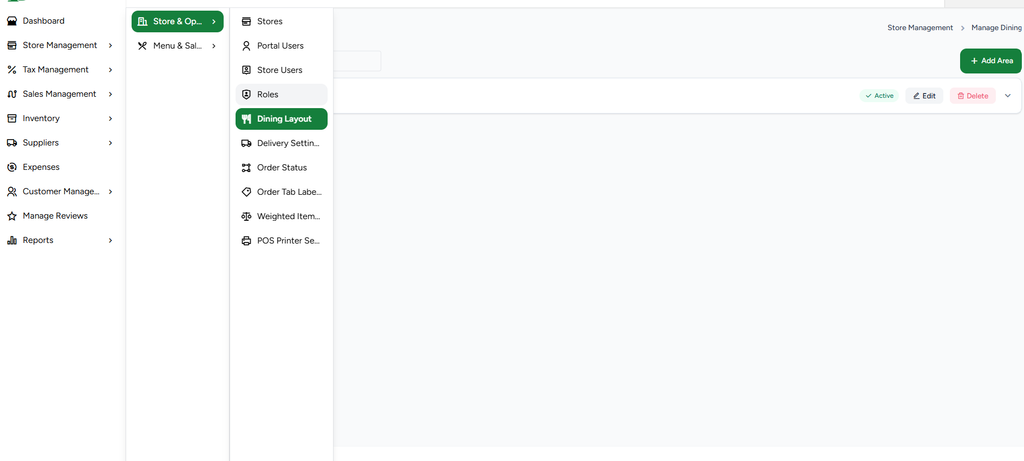
Image 1 – Store Management → Store & Operations → Dining Layout
3. Add a Dining Area
On the Dining Layout page, click “+ Add Area”. The Add Dining Area form opens.
Name * – Enter the dining area name, for example: Main Dining or Family Area.
Code * – Enter a unique short code, for example: MAIN.
Order * – Set the display order of the area.
Active – Keep Yes to make the area available for use.
Click Save to create the area.
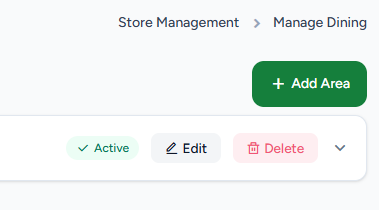
Image 2 – Add Dining Area form
4. Manage the Created Area
After saving, the dining area appears in the list. The area row provides the main controls:
Active – Shows whether the dining area is active.
Edit – Modify the area details.
Delete – Remove the area when it is no longer required.
Arrow / Expand – Open the area to view and manage its tables.
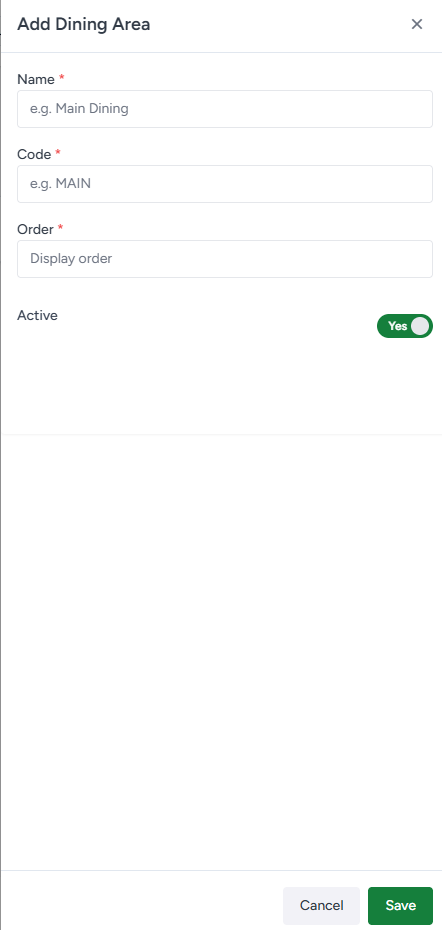
Image 3 – Dining Area actions: Active, Edit, Delete and Expand
5. Add a Table Inside the Area
Click the area’s expand arrow. The Tables section appears. Click “+ Add Table” to create a table under that specific dining area.
Name * – Table name, for example: Family Table or Table 1.
Code * – Unique table code, for example: T1 or 0011.
Capacity * – Number of seats supported by the table.
Order * – Display order of the table.
Active – Keep Yes to make the table available on POS.
Click Save to create the table.
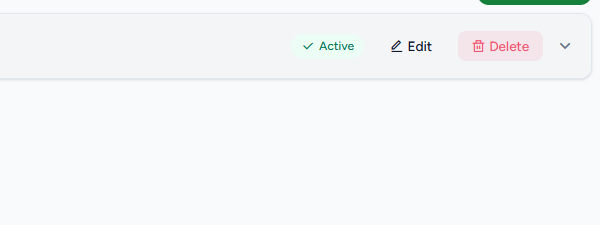
Image 4 – Add Dining Table form
6. Verify the Table Under the Dining Area
After saving, the table is listed inside the selected dining area. The table list shows Name, Code, Capacity, Order and Status. Edit and Delete actions are available for the table.
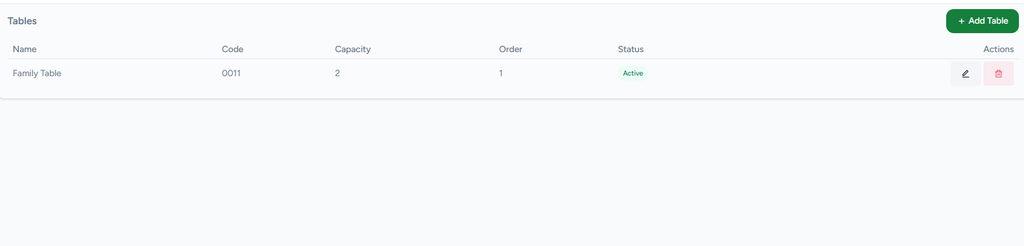
Image 5 – Expanded Dining Area with table details
7. POS Side – Table Availability
Once the Dining Layout data is synchronized to the Desktop POS, the configured active dining areas and tables are available in the POS Dine-In/table selection flow. The POS user can select the relevant area and table while creating a Dine-In order.
Important: The table must be Active and the POS must complete its normal store/data sync before the newly created table is expected to appear on the POS.
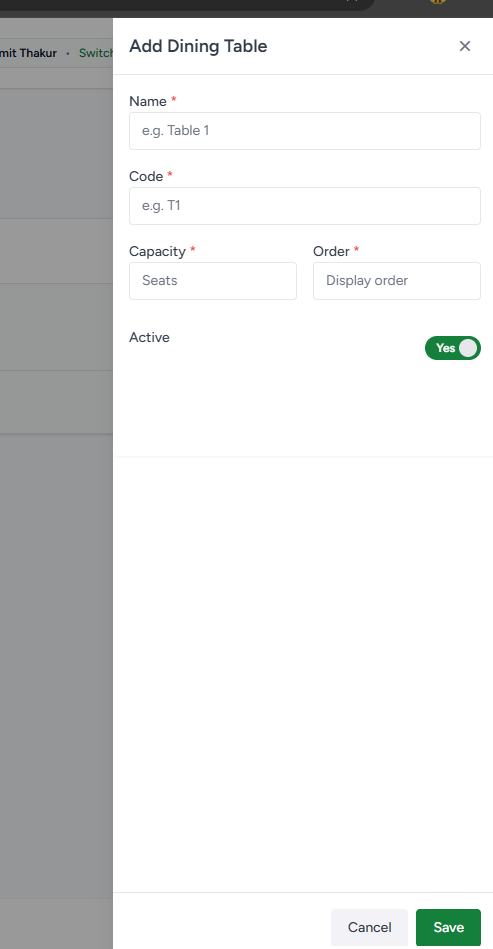
Image 6 – POS-side reference / configured dining data
8. Complete Flow Summary
| Step | Action | Result |
| 1 | Open Store Management → Store & Operations → Dining Layout | Dining Layout screen opens |
| 2 | Click + Add Area | Add Dining Area form opens |
| 3 | Enter required details and Save | Dining Area is created |
| 4 | Expand the area | Tables section appears |
| 5 | Click + Add Table | Add Dining Table form opens |
| 6 | Enter table details and Save | Table is created under the selected area |
| 7 | Sync POS data | Active area/table becomes available for POS Dine-In |
9. Key Rules
Every table belongs to a Dining Area.
Name, Code, Capacity and Order are required for a Dining Table.
A Dining Area must have an active status to be usable.
A Table must be Active to be available for normal POS Dine-In selection.
Edit and Delete actions are available from the respective management rows.
New Portal configuration becomes available on POS after the normal POS/store synchronization.