
This document explains the payment area in POS and the Portal flow used to configure promotions and discounts.
1. Payment & Order Actions
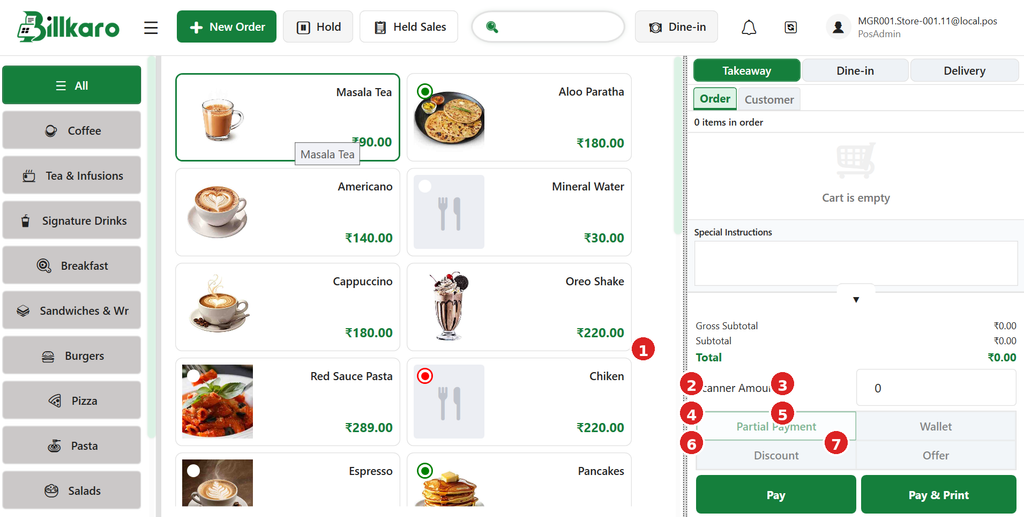
1. Scanner Amount: Used for the scanner/payment amount input.
2. Partial Payment: Allows the customer to pay only part of the current bill.
3. Wallet: Uses or records the selected customer’s wallet balance.
4. Discount: Applies an eligible discount configured in the Portal.
5. Offer: Applies an eligible promotion configured in the Portal.
6. Pay: Completes the payment for the current order.
7. Pay & Print: Completes payment and prints the receipt.
2. Partial Payment – Working Flow
Example: Order total is ₹1,000 and the customer pays ₹500.
Order Total = ₹1,000 | Amount Paid = ₹500 | Remaining = ₹500
Customer order is ₹1,000.
Customer pays ₹500.
Select Partial Payment and enter/confirm ₹500.
POS records ₹500 as paid.
₹500 remains outstanding according to the configured payment/order flow.
3. Customer Wallet – Working Flow
The wallet is linked to the customer, so its balance can be available on the customer’s next visit.
Customer pays less: Order ₹1,000, payment ₹500 → outstanding ₹500. If recorded as customer amount due, the wallet/account balance can show -₹500.
Customer pays extra: Order ₹1,000, payment ₹1,500 → extra ₹500. If configured as wallet credit, the customer wallet can show +₹500.
Next visit flow:
Create a new order.
Select the existing customer.
POS displays the customer’s current wallet balance.
Use the wallet balance according to the configured wallet rules.
Wallet balance is updated after the transaction.
4. Portal – Promotions & Discounts Navigation
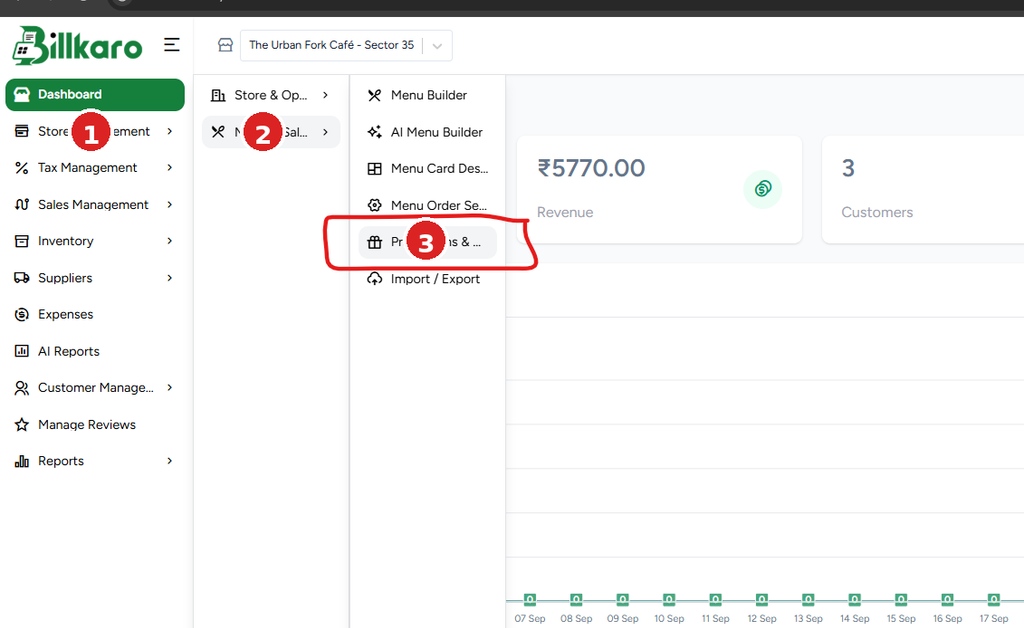
Portal navigation:
1. Store Management
2. Menu & Sales
3. Promotions & Discounts
5. Promotions & Discounts Screen
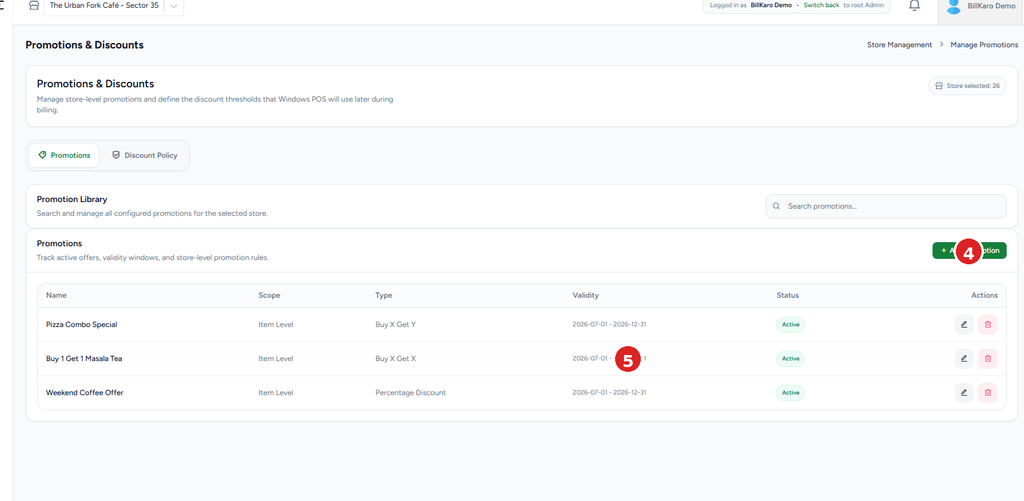
The Promotions & Discounts screen is used to create and manage store-level promotions and discount rules.
4. Add Promotion – create a new promotion.
5. Promotion Library – search and manage configured promotions.
The promotion list can contain the promotion name, scope, type, validity, status and available actions.
6. Promotion / Discount → POS Flow
Step 1: Open Portal.
Step 2: Go to Store Management.
Step 3: Select Menu & Sales.
Step 4: Open Promotions & Discounts.
Step 5: Add or edit the promotion/discount.
Step 6: Select the applicable item or category and configure the rules.
Step 7: Save the promotion/discount.
Step 8: Sync the POS.
Step 9: POS receives the latest promotion/discount configuration.
Step 10: When an eligible item/category is added to an order, the configured offer/discount can be shown or applied.
7. Complete Payment Flow
Login → Select Order Type → Select Customer → Add Items → Check Total → Apply Wallet / Discount / Offer / Partial Payment if applicable → Confirm Final Amount → Pay or Pay & Print → Order Completed.
8. Quick Reference
| Control | Purpose | Configuration / Source |
| Partial Payment | Collect only part of the bill | POS |
| Wallet | Use/carry customer balance | Customer-level wallet |
| Discount | Apply configured discount | Portal → Promotions & Discounts → Sync |
| Offer | Apply configured promotion | Portal → Promotions & Discounts → Sync |
| Pay | Complete payment | POS |
| Pay & Print | Complete payment + print receipt | POS + Printer |