
Complete Dine-in Flow
Portal: Store & Operations → Dining Layout
Add / configure dining area and tables
Save the dining layout
Sync Portal data to POS
POS: Click Dine-in
Select a Free table / open an Occupied table
Add Items → KOT → Pay / Settle
Cancel table when required using the authorization flow
Feature Overview
Dine-in: Opens the dining table management screen.
Table Status: Clearly shows Free and Occupied tables.
Guest Count: Shows the number of guests assigned to a table.
Add Items: Moves the selected table into the POS item/order flow.
KOT: Used for kitchen order ticket handling.
Pay: Opens payment settlement, including split payment support.
Cancel: Allows a dining table to be cancelled with required authorization.
Portal Dining Layout: Allows areas and tables to be created/configured from the Portal and synced to POS.
BillKaro POS – Dine-in Feature Documentation
1. Open Dine-in

Flow: Click the Dine-in Tables button in the left navigation bar.
Feature: This opens the Dine-in Tables screen where all configured dining areas and tables are available.
BillKaro POS – Dine-in Feature Documentation
2. Dine-in Tables
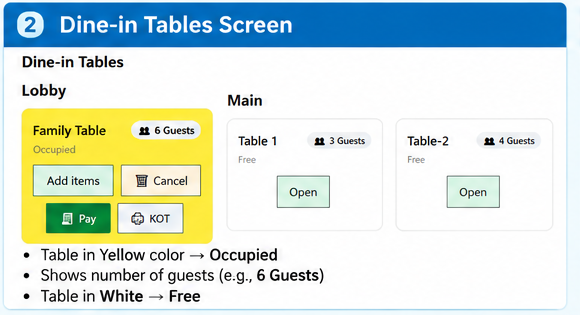
Flow: The Dine-in Tables screen displays tables by area and their current status.
Feature: Occupied tables are shown in yellow and display the guest count. Free tables show as available. The selected table can be opened for further actions.
BillKaro POS – Dine-in Feature Documentation
3. Table Actions
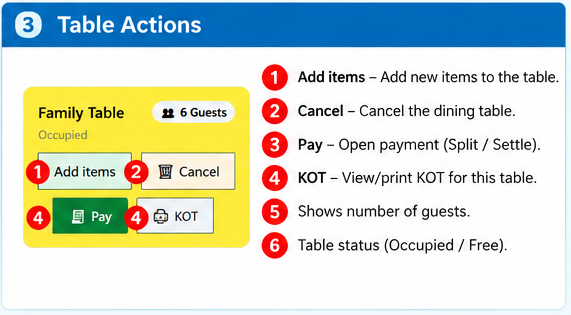
Flow: Select a table to access its available actions.
Feature: Add Items: add menu items to the table. Pay: settle the table payment. KOT: manage/print the kitchen order ticket. Cancel: cancel the dining table when required. Guest count and table status are also visible.
BillKaro POS – Dine-in Feature Documentation
4. Add Items
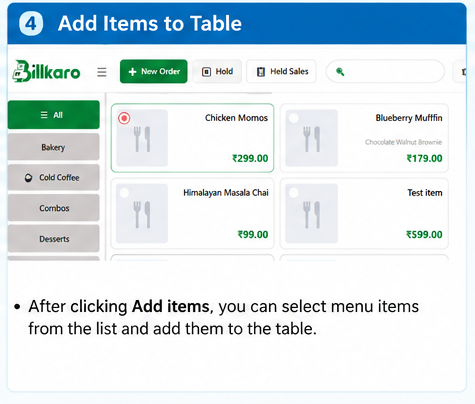
Flow: Click Add Items on the selected table.
Feature: The POS item screen opens. Select the required menu items and add them to the table order. The order remains linked to the selected dining table.
BillKaro POS – Dine-in Feature Documentation
5. Pay / Split / Settle
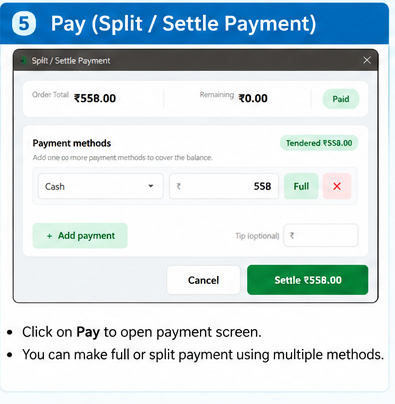
Flow: Click Pay on the selected table.
Feature: The Split / Settle Payment screen opens. The bill can be paid using one payment method or split across multiple payment methods. After payment is completed, the table can be released according to the dine-in flow.
BillKaro POS – Dine-in Feature Documentation
6. Cancel Dining Table
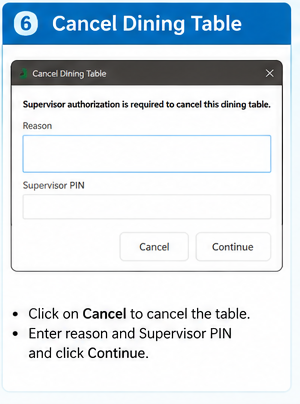
Flow: Click Cancel on the selected occupied table.
Feature: Enter the cancellation reason and required supervisor PIN, then continue. The dining table is cancelled according to the configured authorization flow.
BillKaro POS – Dine-in Feature Documentation
7. Add Table from Portal
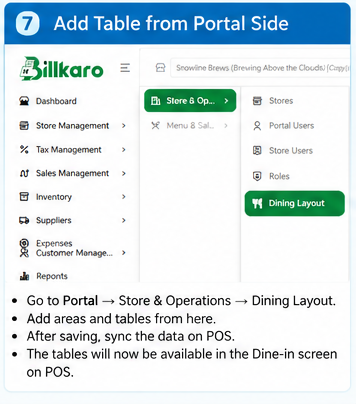
Flow: Configure dining areas and tables from the BillKaro Portal.
Feature: Go to Store & Operations → Dining Layout. Add the required area and tables, save the layout, then sync the data to POS. The new tables will appear in the POS Dine-in Tables screen.
Dine-in Switch Table Flow
Feature documentation with screenshots and end-to-end workflow
1. Overview
The Switch Table feature allows staff to move an active dine-in order from its current table to another available table in POS. This is useful when guests need to change seating or when a different table is more suitable. The existing order and its items move with the table switch.
2. Purpose
Move an active dine-in order to a different free table.
Choose a destination table from the available tables, including tables in another dining area.
Ask for confirmation before completing the move.
Update table occupancy after a successful switch: the source table becomes free and the destination table becomes occupied.
3. Step-by-step workflow
Step 1 – Open the occupied table
Open Dine-in Tables in POS. Select the occupied table that currently contains the running order. The table card shows its current status and actions such as Add Items, KOT, Pay, Switch, and Cancel.
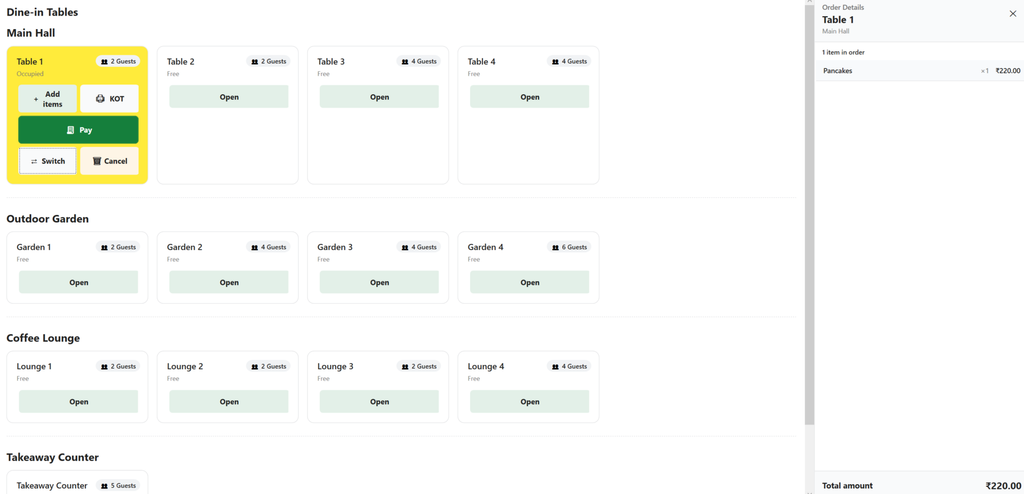
Step 2 – Click Switch
Click the Switch button on the occupied table card. The Switch Table dialog opens and lists free tables that can receive the running order. Select the required destination table from the list.
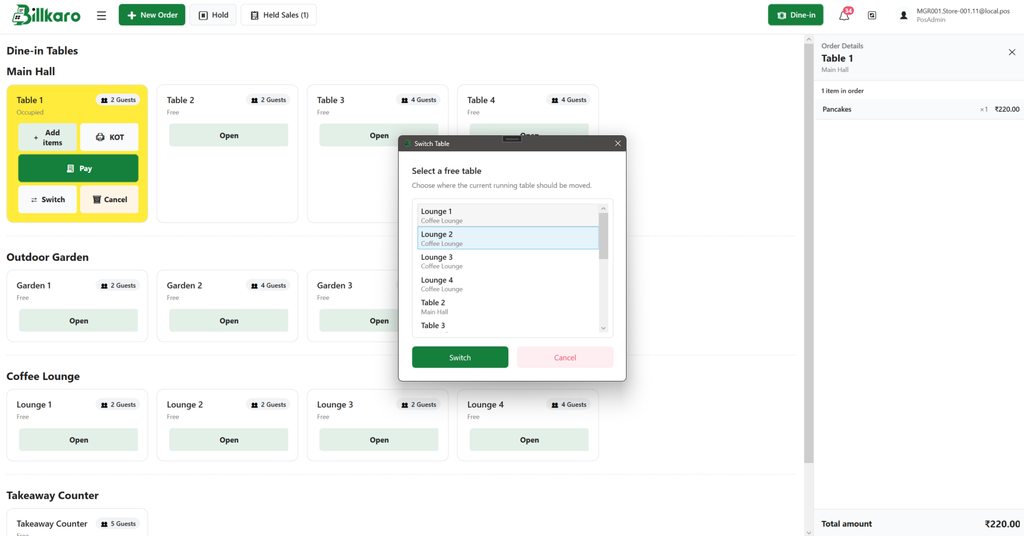
Step 3 – Confirm the destination
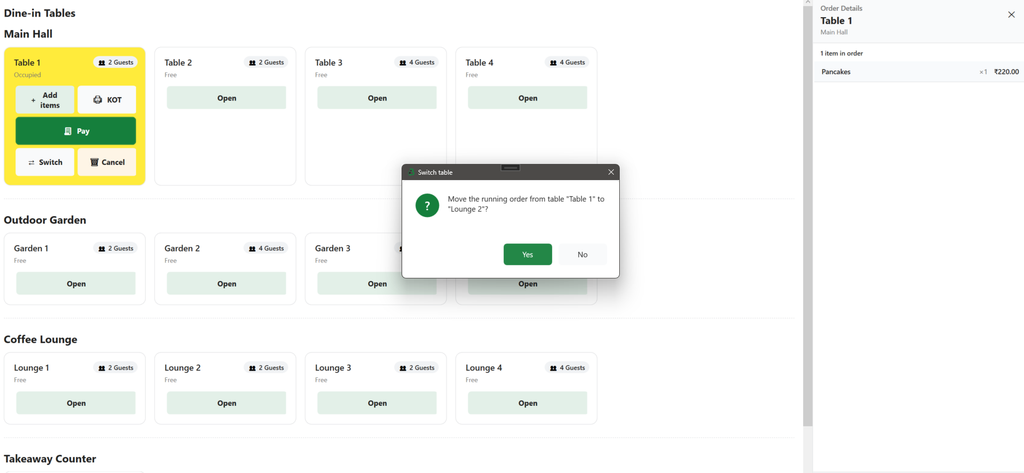
After selecting the destination table, click Switch. POS displays a confirmation message naming both the current table and the destination table. Review the table names before proceeding.
Step 4 – Verify the result
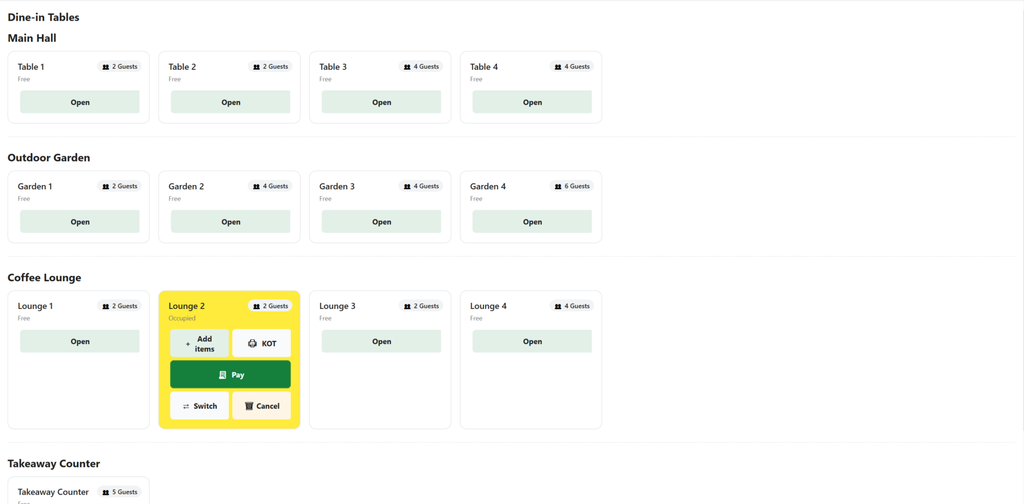
Click Yes to confirm. The running order moves to the selected table. Verify that the destination table is marked Occupied and displays the order actions, while the original table is marked Free. The order details remain associated with the moved order.
4. Alternate action – Cancel the switch
If the wrong destination was selected or the move is no longer required, use Cancel in the selection dialog or choose No on the confirmation prompt. The switch should not be completed, and the active order should remain on its original table.
5. Expected behavior and validation checklist
Only an available/free table should be selectable as the destination.
The confirmation prompt should clearly identify the source and destination tables.
Choosing Yes completes the switch.
Choosing No or Cancel leaves the order on the original table.
After a successful switch, the original table becomes Free and the destination table becomes Occupied.
The running order and its items remain intact after the move.
The destination table can be in a different dining area, if it is listed as available.
6. Example
Example: Table 1 in Main Hall is occupied and has an active order for Pancakes worth ₹220. Staff clicks Switch, selects Lounge 2 in Coffee Lounge, clicks Switch, and confirms Yes. The order moves to Lounge 2. Table 1 becomes Free, and Lounge 2 becomes Occupied with the existing order.
7. Quick flow summary
Dine-in Tables → Select Occupied Table → Switch → Select Free Table → Switch → Confirm Yes → Verify New Table Occupied / Old Table Free
Note: This document describes the POS-side flow shown in the provided screenshots. Any additional business rules should be validated against the current implementation.