
1. Overview
The Wastage module in BillKaro POS is used to record stock or menu-item losses such as expired materials, damaged items, preparation losses, or items wasted against a customer order. Wastage records include the reason, quantity, loss calculation and related order information, and can be synchronized to the Portal.
2. Open Wastage
Open the POS side menu and click Wastage. The Wastage page displays existing records and provides the Add Wastage option.
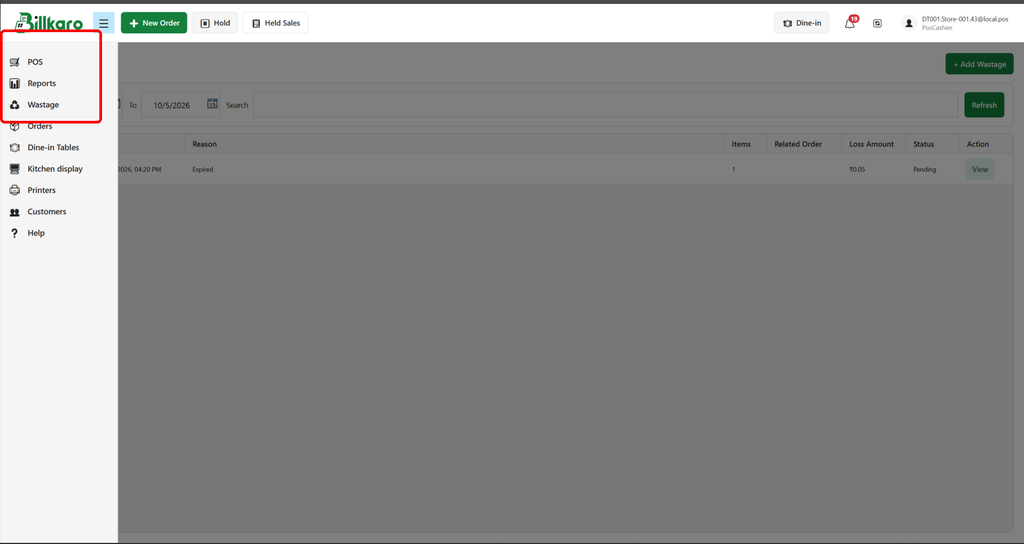
Step 1 – Open Wastage from the POS menu
3. Add Wastage
Click Add Wastage. The Add Wastage child window opens. A Reason is required. You can optionally enter notes and a related order number.
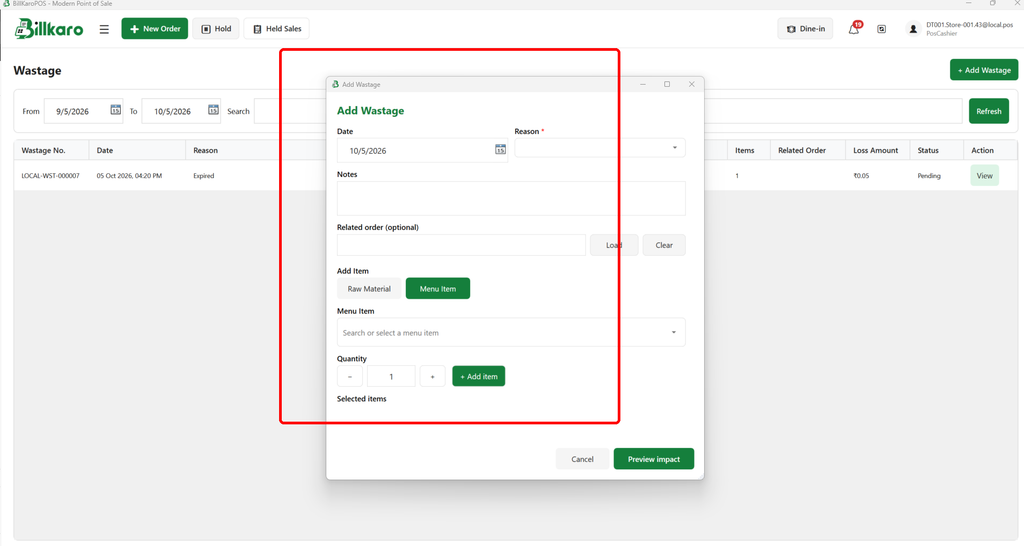
Step 2 – Add Wastage screen
4. Two Ways to Record Wastage
BillKaro supports two main ways to add wastage:
A. Related Order Wastage – Enter an order number and click Load. The POS loads the order’s menu items and their used raw materials. This is useful when an order was prepared or dispatched but could not be delivered, for example because the customer did not answer the phone. The relevant consumed materials can then be recorded as wastage.
B. Direct Wastage – Select Raw Material or Menu Item directly. For raw-material wastage, select the material and quantity. For menu-item wastage, select the prepared item and quantity; the system can show the materials used to prepare it and the associated loss calculation.
5. Related Order Example
Example: An order is prepared for delivery, but the customer does not accept or cannot be reached. Enter the order number in Related Order and click Load. The system loads the order information and the menu items/raw materials involved. After reviewing the quantities, the wastage can be added and its cost recorded.
6. Raw Material Wastage Example
If a raw material expires, is damaged, spilled, or otherwise becomes unusable, select Raw Material, choose the material, enter the wasted quantity and add the item. The system calculates the loss based on the applicable cost.
7. Menu Item Wastage Example
If a prepared menu item is damaged during preparation or becomes unusable, select Menu Item and enter its quantity. The system can show the raw materials used in that item so the preparation cost and wastage impact can be understood.
8. Wastage Details and Loss Calculation
After a wastage record is created, open View to inspect its details. The details include wastage number, date, reason, related order, recorded-by information, items, quantities and calculated loss. The loss calculation can show the raw material, purchase/consumption unit, catalog cost, quantity wasted and loss amount.
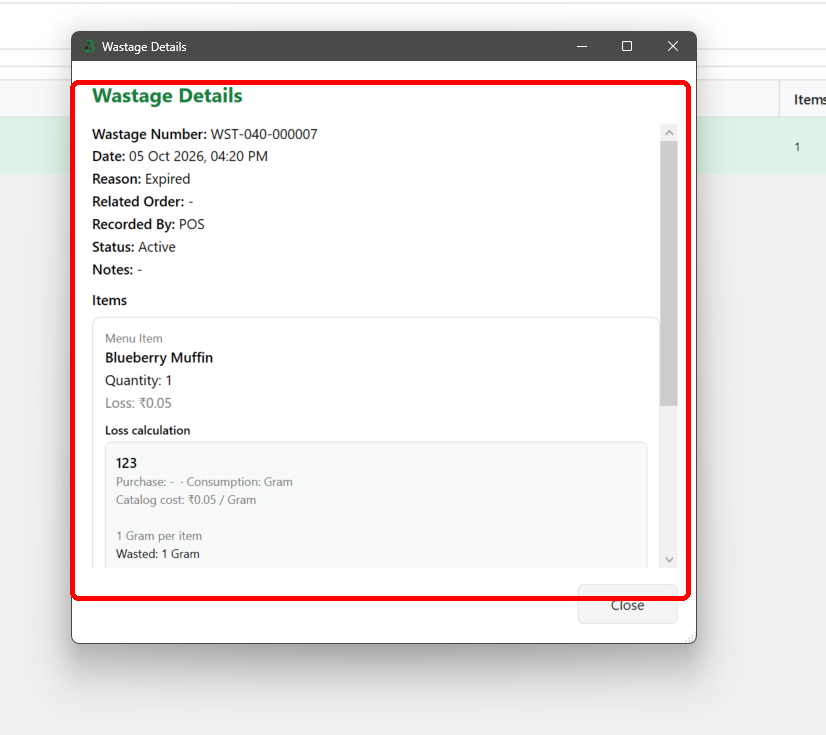
Step 3 – Wastage Details and loss calculation
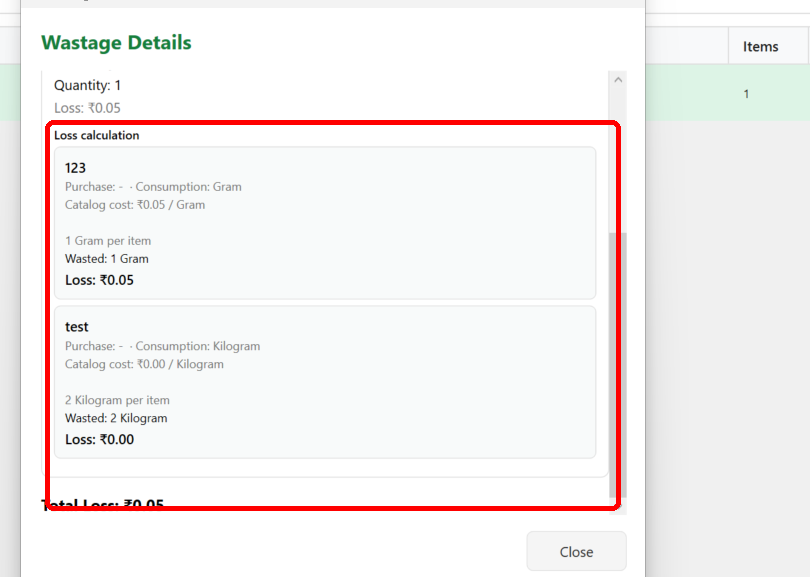
Step 4 – Detailed loss calculation
9. Portal Synchronization
Once the wastage is confirmed/saved, the wastage record is retained on the POS and synchronized to the Portal. This allows the business to maintain the same wastage record and loss information on the Portal side.
10. End-to-End Flow
1. Open POS → Menu → Wastage.
2. Click Add Wastage.
3. Select a required Reason.
4. Choose Related Order flow or direct Raw Material/Menu Item flow.
5. For an order, enter the Order Number → click Load → review loaded items/materials.
6. For direct wastage, select the material/item and enter the wasted quantity.
7. Review the calculated loss/cost.
8. Preview/confirm the wastage.
9. Save the wastage record.
10. The wastage remains available on POS and is synchronized to Portal.
11. Business Benefit
Wastage tracking helps the business identify material losses, calculate their cost, understand losses caused by failed orders or damaged preparation, and keep POS and Portal inventory records aligned.