
Purpose: This guide explains the complete supplier-to-payment workflow in the BillKaro Portal: creating suppliers, mapping raw materials, preparing and approving purchase orders, recording purchases, settling supplier invoices, and downloading settlement documents.
Workflow at a glance
Create or verify a supplier / third party.
Map the raw materials that the supplier can provide and configure purchase defaults.
Create a purchase order as Draft, review it, and approve it.
Record the actual purchase using the supplier and, where relevant, the approved purchase order.
Search pending invoices and allocate a supplier payment.
Verify settlement history and download the invoice PDF for records.
Important concepts
Supplier mapping: Supplier mapping stores supplier-specific material defaults such as purchase unit, price, and availability flags. Review these defaults before ordering.
Purchase Order (PO): A PO records the planned order. The PO number is generated when saved. Draft orders should be reviewed before approval.
Purchase: A purchase records the received/billed materials and invoice details. Verify quantities, prices, tax, and status before finalizing.
Invoice settlement: Settlement records the payment and allocates it to one or more outstanding supplier invoices. Partial payments leave a remaining balance; Pay in full allocates the full outstanding amount.
1. Open Supplier / Third Party Management
Go to Suppliers → Supplier / Third Party Management. The listing displays supplier records with their contact and company details, type, and active status. Use the search fields to find a supplier, or select Add New Supplier/Third Party to create one.
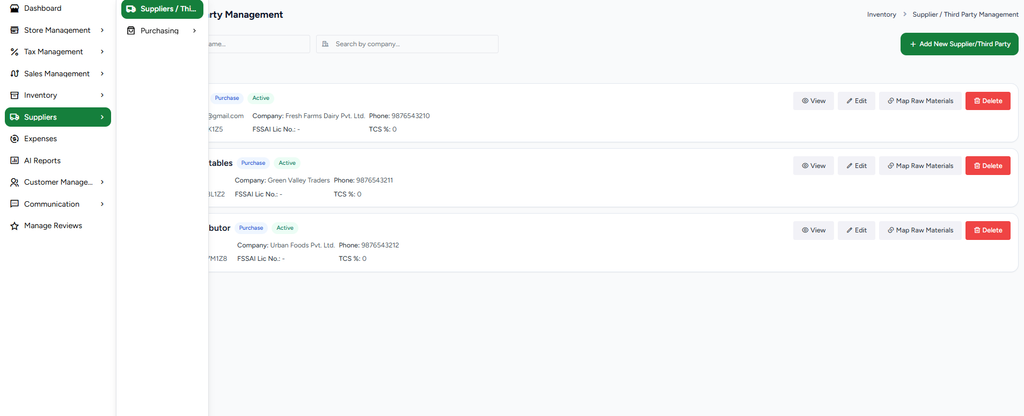
Screenshot 1: 1. Open Supplier / Third Party Management
2. Add a supplier / third party
Enter the required Name. Add company, email, phone, address, state, city, GST number, FSSAI licence number, and TCS percentage when applicable. Choose the supplier type: Both, Purchase, or Sale. Keep Active enabled when the supplier should be available for transactions, then save.
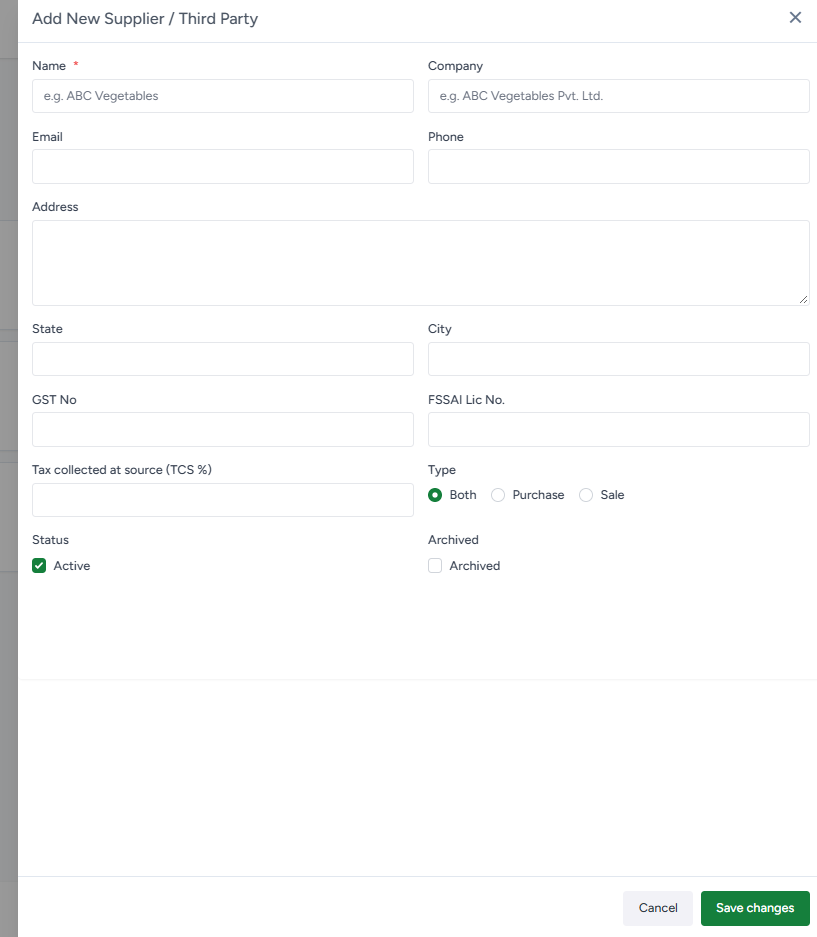
Screenshot 2: 2. Add a supplier / third party
3. Map raw materials to the supplier
Open Map Raw Materials for the selected supplier. Configure the supplier-specific quantity, purchase unit, price, VAT percentage, and whether each raw material is available for Purchase, Purchase Order, Sales, Favorite, and Active. Save the mapping. These preferences can prefill purchase and purchase-order rows.
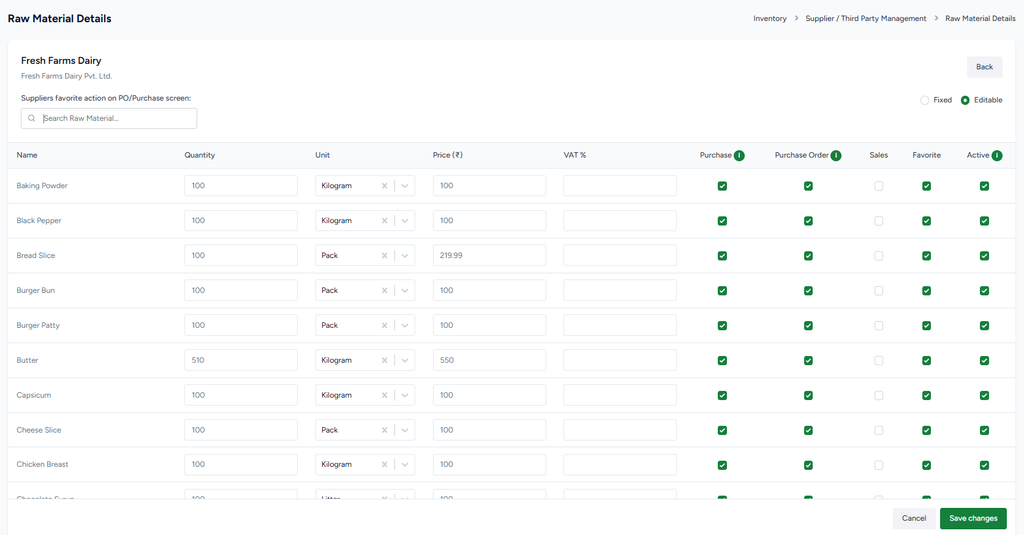
Screenshot 3: 3. Map raw materials to the supplier
4. Review supplier list and actions
The supplier list supports searching by supplier name or company. Each supplier card provides View, Edit, Map Raw Materials, and Delete actions. Verify supplier details and raw-material mapping before creating a purchase.
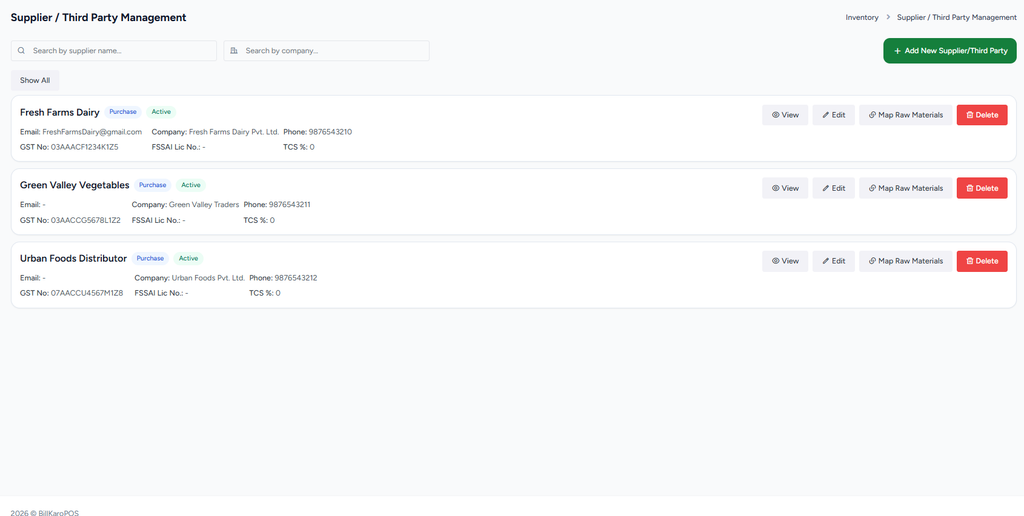
Screenshot 4: 4. Review supplier list and actions
5. Open Purchase Orders
Navigate to Suppliers → Purchasing → Purchase Orders. Review existing orders, their statuses, item counts, totals, and notes. Use the status and date filters to narrow the list, or choose Add Purchase Order to create a new order.
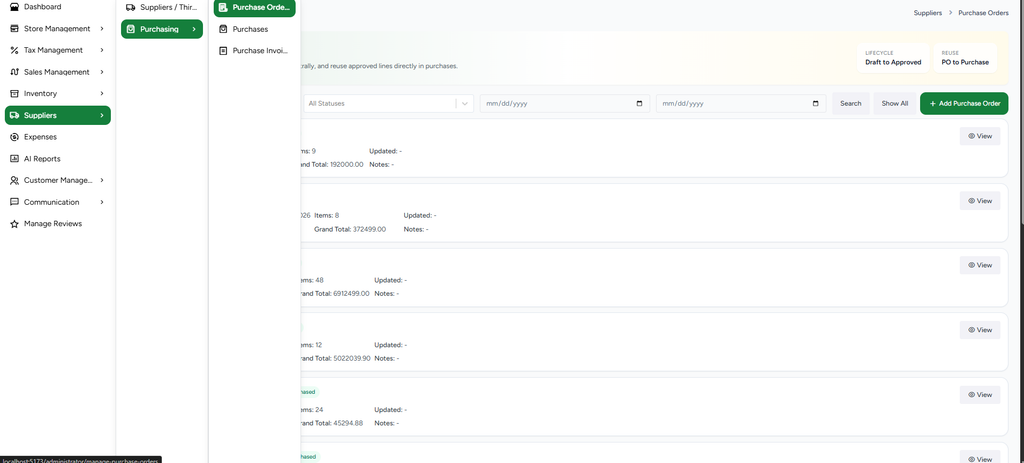
Screenshot 5: 5. Open Purchase Orders
6. Create a purchase order draft
Select the supplier and set the order date. Optionally set an expected date and notes. Add raw-material rows and enter quantity, unit, price, VAT percentage, and description. The row amount and order subtotal/grand total are calculated from the entered values. Save the Purchase Order to generate its PO number.
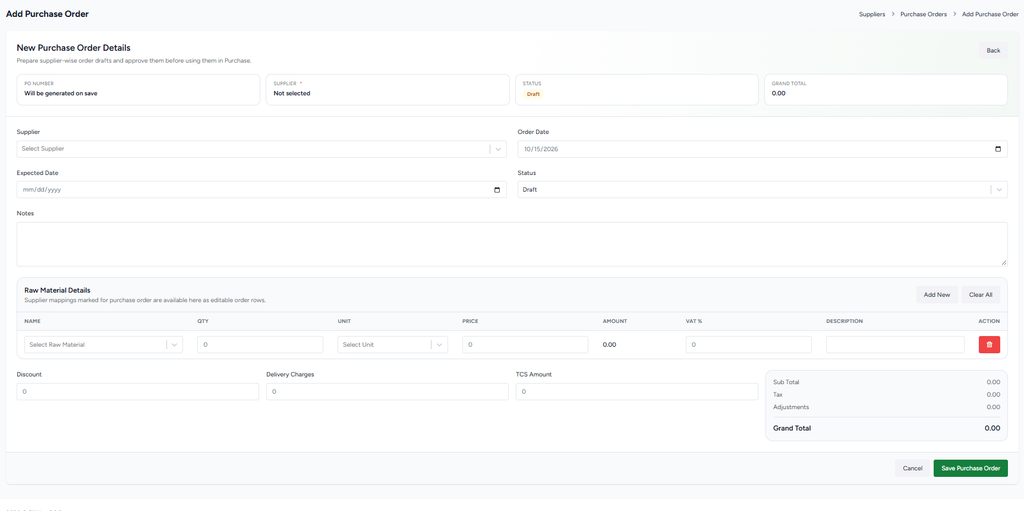
Screenshot 6: 6. Create a purchase order draft
7. Select supplier and review order status
Choose a supplier from the dropdown. Purchase orders begin as Draft. Review the order details and the supplier-mapped raw-material defaults, then add or remove rows as needed. Check the totals before saving.
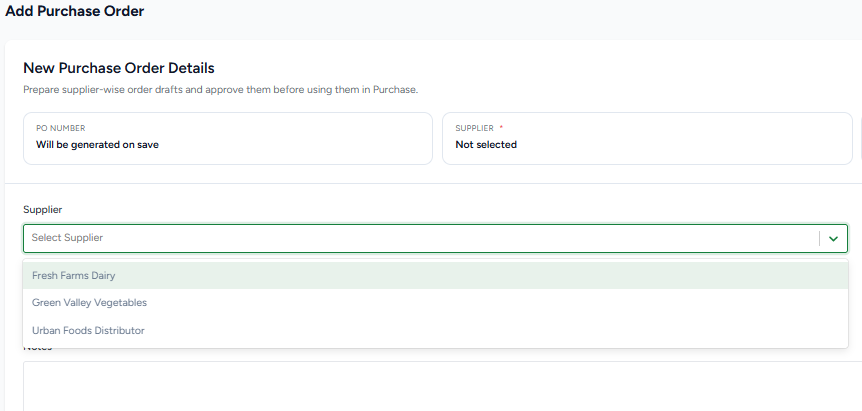
Screenshot 7: 7. Select supplier and review order status
8. Populate purchase-order items
Supplier-mapped raw materials can be selected as order rows. Confirm each material, quantity, unit, price, and VAT percentage. Add New adds another row; Clear All removes the current rows. Review discount, delivery charges, TCS amount, and grand total before saving.
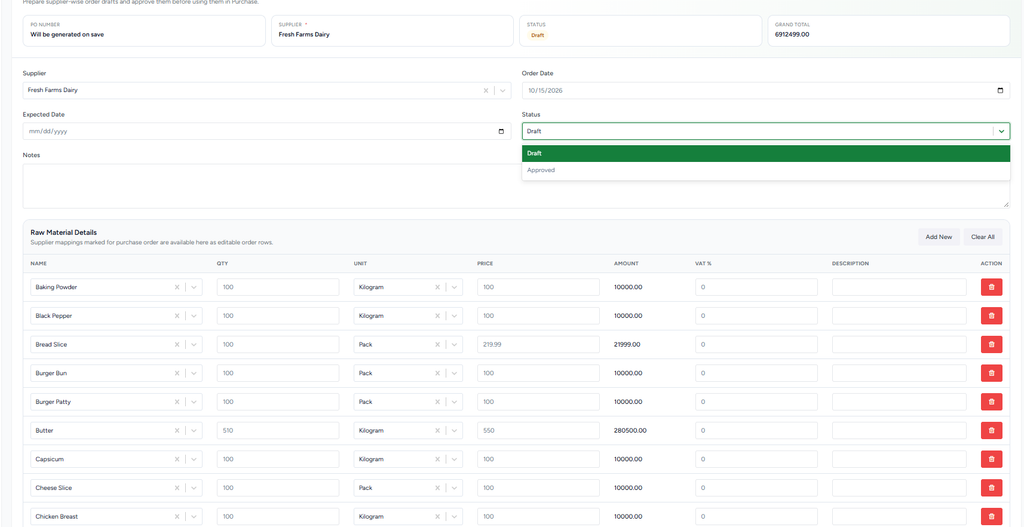
Screenshot 8: 8. Populate purchase-order items
9. Approve the purchase order
After reviewing the draft, change the status to Approved and save the order. Approved purchase orders can be selected for reuse when creating a purchase, helping avoid re-entering the same items. Confirm the saved order appears in the Purchase Orders list with the correct status and total.
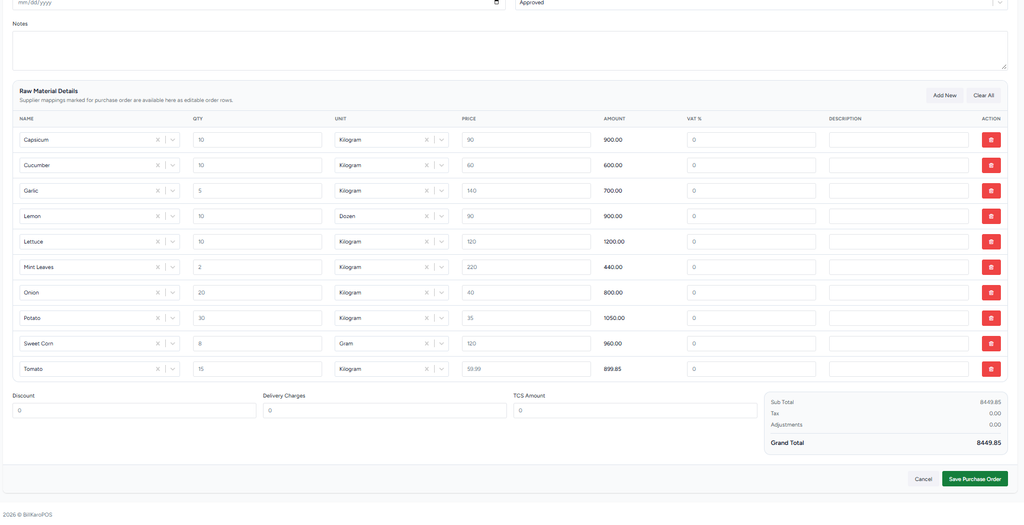
Screenshot 9: 9. Approve the purchase order
10. Open Purchases and create a purchase
Navigate to Suppliers → Purchasing → Purchases. Use Add Purchase to record goods received from a supplier. Select the supplier and, when applicable, select an approved PO or enter the PO number. Fill invoice date, invoice number, GST number, notes, and purchase status.
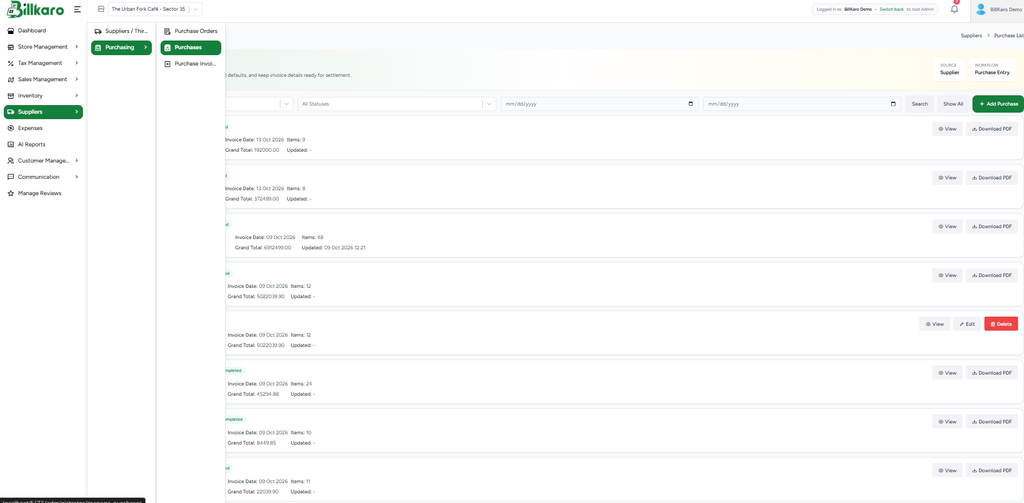
Screenshot 10: 10. Open Purchases and create a purchase
11. Enter received raw materials
Add or verify each raw-material row, including quantity, unit, price, tax percentage, and description. Check calculated amounts and the final total. Mark the purchase Completed only when the purchase record is ready to be finalized, then save it.
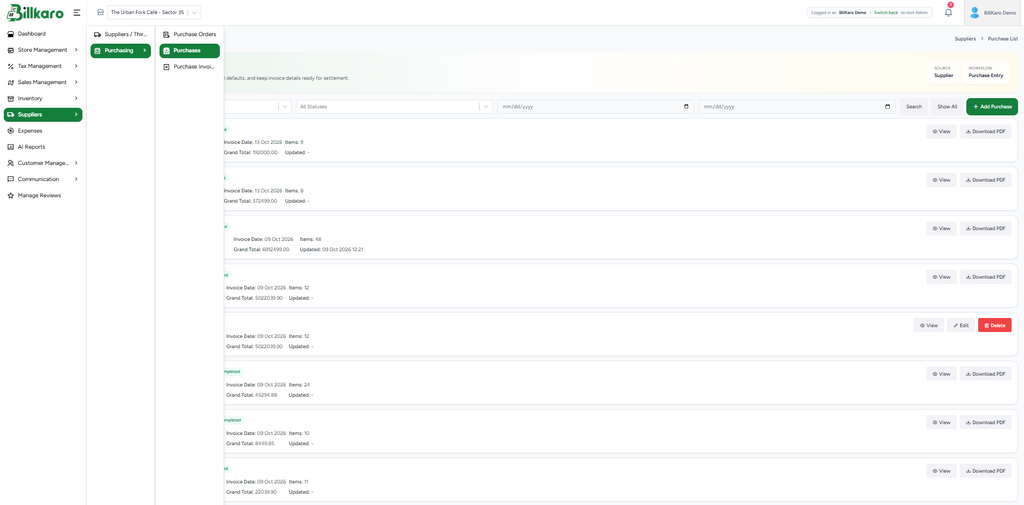
Screenshot 11: 11. Enter received raw materials
12. Verify the saved purchase
The Purchase List shows purchase number, supplier, status, PO number, invoice number/date, item count, subtotal, tax, and grand total. Use View to inspect a record and Download PDF to export the purchase document. Use filters and date ranges to locate a specific purchase.
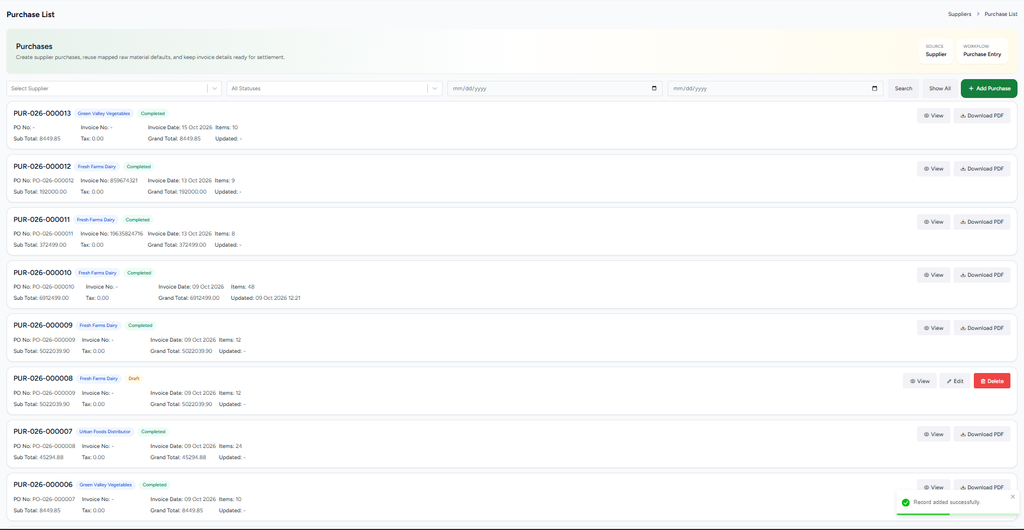
Screenshot 12: 12. Verify the saved purchase
13. Open Purchase Invoice Settlement
Navigate to Suppliers → Purchasing → Purchase Invoice Settlement. Choose the source type, supplier, and date range, then Search. Pending invoices for the selected supplier appear with invoice amount, paid amount, and remaining amount. Settlement history appears below the pending invoices.
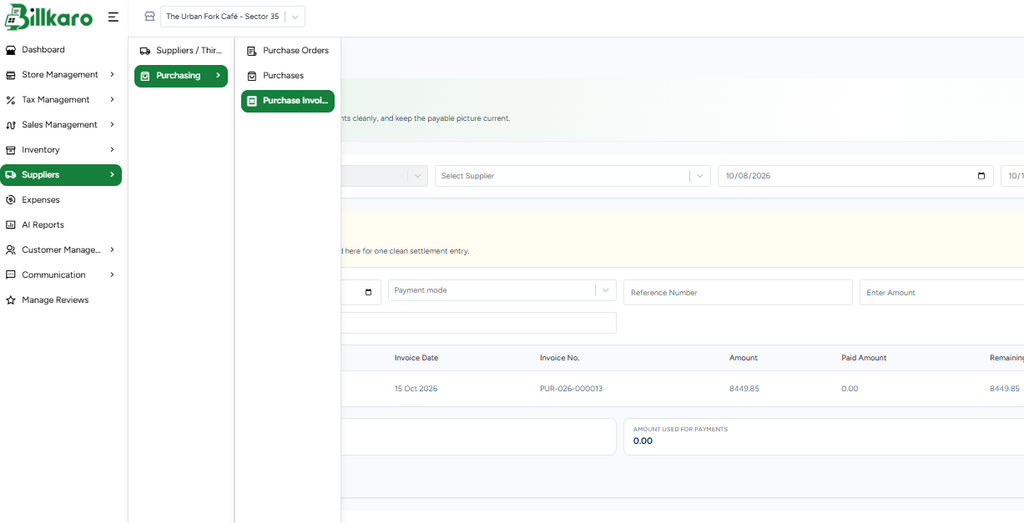
Screenshot 13: 13. Open Purchase Invoice Settlement
14. Enter payment details
For the selected supplier, enter the payment date and choose a payment mode such as Cash, Bank Transfer, UPI, Card, Cheque, or Other. Add a reference number and notes when applicable. Enter the amount to be paid, or use Pay in full to allocate the full remaining invoice amount.
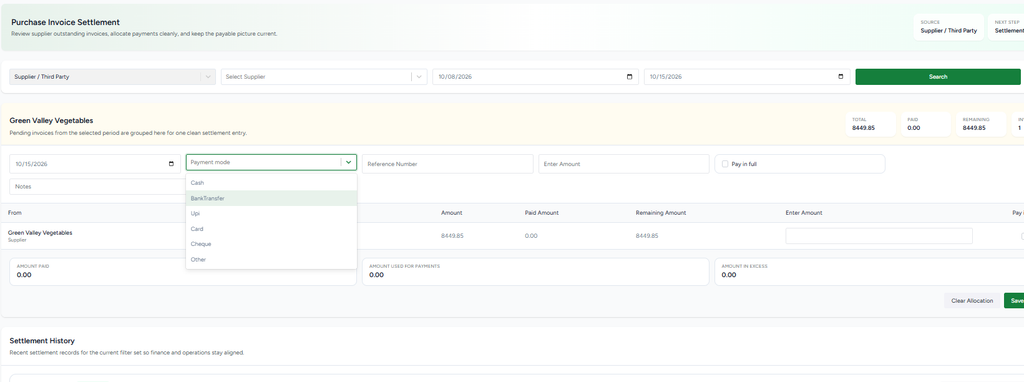
Screenshot 14: 14. Enter payment details
15. Allocate payment to invoices
Check the invoice rows and their remaining balances. Enter the amount against each invoice or select Pay in full. Review Amount Paid, Amount Used for Payments, and Amount in Excess before saving. Ensure the allocation does not exceed the intended payment or invoice balance.
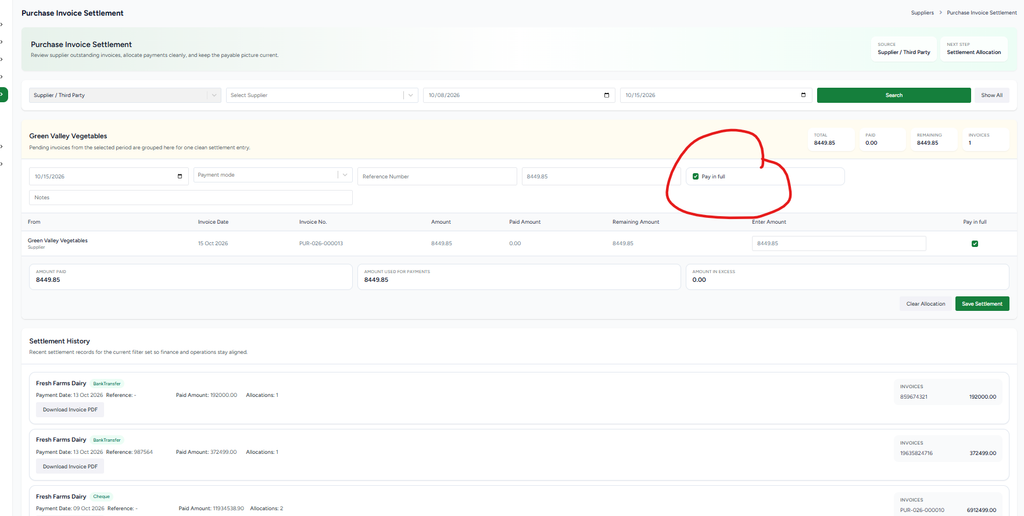
Screenshot 15: 15. Allocate payment to invoices
16. Confirm settlement history
After saving, verify that the settlement appears in Settlement History with the supplier, payment date, payment mode, reference, paid amount, and invoice allocations. If the invoice is fully paid, it should no longer appear in the pending-invoice section for the same filters.
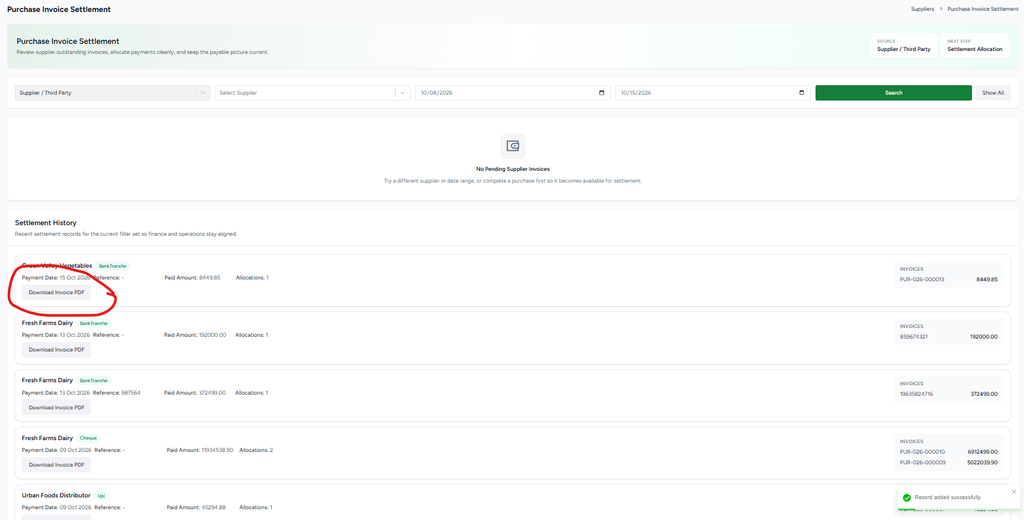
Screenshot 16: 16. Confirm settlement history
17. Download the invoice PDF
Use Download Invoice PDF in Settlement History when a copy is needed for records. Open the downloaded PDF and verify the store/supplier details, invoice number, item descriptions, quantities, unit prices, and total paid amount.
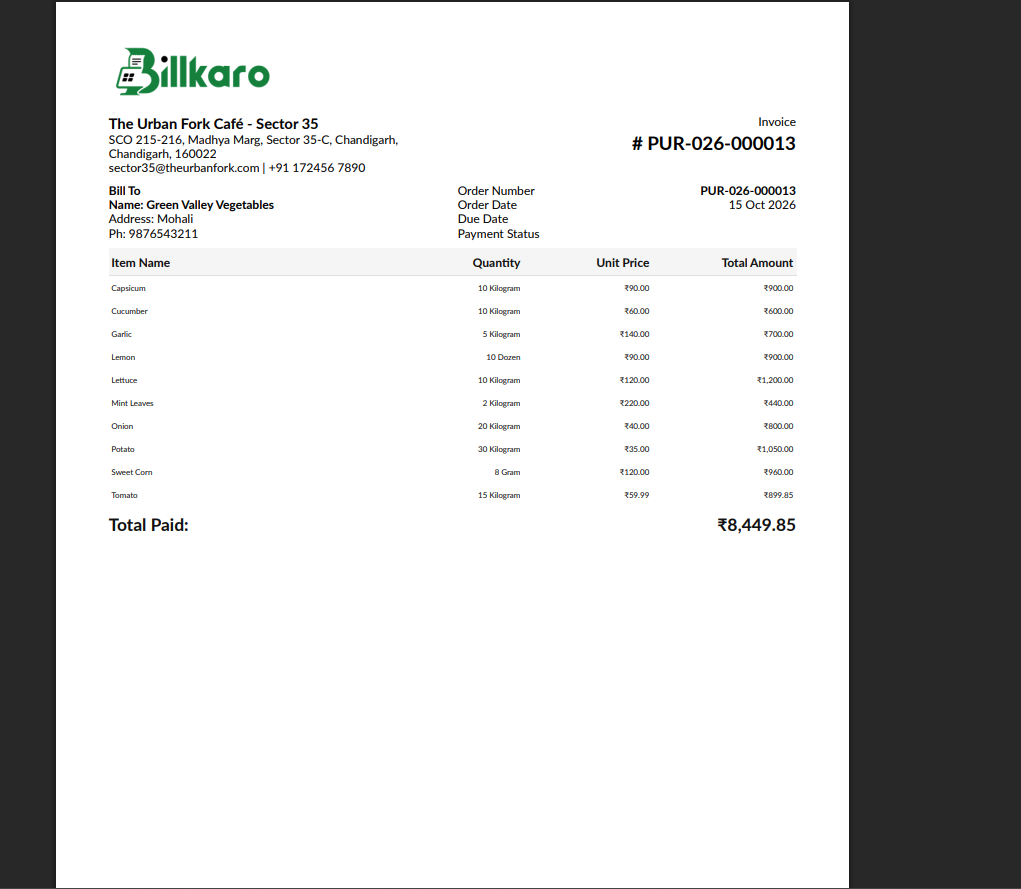
Screenshot 17: 17. Download the invoice PDF
Final verification checklist
☐ Supplier is active and has the correct type and contact/tax details.
☐ Supplier raw-material mappings and purchase defaults are correct.
☐ Purchase order has the correct supplier, items, quantities, units, prices, and total.
☐ Purchase order is approved before it is reused for a purchase.
☐ Purchase invoice number/date and received quantities match the supplier document.
☐ Purchase status is correct and the saved purchase is visible in the Purchase List.
☐ Settlement payment mode, date, reference, amount, and invoice allocation are correct.
☐ Settlement history displays the saved payment and invoice allocation.
☐ Downloaded invoice PDF has the expected supplier, items, and total.
Troubleshooting notes
If a supplier or raw material does not appear in a dropdown, confirm that it is active and that its supplier mapping / purchase flags are configured correctly.
If no invoice appears in settlement, review the selected supplier, source type, date range, purchase status, and whether the purchase has been saved as a completed purchase.
If an invoice still has a balance after settlement, review the allocated amount and the Remaining Amount shown on the invoice row.