
This document explains the complete Orders flow in BillKaro POS, including Running Tables, Completed Orders, Edit Order, Update Collection, Refund, Item/Full Order Cancellation, Wastage handling, and the Void / Cancelled Orders view.
Overall Flow
Orders → Running Tables / Completed Orders → Edit or Cancel → Edit details / Cancellation details → Collection or Refund (if applicable) → Versioned order state → Void / Cancelled Orders
BillKaro POS – Orders Module
1. Open Orders
Click the Orders option from the POS navigation menu. The Orders module opens with three main sections: Running Tables, Completed Orders, and Void / Cancelled Orders.
Screenshot – Step 1
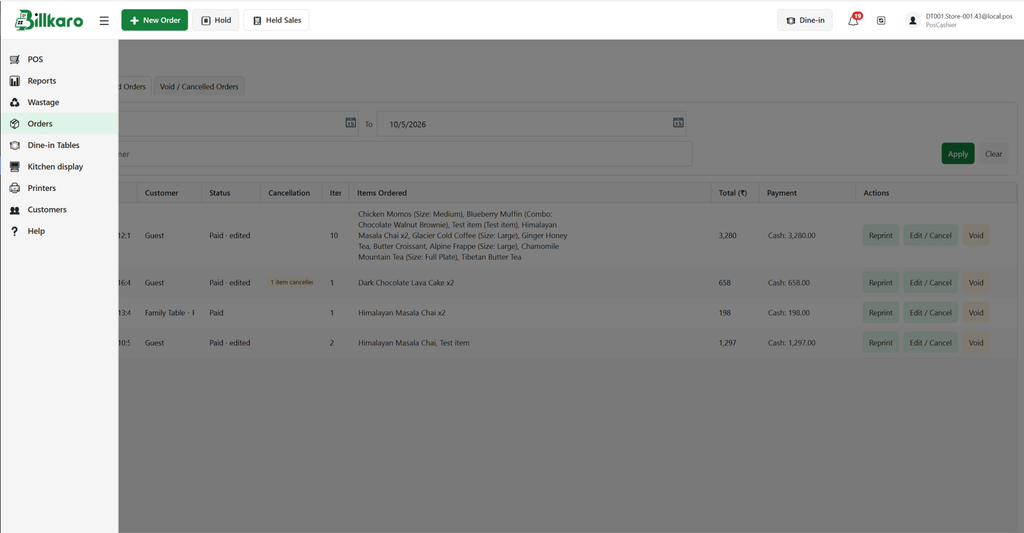
BillKaro POS – Orders Module
2. Running Tables
Running Tables shows currently active dine-in tables/orders. It displays the area, table, opened time, current draft total, and available actions. Open an active table to continue working on its order.
Screenshot – Step 2
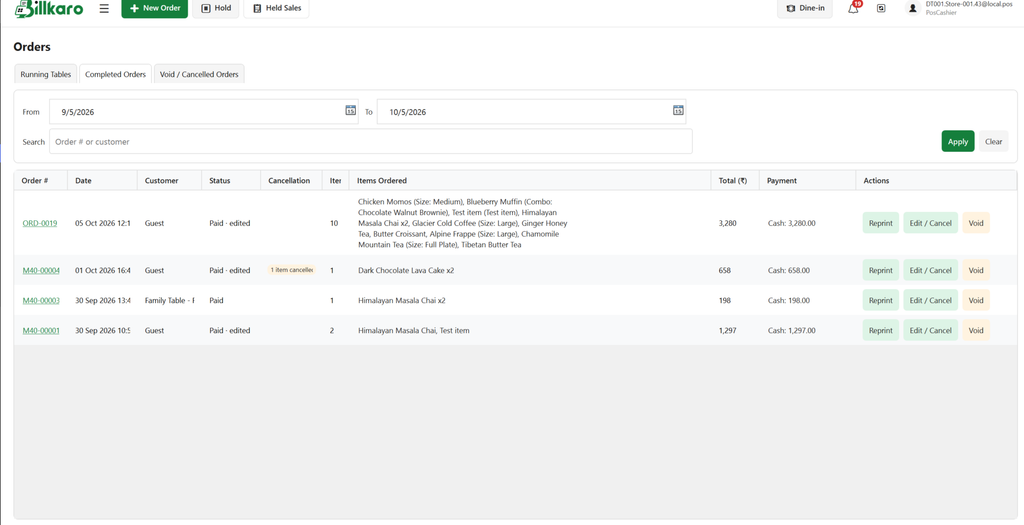
BillKaro POS – Orders Module
3. Completed Orders
Completed Orders shows completed/settled orders. Users can filter orders by From and To dates and search by order number or customer.
Screenshot – Step 3
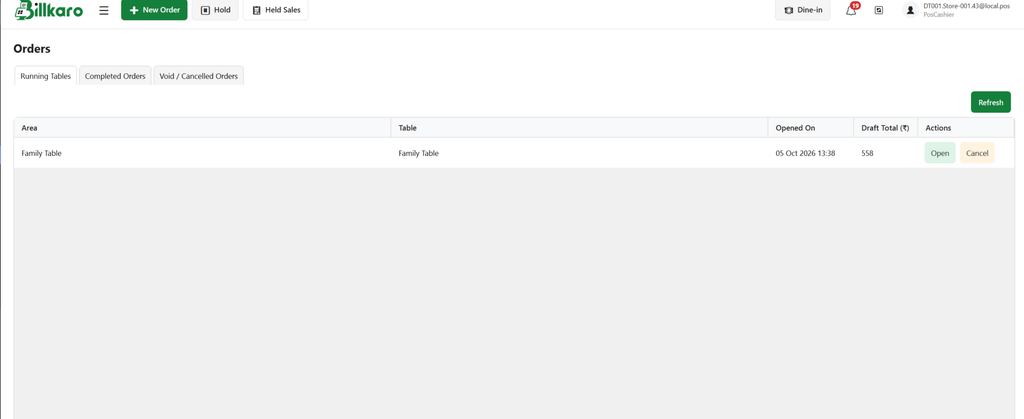
BillKaro POS – Orders Module
4. Edit / Cancel Order
Click Edit / Cancel on an order. A child window opens with two actions: Edit Order and Cancel Order. Select the required operation.
Screenshot – Step 4
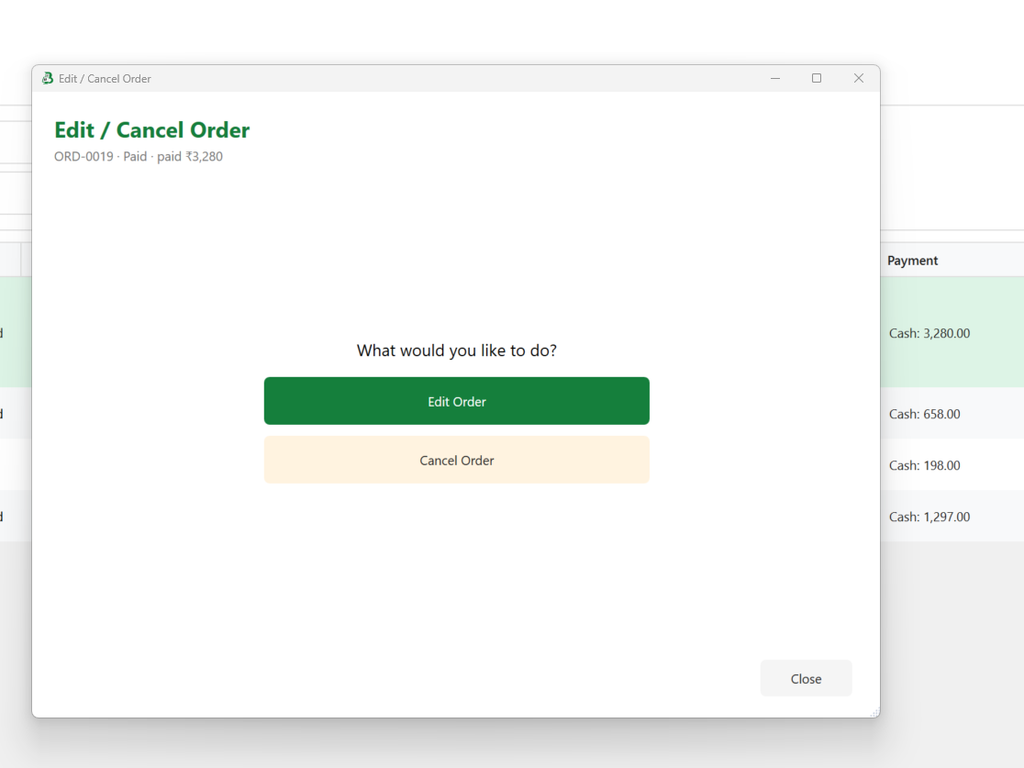
BillKaro POS – Orders Module
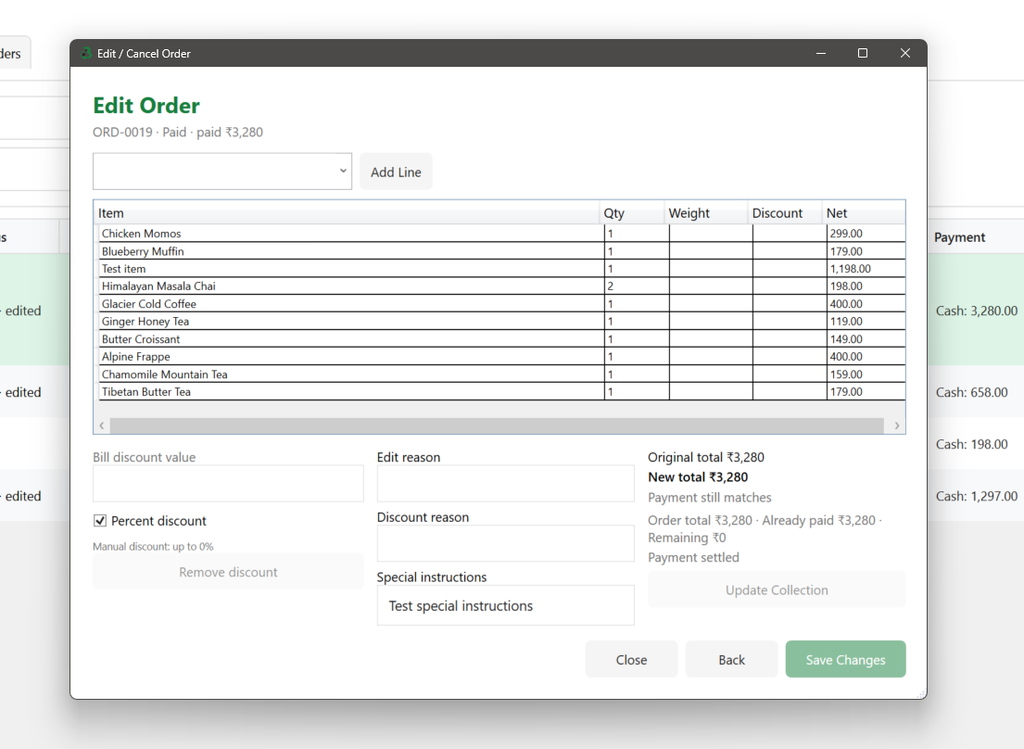
5. Edit Order
Edit Order allows the order to be modified. Existing items are displayed with quantity, weight, discount, and net amount. The order can be updated by adding items, changing quantities, applying permitted discounts, and adding/editing special instructions.
Screenshot – Step 5
BillKaro POS – Orders Module
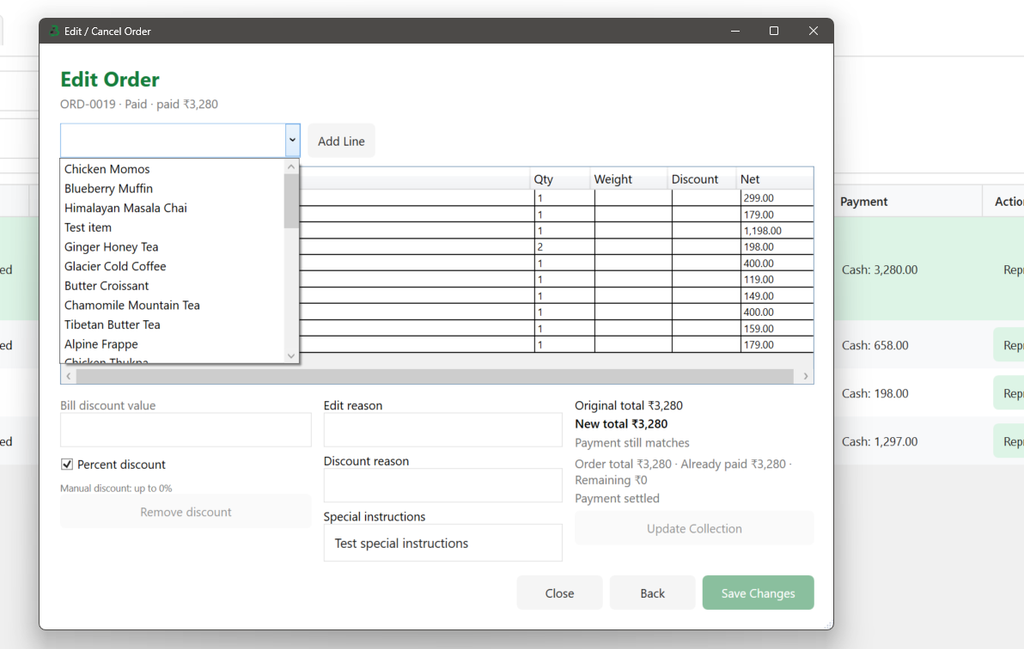
6. Add New Item / Change Quantity
Click Add Line to open the menu-item dropdown and add a new item to the order. Existing item quantities can also be increased or decreased. The Edit Reason is required when saving an order edit.
Screenshot – Step 6
BillKaro POS – Orders Module
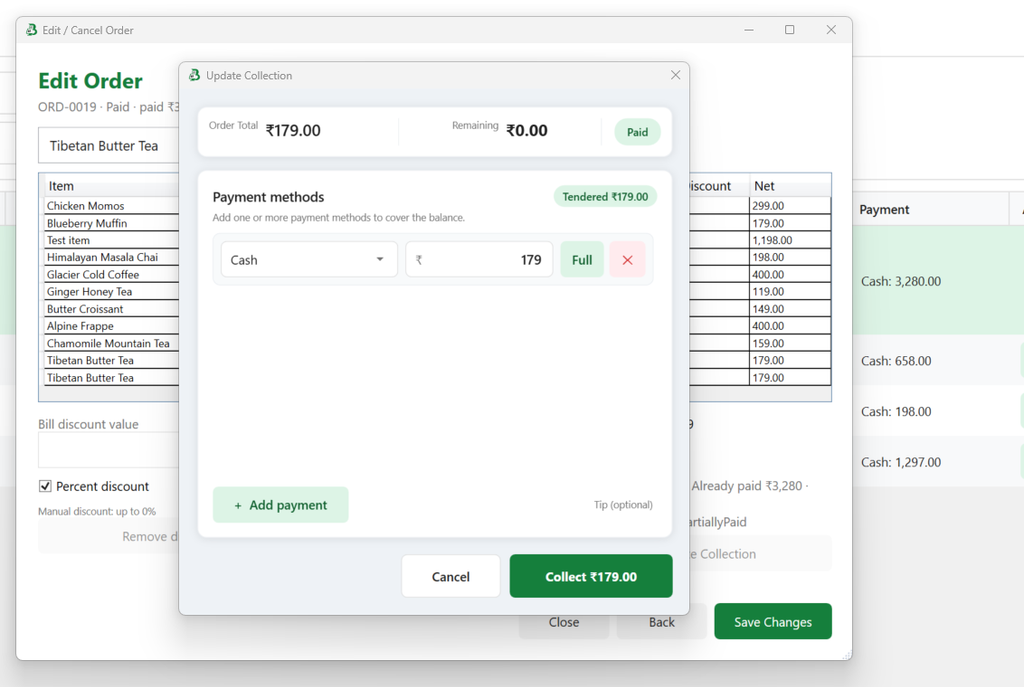
7. Update Collection After Edit
After Save Changes, Update Collection becomes available when the order total changes. If the edited total is higher, the system shows the additional amount to collect. If the total is lower and payment was already made, the system shows the amount to refund.
Screenshot – Step 7
BillKaro POS – Orders Module
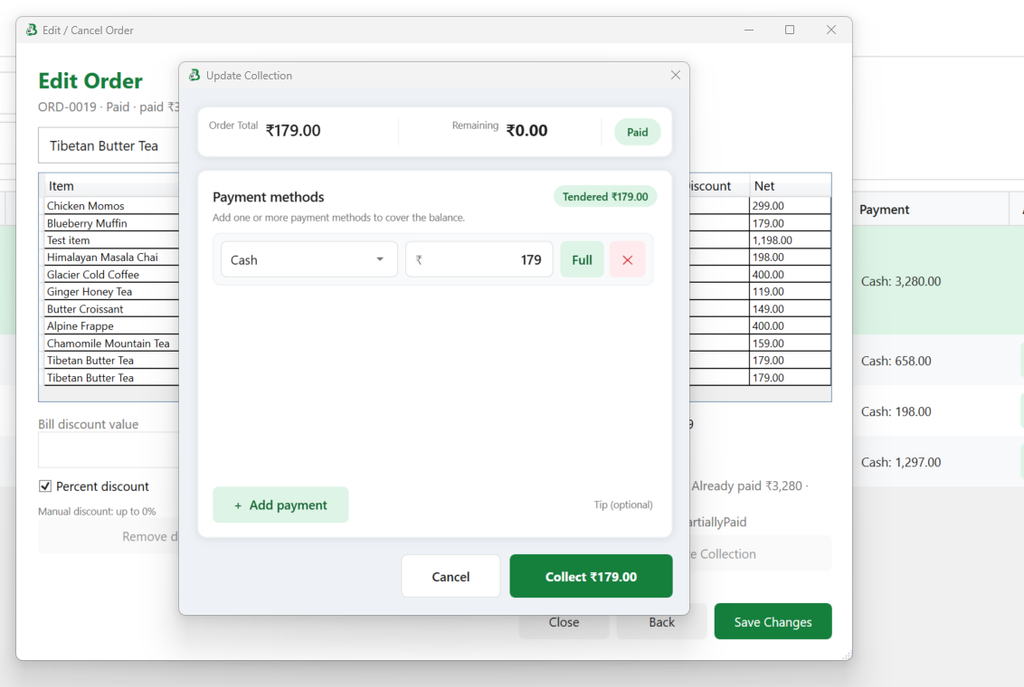
8. Edit Version / Collection Status
Each saved edit creates a new order version, such as V1 for the first edit and V2 for the second edit. The updated collection/refund information is visible in both POS and Portal so the payment state remains consistent.
Screenshot – Step 8
BillKaro POS – Orders Module
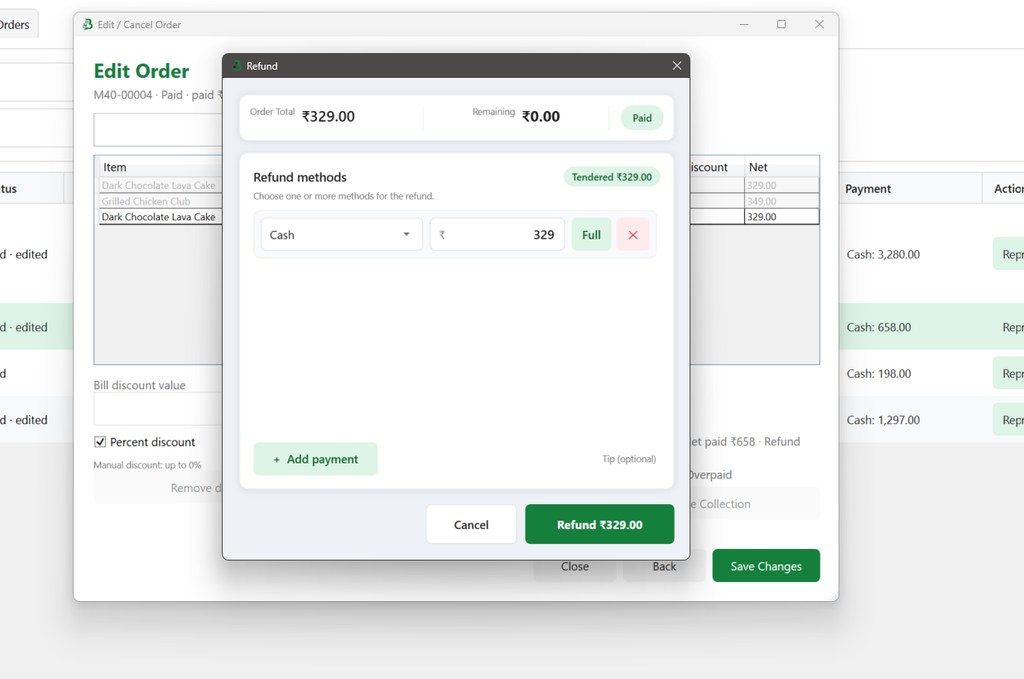
9. Refund Payment
When an edit reduces the paid order total, the Refund Payment flow allows the required refund amount to be returned using the available payment method(s).
Screenshot – Step 9
BillKaro POS – Orders Module
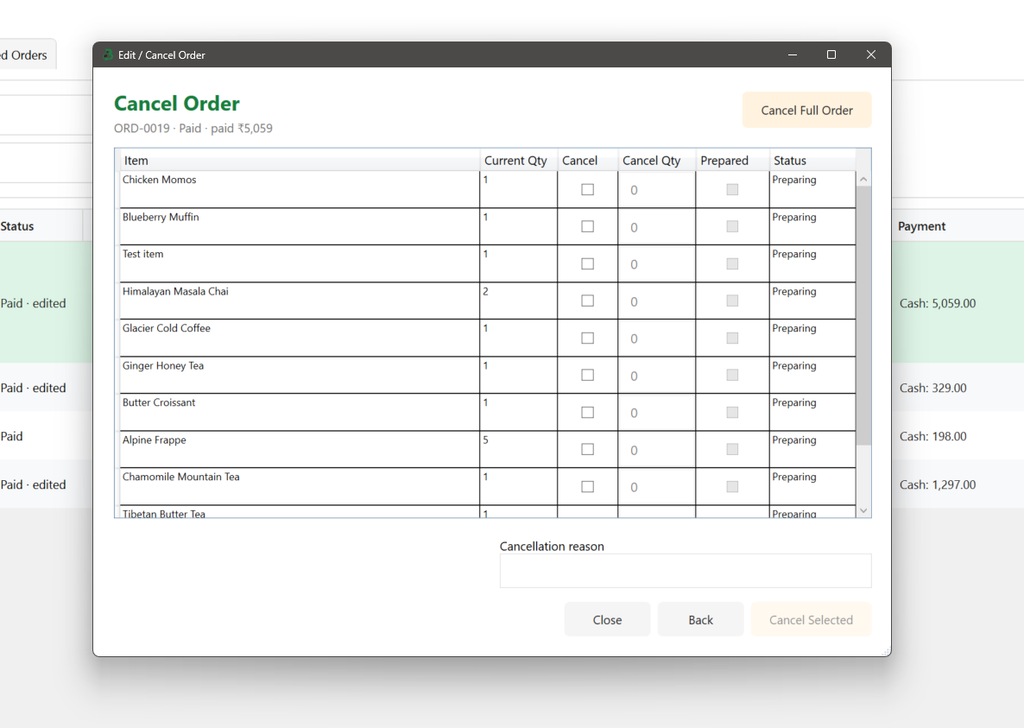
10. Cancel Order – Item or Full Order
Cancel Order supports both partial cancellation of selected items and full-order cancellation. Select the required item(s) and cancellation quantity, or use Cancel Full Order to select the complete order.
Screenshot – Step 10
BillKaro POS – Orders Module
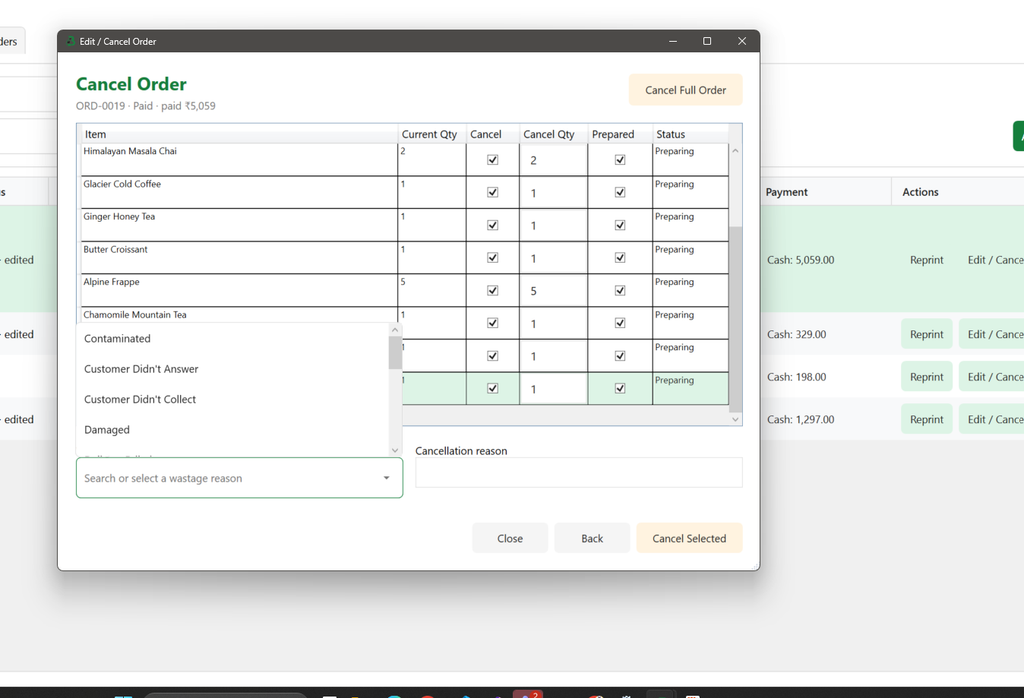
11. Cancellation & Wastage Reason
For prepared items, cancellation requires a wastage reason because the prepared quantity/material usage must be accounted for. A cancellation reason is also required. The related stock/wastage entry is synchronized to Portal and remains visible in the POS/Windows flow.
Screenshot – Step 11
BillKaro POS – Orders Module
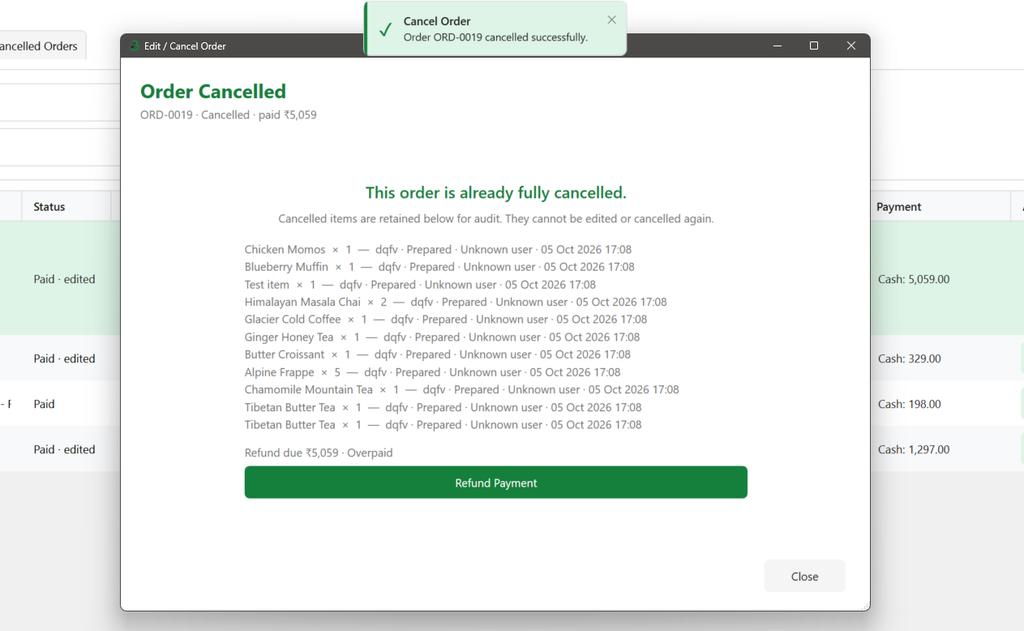
12. Order Cancelled & Refund Option
After Cancel Selected / full cancellation succeeds, the order is marked Cancelled. For a paid/prepared order, the system shows the Refund Payment option. Refund is optional at this stage. Once the cancellation window is closed, payment/refund editing is no longer available from that cancellation screen.
Screenshot – Step 12
BillKaro POS – Orders Module
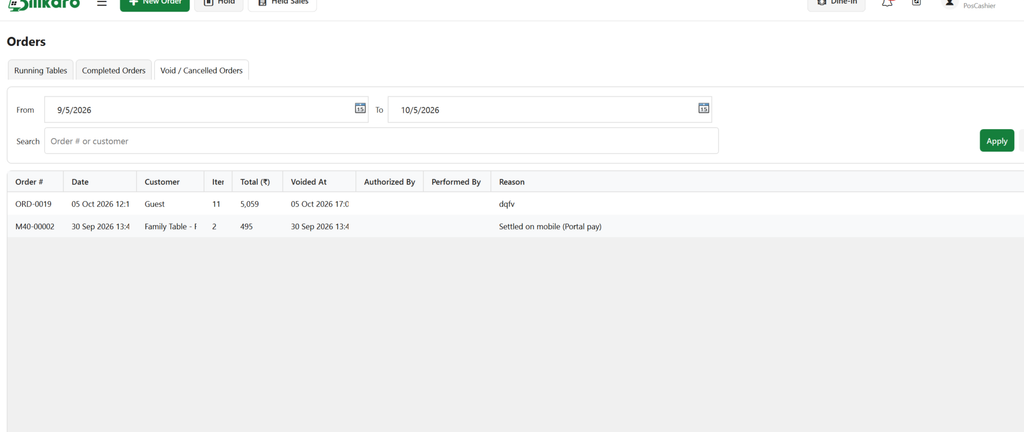
13. Void / Cancelled Orders
Cancelled or voided orders are moved to the Void / Cancelled Orders section. This view provides order number, date, customer, item count, total, voided time, authorization/performed-by details, and the cancellation/void reason for audit and reference.
Screenshot – Step 13
BillKaro POS – Orders Module
Important Business Rules
Completed Orders can be searched and filtered by date.
Edit Reason is required when saving an edited order.
Discount application is permission-based; users without the required Portal discount permission cannot apply/edit the discount.
Changing the order total after payment can trigger either Update Collection or Refund Payment.
Each saved edit creates a new order version (V1, V2, etc.).
Cancellation supports both selected-item cancellation and full-order cancellation.
Prepared cancelled items require wastage handling and a wastage reason so the related stock/material usage can be accounted for.
Cancellation reason is required for the cancellation action.
Refund after cancellation is optional for a paid/prepared order; once the cancellation screen is closed, payment/refund editing is not available from that screen.
Cancelled/voided orders remain available in Void / Cancelled Orders for audit and reference.
Order changes, collection/refund information, and cancellation/wastage state are synchronized so the POS/Windows and Portal views remain consistent.