
1. Reports Feature
The Reports section in BillKaro POS allows the cashier or authorized user to review sales performance and understand which items were sold, how many items were sold, and which products are performing best.
2. Where to Open Reports
From the POS screen, open the left navigation menu and click Reports.
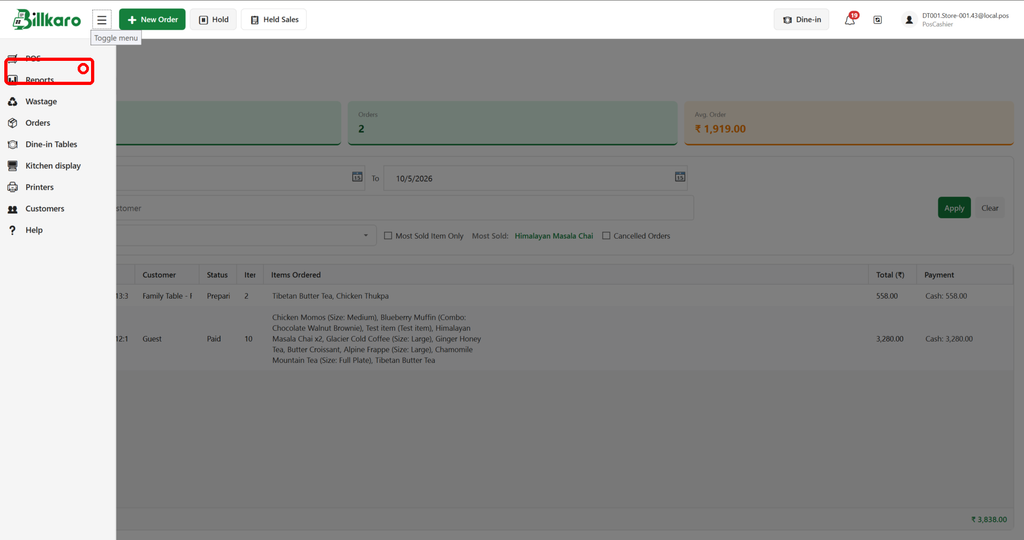
Image 1 – Reports option highlighted in the POS navigation.
3. Reports Working Flow
1. Open the POS application.
2. Click the menu (☰) button to open the navigation panel.
3. Select Reports.
4. The Reports page opens with the available reporting views.
5. Use the date or business-date filters to select the required reporting period.
6. Choose the required report view, such as Day Sales or Day Summary.
7. Apply filters when required, such as category, menu item, measurement, or order/customer search.
8. Review the results and sales totals.
4. Day Sales Report
Day Sales provides an order-level view of sales for the selected period. It can be used to check total sales, number of orders, average order value, customers, order status, items ordered, payment details and grand total.
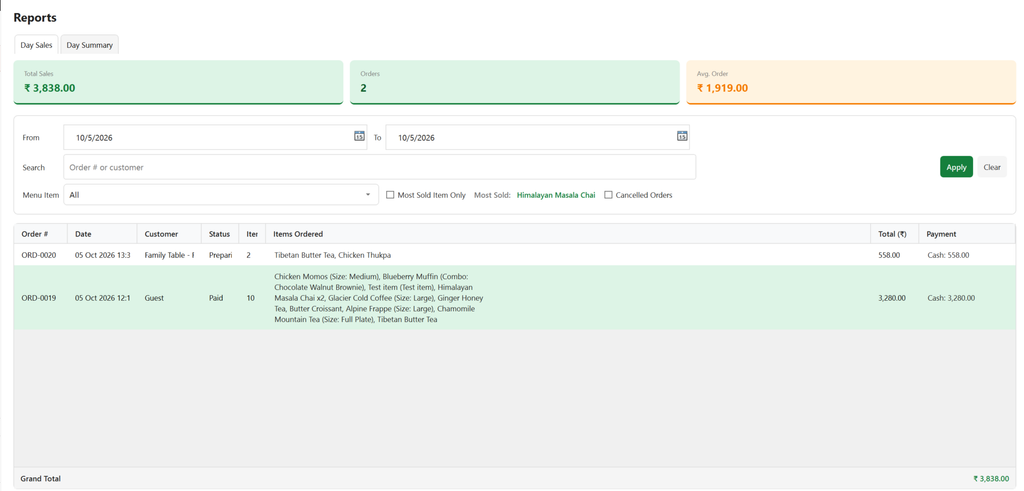
Image 2 – Day Sales report with date, search and menu-item filters.
5. Day Summary / Item-wise Report
Day Summary provides item-level sales analysis. It shows which menu items were sold, quantity sold, unit/measurement, remaining quantity where available, net sales and order count. This helps identify the most-selling items and compare item performance.
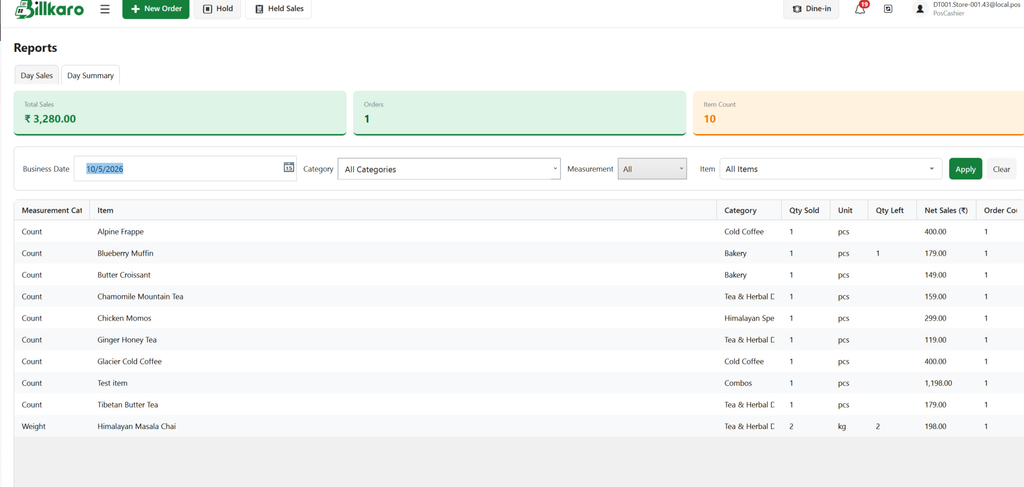
Image 3 – Day Summary showing item-wise sales and quantities.
6. Filters and Analysis
Date / Business Date – select the required reporting date or period.
Search – find an order or customer in the sales report.
Menu Item – filter sales for a particular item.
Category – compare or review items category-wise.
Measurement – review count/weight-based item sales where applicable.
Most Sold Item – identify the best-selling item for the selected report.
Cancelled Orders – include cancelled orders when the report requires them.
7. Real-world Example
A cafe manager wants to know how many Chicken Momos were sold today and which item was the most popular. They open Reports → Day Summary, select the business date, and use the category or item filter. The report then shows the quantity sold, measurement, sales value and order count for the selected items.
8. Key Benefits
Quickly check daily sales and order performance.
See item-by-item quantities and sales.
Identify the most-selling items.
Analyze sales category-wise.
Use filters to narrow the report to a specific date, item or category.
Support stock, menu and business decisions using actual POS sales data.
9. Important Behavior
Reports are read-only analysis views. Changing filters only changes the displayed report results; it does not modify orders or menu data.