
1. Purpose
This document explains how a customer’s wallet balance is updated from POS sales and how the same customer’s outstanding amount or extra payment is represented in the Portal Customer Wallet transaction history.
2. Main concepts
Negative wallet balance (−): the customer has an outstanding amount to pay.
Positive wallet balance (+): the customer has paid more than the amount currently due, leaving an advance balance.
Zero balance: there is no outstanding amount or unused advance balance.
The wallet transaction history provides the order reference and the before/after balance for each transaction.
3. End-to-end example
Visit 1 — Customer does not pay for the order
1. Create a POS order for ₹489.
2. The customer pays ₹0 at checkout.
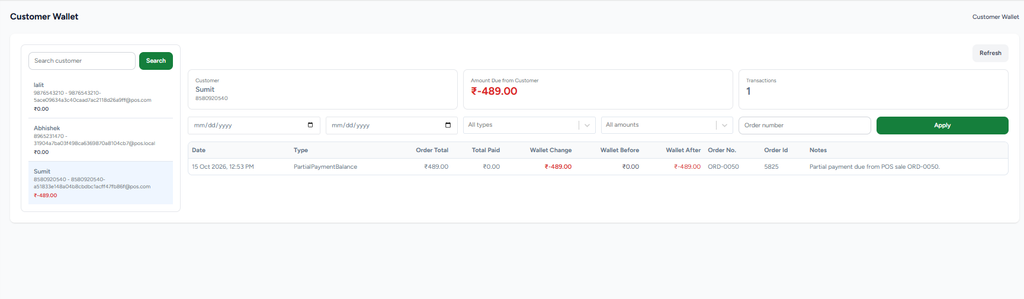
3. The unpaid ₹489 is recorded as a PartialPaymentBalance transaction.
4. Customer Wallet shows −₹489, representing the amount due from the customer.
5. The transaction row records the order total (₹489), total paid (₹0), wallet change (−₹489), wallet before (₹0), and wallet after (−₹489).
Visit 2 — Customer pays the previous due and pays extra
1. Search for and select the same customer in POS.
2. Collect the previous outstanding amount of ₹489 and take payment for the new order.
3. If the combined payment is more than the total amount due, retain the extra amount as advance wallet credit.
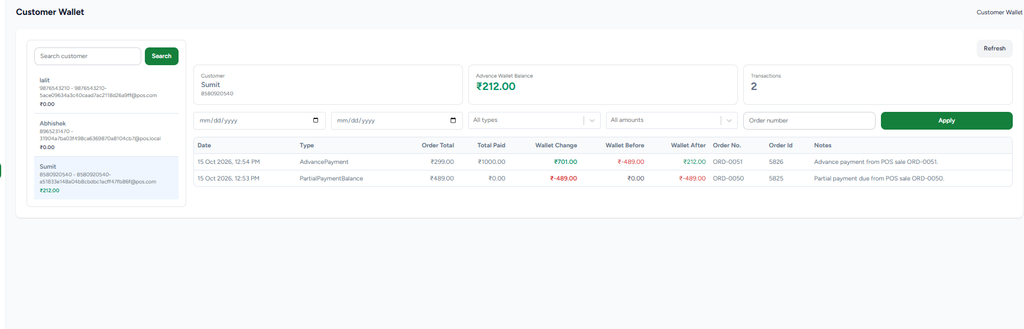
4. In the example screenshot, the wallet moves from −₹489 to +₹212 after an AdvancePayment transaction.
5. The transaction list keeps both entries: the previous PartialPaymentBalance (−₹489) and the new AdvancePayment (+₹701), resulting in a final wallet balance of +₹212.
Calculation shown in the example: −₹489 + ₹701 = +₹212. The ₹701 wallet change represents the amount credited after accounting for the prior negative balance.
4. Portal verification flow
Go to Customer Management → Wallet.
Search by customer name, phone number, or other available customer details.
Select the customer from the left panel.
Review the summary card: Amount Due from Customer or Advance Wallet Balance.
Review Transactions and use the date range, transaction type, amount filter, or order number filter as needed.
Select Apply to run the filters; select Refresh to reload the wallet data.
Confirm order number, order ID, order total, total paid, wallet change, wallet before, wallet after, and notes.
5. Import customer contacts
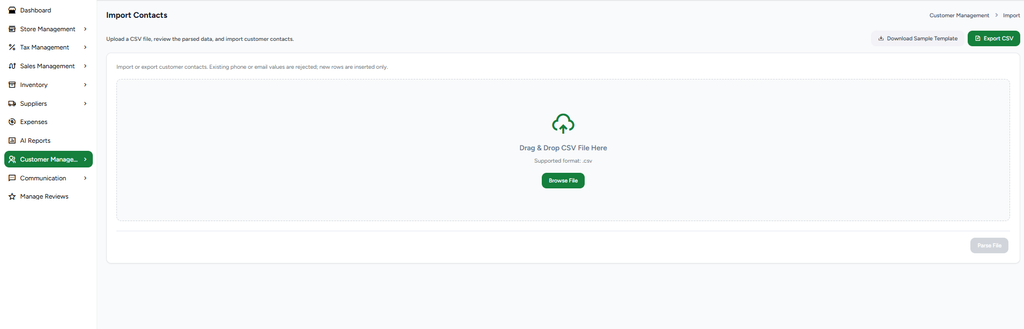
From Customer Management, select Import. Download the sample CSV template, complete it, upload the CSV, and select Parse File. Review the parsed rows before importing. Use Export CSV when a contact export is required. According to the page guidance, existing phone or email values are rejected and new rows are inserted only.
6. Screenshots and flow notes
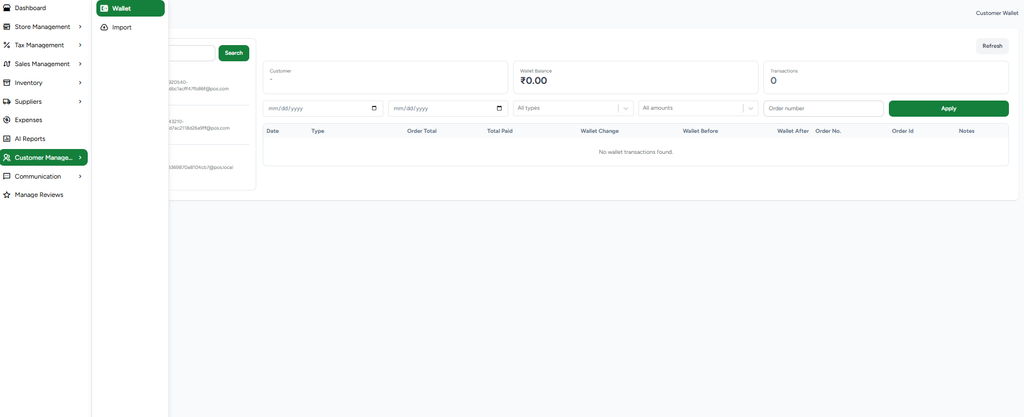
Screenshot 1: Customer Wallet page and customer selection
Open Customer Management → Wallet. Search for a customer and select the matching record from the left-side customer list. The selected customer’s wallet balance and transaction history appear on the right.
Screenshot 2: First visit: unpaid order creates a negative wallet balance
Example: the customer places an order worth ₹489 and pays ₹0. The unpaid amount of ₹489 is recorded as a PartialPaymentBalance transaction. The wallet shows −₹489, meaning the customer owes ₹489. The transaction history includes the order number, order ID, order total, total paid, wallet change, wallet before/after, and notes.
Screenshot 3: Second visit: payment plus a new purchase creates a positive balance
When the same customer returns, they pay the previous outstanding ₹489 and make a new purchase. If their total payment exceeds the amount due for the previous order and the new order, the extra amount is added to the wallet. In the example shown, the wallet changes from −₹489 to +₹212. The transaction history records the AdvancePayment and the earlier PartialPaymentBalance transaction.
Screenshot 4: Import customer contacts
The Import option opens Import Contacts. Download the sample CSV template, fill in customer contact details, and upload the CSV using Browse File or drag and drop. Select Parse File to review the parsed data before importing. Export CSV can be used to export customer contacts. Existing phone or email values may be rejected; the screen indicates that new rows are inserted only.
7. checklist
☐ A customer with a ₹489 unpaid POS order shows a −₹489 wallet balance.
☐ The unpaid transaction is marked as PartialPaymentBalance and linked to the correct order.
☐ When the customer returns, the prior due is collected along with the new order payment.
☐ Any extra payment is reflected as a positive advance wallet balance.
☐ The example sequence correctly results in −₹489 + ₹701 = +₹212.
☐ Wallet transaction history displays correct before/after balances and order references.
☐ Customer search, filters, Apply, and Refresh work as expected.
☐ Customer contact import supports CSV upload and parsed-data review.
Important validation note
Use the wallet summary and transaction rows together when validating balances. A negative value represents an amount due; a positive value represents available advance credit. The example figures in this document are based on the provided screenshots.