
Portal configuration → permission check → POS visibility
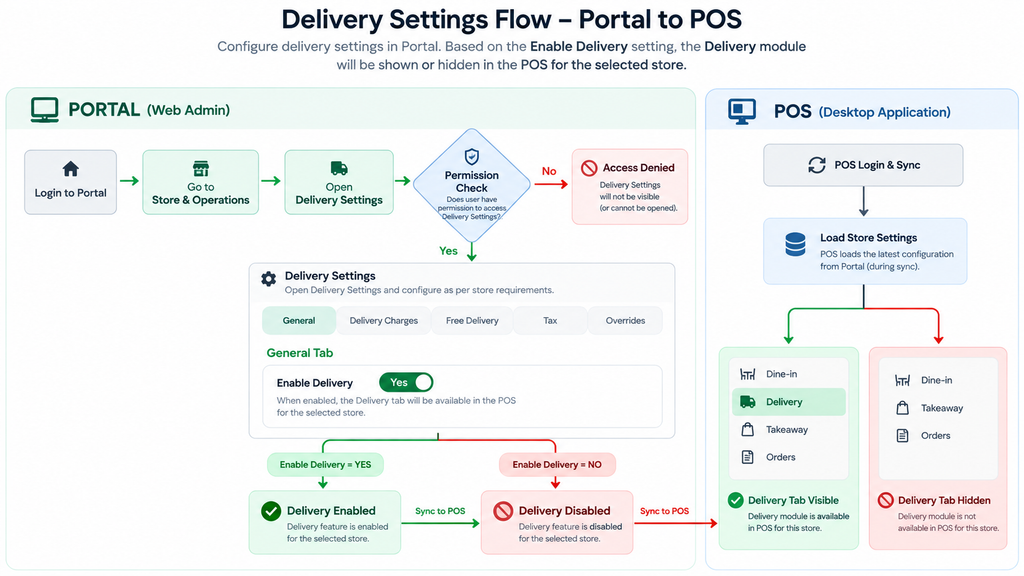
Figure 1. Delivery Settings flow from Portal to POS.
1. Flow Overview
User logs in to the BillKaro Portal.
Navigate to Store & Operations → Delivery Settings.
Access to Delivery Settings is permission-based. Users without the required permission should not be able to access/configure this page.
If permission is available, configure the store’s delivery settings.
The General tab contains the main Enable Delivery switch.
When Enable Delivery = YES, the Delivery module/tab is available on the Windows POS for the selected store after the store configuration is synchronized.
When Enable Delivery = NO, the Delivery module/tab is hidden on the Windows POS for the selected store.
2. Portal Navigation
Store & Operations
Delivery Settings
Delivery Settings should be treated as a store-level configuration. The selected store’s setting controls whether Delivery is exposed in the POS.
3. Permission-Based Access
| Condition | Portal Result | Expected Behaviour |
| Permission = Yes | Delivery Settings accessible | User can open and configure Delivery Settings. |
| Permission = No | Delivery Settings restricted | User cannot access/configure Delivery Settings. |
4. Delivery Settings Sections
| Section | Purpose |
| General | Enable/disable delivery and configure general delivery behaviour. |
| Delivery Charges | Configure charge method such as Free, Fixed amount, Distance slabs, Zone (pincode), or External provided (aggregator). |
| Free Delivery | Configure free-delivery eligibility such as minimum order amount and maximum distance. |
| Tax | Configure whether delivery charges are taxable and related tax behaviour. |
| Overrides | Control whether staff can override delivery charges and whether an override reason is required. |
5. Enable Delivery Decision
Enable Delivery = YES → Delivery is enabled for the selected store → configuration is synchronized to POS → Delivery tab/module is visible on POS.
Enable Delivery = NO → Delivery is disabled for the selected store → configuration is synchronized to POS → Delivery tab/module is hidden on POS.
6. POS Behaviour
POS loads the latest store configuration during login/synchronization.
The Delivery visibility decision must use the selected store’s Enable Delivery value.
If the value is enabled, staff can see and use the Delivery module/tab according to their other POS permissions and configuration.
If the value is disabled, the Delivery module/tab must not be shown on POS.
7. Acceptance Criteria / Test Cases
| Test ID | Test Case | Result |
| TC-01 | User with Delivery Settings permission can open Delivery Settings. | Pass/Fail |
| TC-02 | User without Delivery Settings permission cannot access Delivery Settings. | Pass/Fail |
| TC-03 | Enable Delivery = YES → save settings → sync/login POS → Delivery tab is visible. | Pass/Fail |
| TC-04 | Enable Delivery = NO → save settings → sync/login POS → Delivery tab is hidden. | Pass/Fail |
| TC-05 | Changing YES → NO removes/hides Delivery on POS after updated store configuration is received. | Pass/Fail |
| TC-06 | Changing NO → YES exposes Delivery on POS after updated store configuration is received. | Pass/Fail |
8. Short Flow
Portal → Store & Operations → Delivery Settings → Permission Check → Enable Delivery? → Sync Store Settings → POS Delivery Visible / Hidden
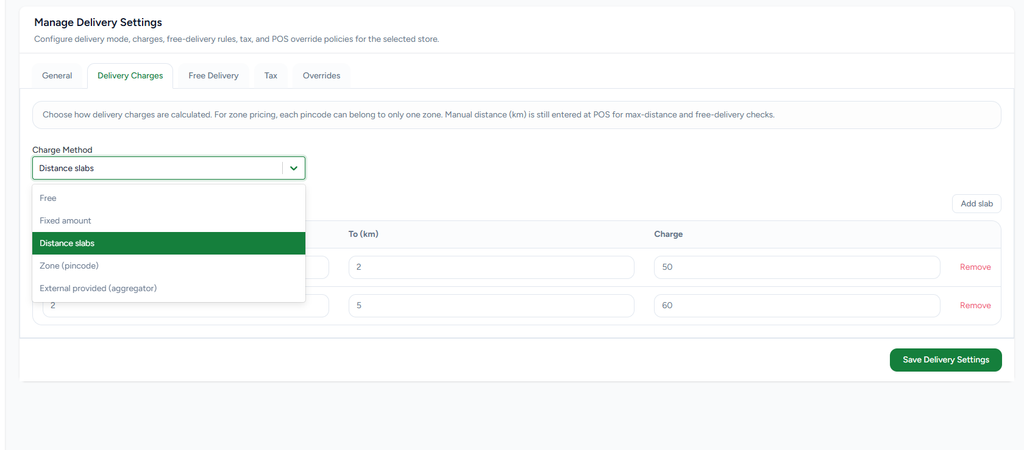
3. Delivery Charges – Charge Method
The Delivery Charges tab defines how delivery fees are calculated. The Charge Method supports multiple business models so each store can choose the appropriate delivery pricing strategy.
Free – No delivery charge is applied.
Fixed amount – A single fixed delivery charge is configured for every eligible delivery order.
Distance slabs – Delivery charge is based on the customer’s delivery distance.
Zone (pincode) – Delivery charge can be configured by delivery zones/pincodes.
External provided (aggregator) – Delivery charge can be supplied by an external delivery/aggregator service.
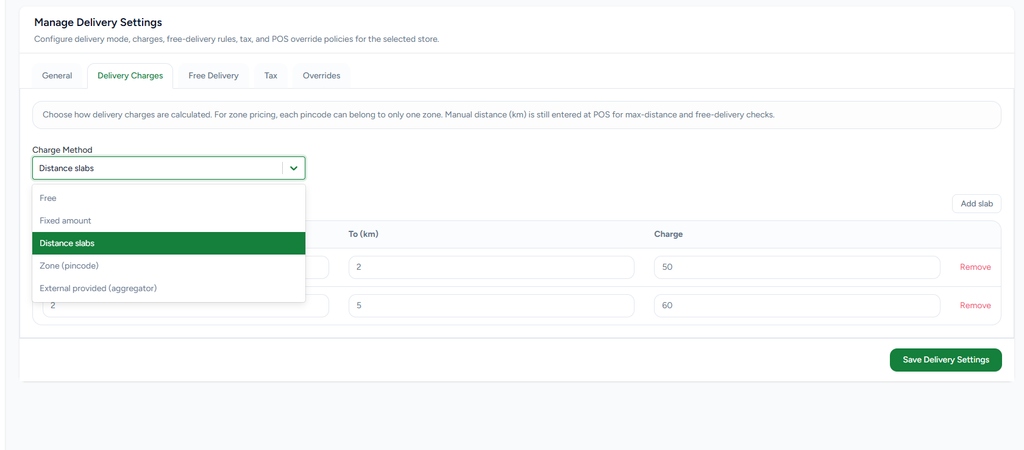
4. Fixed Amount Delivery Charge
When Charge Method is set to Fixed amount, the store enters one Fixed Delivery Charge. The configured amount is used as the delivery fee for eligible delivery orders.
Select Charge Method → Fixed amount.
Enter the Fixed Delivery Charge.
Save Delivery Settings.
POS uses the configured fixed amount when creating a delivery order.
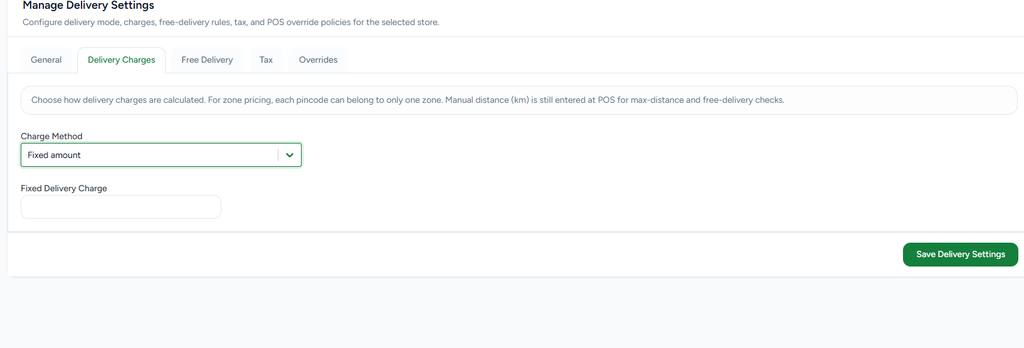
5. Distance Slab Delivery Charge
Distance slabs allow the store to charge different delivery fees based on distance. Each slab defines a From (km), To (km) and Charge value.
Example: 0–2 km → ₹50.
Example: 2–5 km → ₹60.
Add slab to create additional distance ranges.
Avoid overlapping or invalid distance ranges.
POS uses the manually entered delivery distance to determine the applicable slab.
6. Zone / Pincode Delivery
Zone (pincode) pricing is used when delivery charges are maintained by geographical delivery zones. Each pincode should belong to only one zone so that the POS can determine a single applicable delivery charge.
Select Charge Method → Zone (pincode).
Create the required delivery zones.
Map customer pincodes to the appropriate zone.
Configure the charge for each zone.
POS applies the zone-based charge when the customer’s delivery location matches a configured pincode.
7. Free Delivery Rules
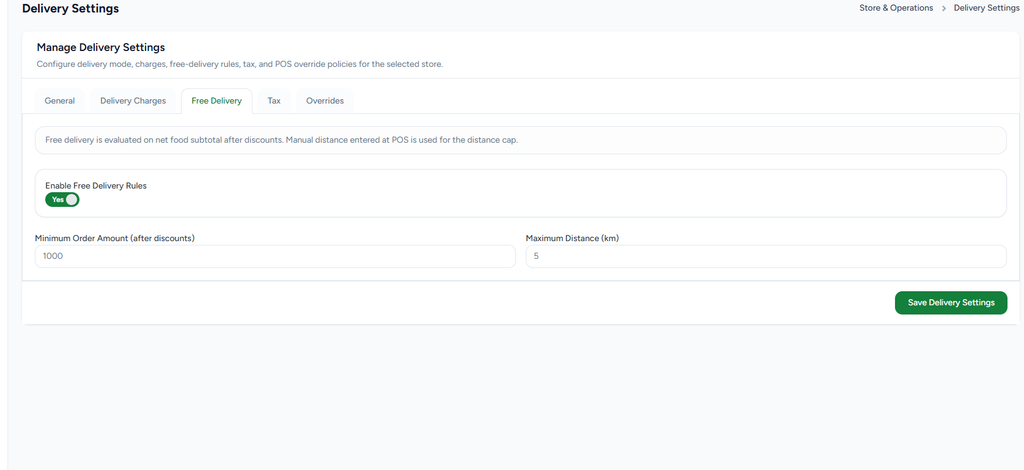
The Free Delivery tab allows the store to define conditions under which the delivery charge becomes zero. Free delivery is evaluated using the net food subtotal after discounts and the configured maximum distance.
Enable Free Delivery Rules = Yes to activate the rule.
Minimum Order Amount (after discounts) defines the order value required for free delivery.
Maximum Distance (km) defines the distance limit for free delivery.
Both configured conditions should be satisfied for free delivery to apply.
8. Delivery Tax Configuration
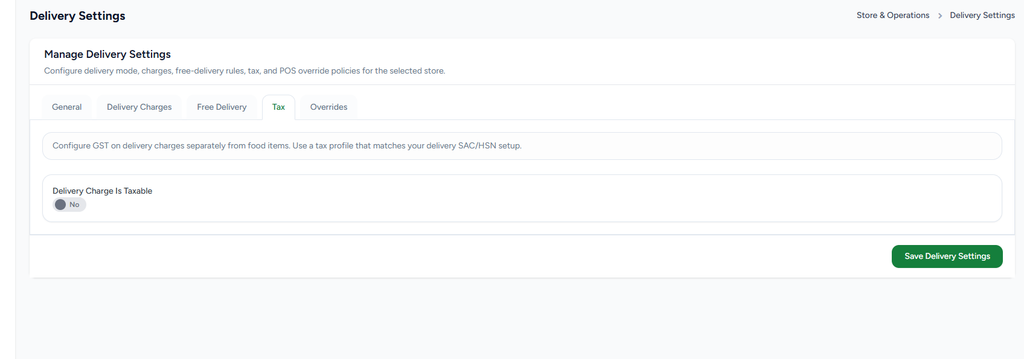
The Tax tab controls whether the delivery charge itself is taxable. This is configured separately from the tax treatment of food/menu items.
Delivery Charge Is Taxable = No: no tax is applied to the delivery charge.
Delivery Charge Is Taxable = Yes: the delivery charge is treated as taxable and the configured tax setup should be used.
Use a tax profile that matches the applicable delivery SAC/HSN and GST setup.
9. Delivery Charge Overrides
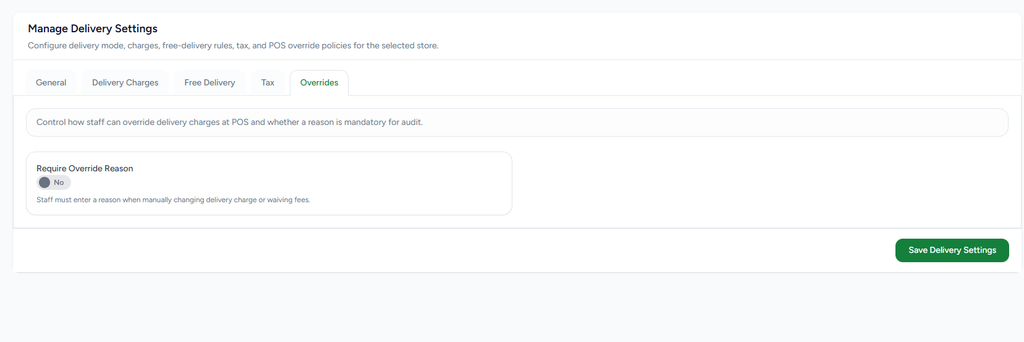
The Overrides tab controls whether staff can manually change or waive delivery charges at POS and whether an audit reason is required.
Require Override Reason = No: staff can override the delivery charge without entering a reason.
Require Override Reason = Yes: staff must enter a reason when manually changing the delivery charge or waiving the fee.
The reason supports auditability of manual delivery-charge changes.
10. End-to-End Delivery Flow
Portal: Open Store & Operations → Delivery Settings.
Permission: Confirm the user has the required delivery permission.
Enable Delivery: Set Enable Delivery = Yes to expose Delivery on POS.
General: Configure delivery mode, preparation time, minimum order amount, distance and customer requirements.
Delivery Charges: Choose Free, Fixed amount, Distance slabs, Zone (pincode), or External provided.
Free Delivery: Optionally configure minimum order amount and maximum distance for free delivery.
Tax: Optionally mark delivery charge as taxable and use the appropriate tax profile.
Overrides: Decide whether an override reason is mandatory.
Save & Sync: Save the settings and allow POS to receive the latest store configuration.
POS: If delivery is enabled and the user has permission, Delivery is shown; otherwise it remains hidden.
11. Important Validation Rules
Delivery must be enabled at store level before the Delivery option is available on POS.
Delivery visibility is permission-based; configuration alone does not grant a user access.
Fixed amount requires a valid delivery charge amount.
Distance slabs should have valid From/To ranges and charges.
For zone pricing, a pincode should not be assigned to multiple zones.
Free delivery should be evaluated against the configured order-value and distance limits.
Tax and override settings affect delivery-charge handling but do not independently enable Delivery on POS.