
BillKaro POS – POS Printer Settings Documentation
This document explains the POS Printer Settings flow in BillKaro Portal, including Bill Receipt, Kitchen Order (KOT), Pay & Print, and KOT & Receipt options.
1. Open POS Printer Settings
Go to Store & Operations → POS Printer Settings. The settings configured here are synced to the Desktop POS and applied after synchronization.
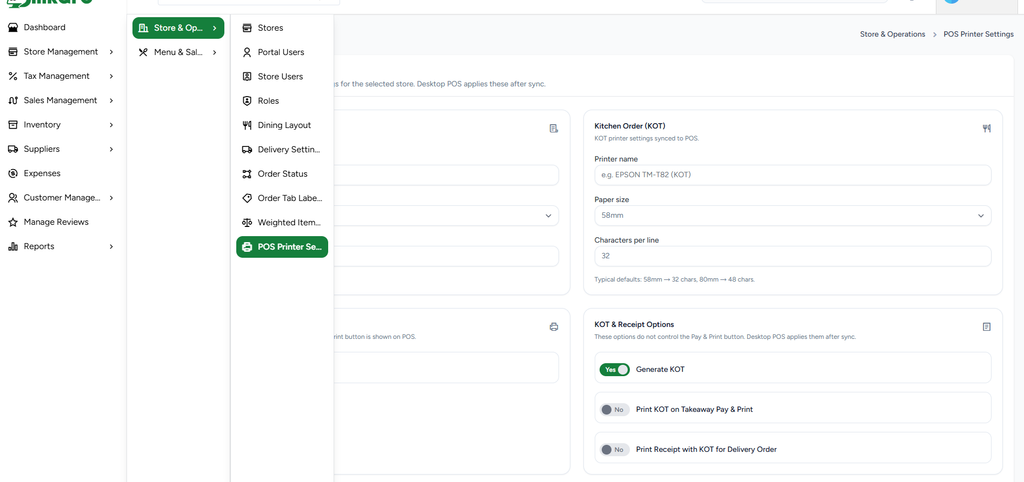
Figure 1 – POS Printer Settings navigation and configuration screen.
2. Bill Receipt Printer Configuration
Configure the printer used for customer bill receipts. Enter/select the printer name, choose the paper size, and define the characters printed per line.
Key fields:
Printer Name – Select or enter the receipt printer.
Paper Size – Configure the supported receipt paper size, such as 58mm.
Characters per Line – Set the line width according to the printer and paper size.
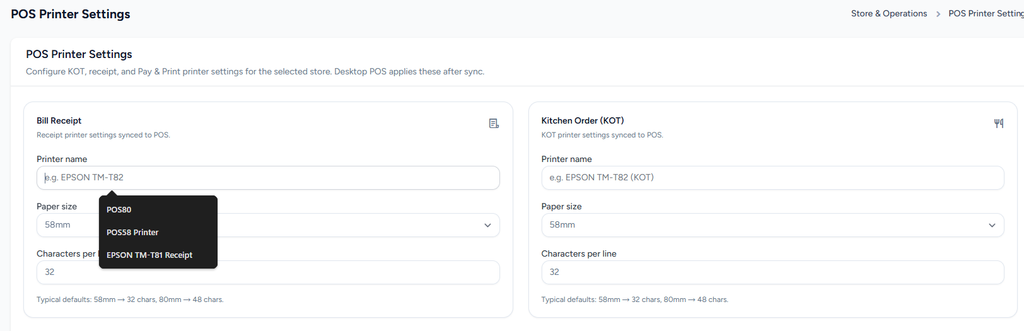
Figure 2 – Bill Receipt and Kitchen Order (KOT) printer settings.
3. Kitchen Order (KOT) Printer Configuration
Configure the printer used for Kitchen Orders. Enter the KOT printer name, paper size, and characters per line. These settings are synced to the POS.
4. Pay & Print Settings
The Enable Pay & Print Button option controls whether the Pay & Print button is available on the POS. This setting is independent of the KOT settings.
When enabled, staff can use the Pay & Print workflow according to the configured receipt and KOT rules.
5. KOT & Receipt Options
These options control what is generated or printed for different order flows:
Generate KOT – Enables KOT generation for orders.
Print KOT on Takeaway Pay & Print – When enabled, a KOT is printed during the Takeaway Pay & Print flow.
Print Receipt with KOT for Delivery Order – When enabled, the receipt is printed together with the KOT for delivery orders.
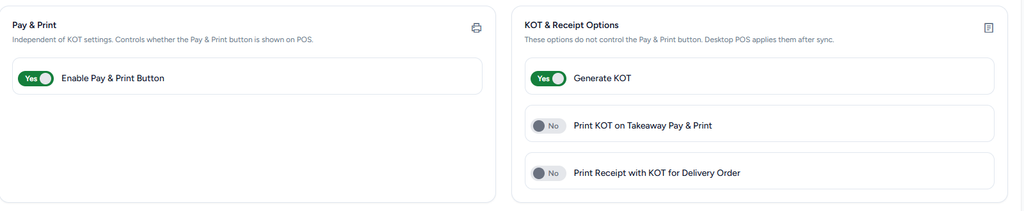
Figure 3 – Pay & Print and KOT & Receipt options.
6. End-to-End Flow
Open Store & Operations → POS Printer Settings.
Configure the Bill Receipt printer.
Configure the Kitchen Order (KOT) printer.
Set paper size and characters per line according to the printer.
Enable or disable Pay & Print as required.
Enable Generate KOT if the store requires KOT generation.
Configure Takeaway and Delivery printing options.
Save the settings.
Synchronize the Desktop POS so the latest printer settings are applied.
POS printing then follows the configured receipt, KOT, takeaway, and delivery rules.
7. Configuration Example
Example: For a 58mm thermal printer, configure 32 characters per line. Set the Bill Receipt printer and KOT printer separately when separate printers are used. Enable Generate KOT, then enable only the takeaway/delivery print options required by the store.
8. Important Notes
Printer settings are store-specific.
Desktop POS uses the configured settings after synchronization.
Receipt printing and KOT printing can be configured independently.
Changing the printer name, paper size, or character width should match the actual thermal printer configuration.