
1. Overview
The Customer Management module allows the store to maintain customer records and manage customer-related wallet information. The same core customer flow is available in both the BillKaro Desktop POS and the BillKaro Portal.
2. POS Customer Management
From the POS sidebar, open Customers. The Customers screen displays the customer list for the current store.
POS Flow
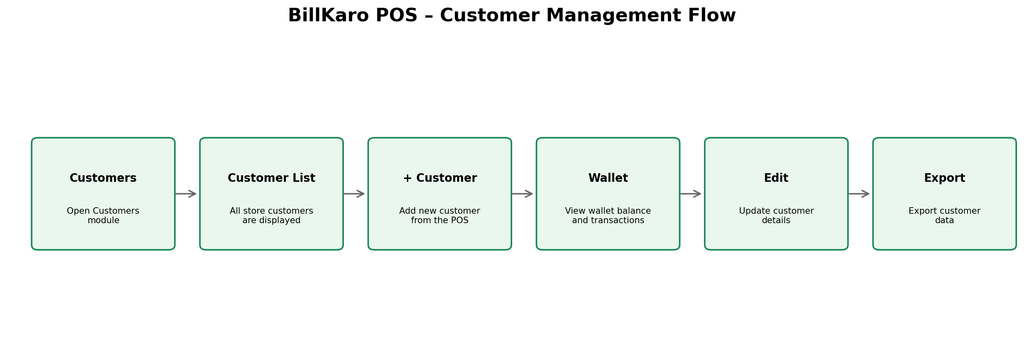
POS Customer List
All customers belonging to the current store are displayed in the customer list.
The list provides customer information such as name, phone number, address and area information.
The Actions section provides Wallet, Edit and Delete actions where applicable.
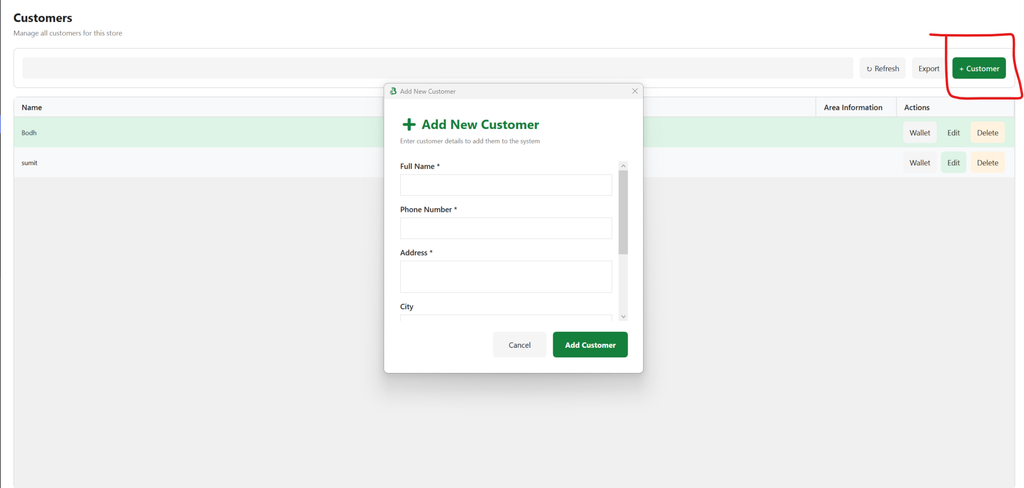
The + Customer button opens the Add New Customer form.
The Export button exports customer data for external use/reporting.
3. Add New Customer
Click + Customer to open the Add New Customer form. The form is used to enter the customer’s basic details and save the customer in the system.
Enter Full Name.
Enter Phone Number.
Enter Address and other available customer details.
Click Add Customer to create the customer record.
After creation, the new customer becomes available in the customer list.
4. Customer Wallet
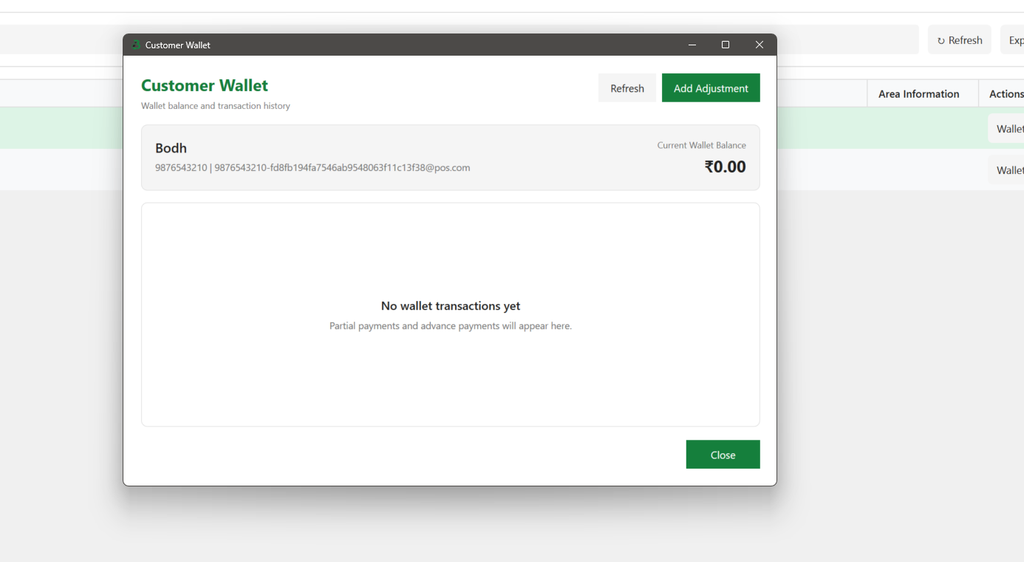
Click Wallet from a customer row to open Customer Wallet. The wallet screen shows the current wallet balance and wallet transaction history. This helps identify advance/excess money held for the customer or any wallet amount that can be used against future transactions.
Customer identity and contact information are shown at the top.
Current Wallet Balance is displayed prominently.
Wallet transaction history is shown below.
Refresh can be used to load the latest wallet information.
Add Adjustment can be used where wallet adjustment is supported.
5. Edit Customer
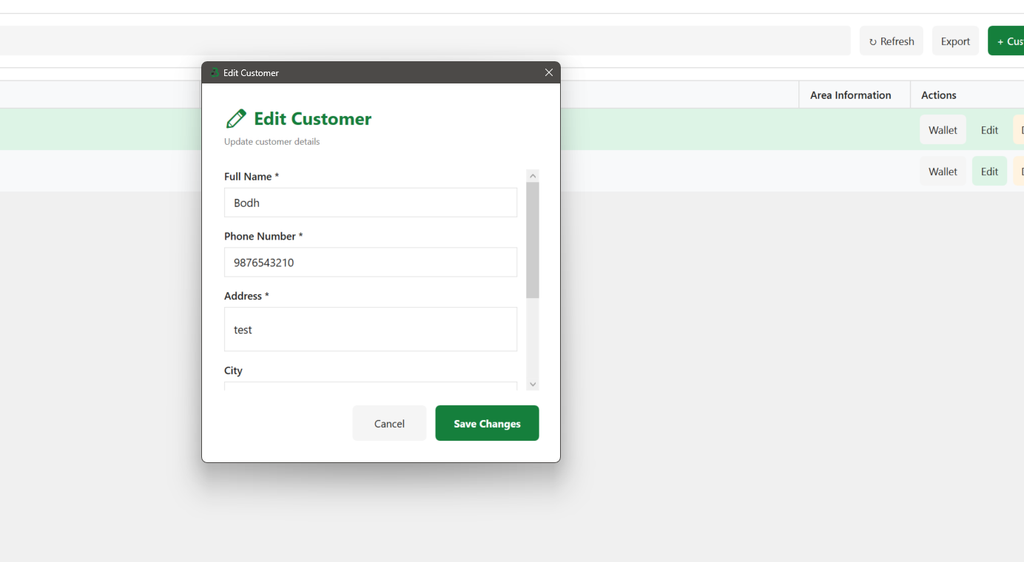
Click Edit from the customer row to open the Edit Customer form. Existing customer details are pre-filled and can be updated. Click Save Changes to persist the updates.
6. Export Customer Data
Click Export from the customer list to export the available customer data. This can be used for reporting, backup, or external data processing.
7. Portal Customer Management
The Portal provides the same customer-management capability for the selected store. The Portal customer list is store-specific, so users manage customers belonging to the currently selected store.
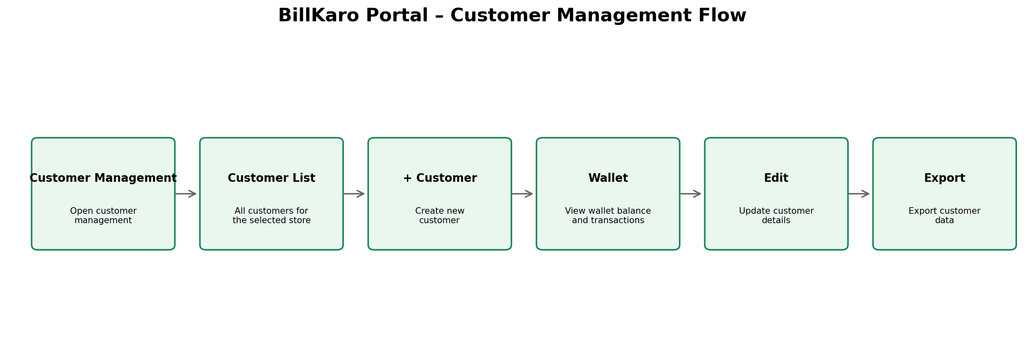
Portal Flow
Open Customer Management from the Portal.
Select the required store if the user has access to multiple stores.
View the customer list for the selected store.
Use + Customer to create a new customer.
Use Wallet to view the customer’s wallet balance and transaction history.
Use Edit to update customer details.
Use Export to export customer data.
8. POS ↔ Portal Customer Flow
Customer records are intended to be available across the POS and Portal store context. A customer created or updated through the supported customer-management flow should be available to the relevant store experience according to the application’s sync/data rules.
9. Feature Summary
| Feature | POS | Portal |
| Customer List | Yes | Yes |
| Add Customer | Yes | Yes |
| Wallet | Yes | Yes |
| Edit Customer | Yes | Yes |
| Export | Yes | Yes |
10. Screenshots / Reference Images
Customer list in POS
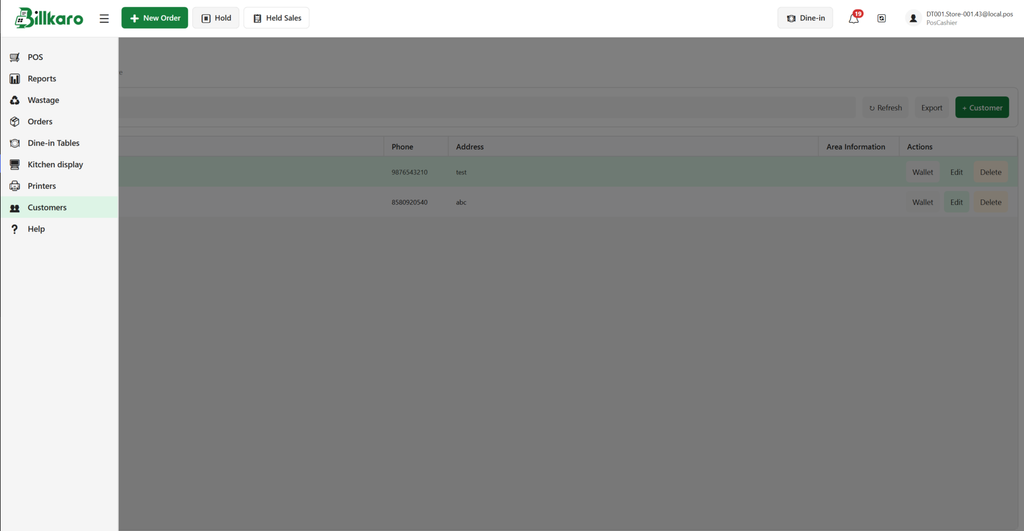
Customer list with + Customer action
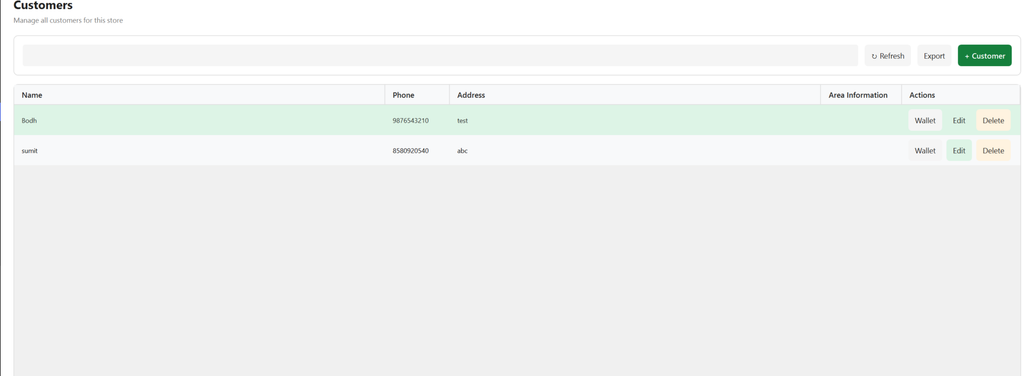
Add New Customer form
Customer Wallet
Edit Customer form
Note: The Portal flow is documented separately from the POS flow. The supplied screenshots in this document are POS-side reference screenshots.