
Portal Configuration & POS Synchronization Documentation
1. Overview
Order Tab Labels allows the store administrator to configure the names shown for Takeaway, Dine-in, and Delivery order tabs. These labels are store-specific and are used by the BillKaro Desktop POS and Order App after synchronization.
2. Navigation
Go to: Store & Operations → Order Tab Labels.
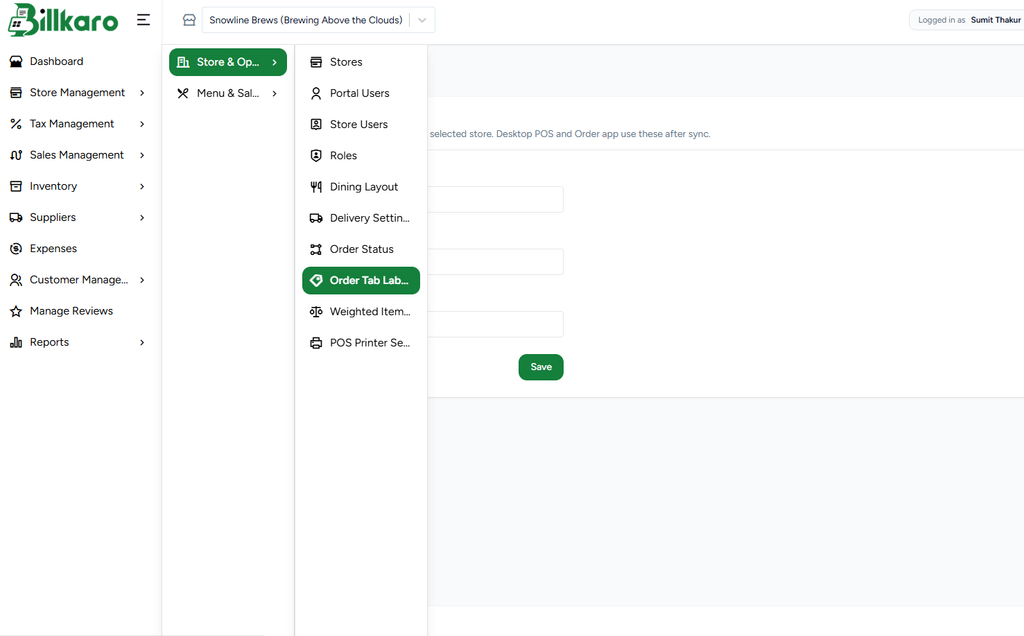
Figure 1 – Order Tab Labels option under Store & Operations
3. Configure Order Tab Names
Takeaway tab name – controls the label displayed for takeaway orders.
Dine-in tab name – controls the label displayed for dine-in orders.
Delivery tab name – controls the label displayed for delivery orders.
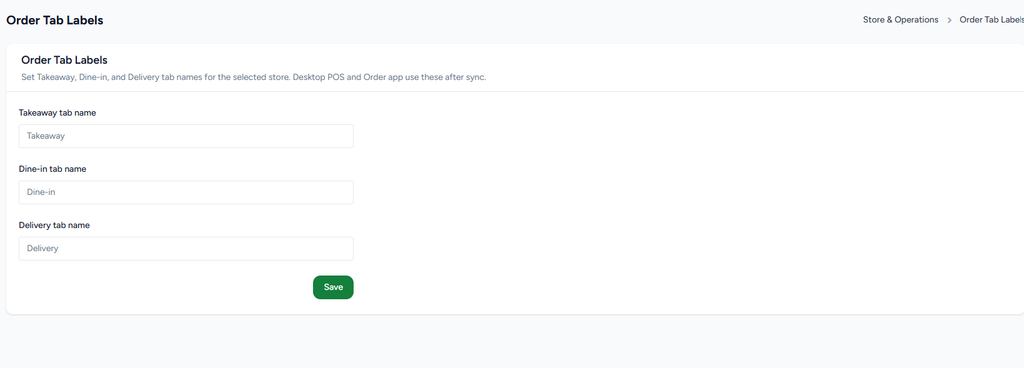
Figure 2 – Order Tab Labels configuration screen
4. Save and Synchronize
1. Enter the required names in the three fields.
2. Click Save.
3. The labels are stored for the selected store.
4. Desktop POS and the Order App receive the updated labels after synchronization.
5. The new labels are then displayed on the corresponding order tabs.
5. Important Behavior
Changing a label changes only the UI display name; it does not change the underlying order type.
The configuration applies to the selected store.
Existing order records are not converted or renamed.
POS/Order App must sync the latest store configuration before the new labels appear.
Use simple, clear names that staff can understand quickly.
6. Recommended Testing
Change all three labels and save.
Sync the Desktop POS.
Verify Takeaway, Dine-in, and Delivery tabs show the configured labels.
Create an order from each type and confirm the correct order flow.
Re-sync/restart POS and verify the saved labels remain.
7. Example
| Order Type | Example Label |
| Takeaway | Pickup |
| Dine-in | Table Service |
| Delivery | Home Delivery |