
Portal Configuration, POS Configuration & End-to-End Flow
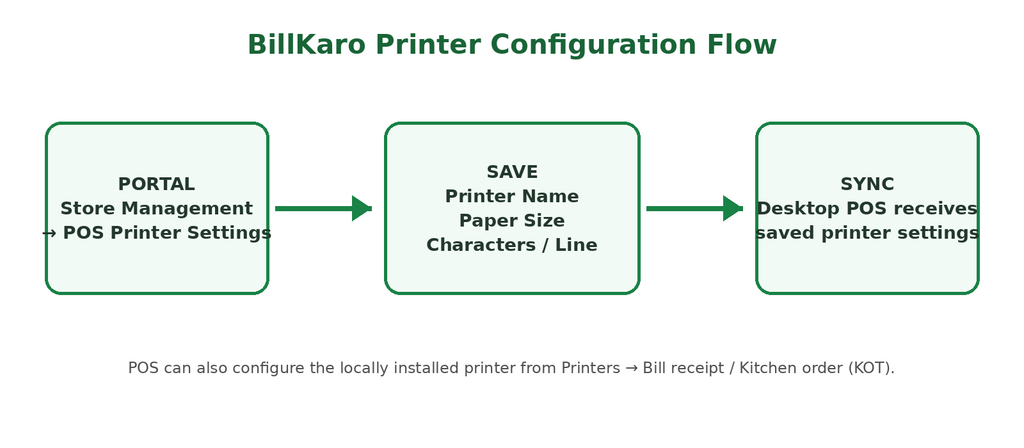
1. Overview
BillKaro supports printer configuration from two places: the Desktop POS and the Portal. The Portal provides a centralized store-level configuration for the printer name, paper size, and characters per line. After saving and syncing, the Desktop POS can apply the configuration. The POS also allows local printer selection from the printers installed on the Windows machine.
2. Portal-side Printer Configuration
Navigation:
Store Management → Store & Operations → POS Printer Settings
Use this screen when the store wants to define the printer configuration centrally from the Portal.
1. Open the required store in the Portal.
2. Go to Store Management and open POS Printer Settings.
3. In the printer settings section, enter the printer name. The name should correspond to the printer available on the POS/Windows system.
4. Select the required paper size, such as 58mm or 80mm.
5. Enter Characters per line. Typical defaults are 32 for 58mm and 48 for 80mm.
6. Save the configuration.
7. Run POS Sync. The saved printer configuration is then available to the Desktop POS.
Portal screen – POS Printer Settings:
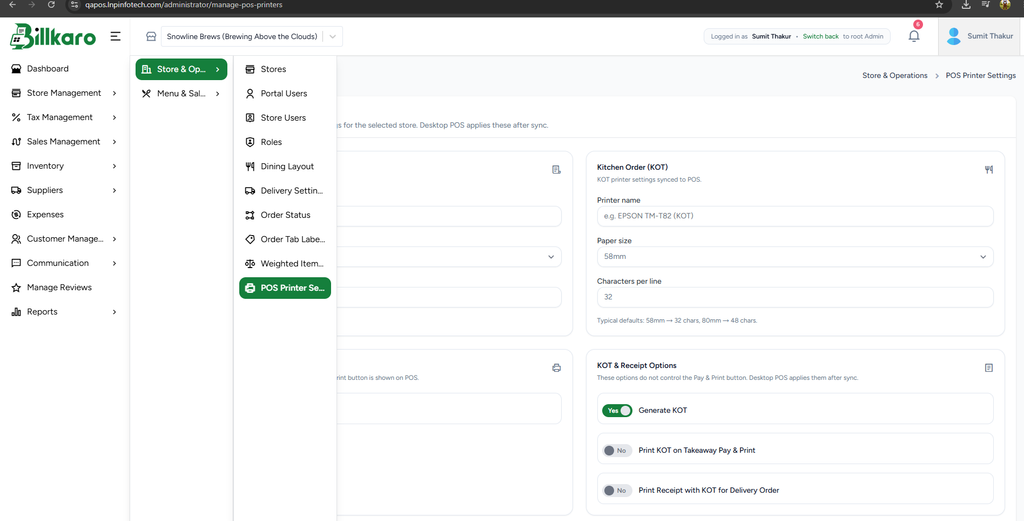
Figure 1. Portal: Store Management → POS Printer Settings
3. Desktop POS Printer Configuration
The Desktop POS can discover printers installed on the Windows machine and allow the cashier/admin to select the printer used for bill receipts and Kitchen Order Tickets (KOT).
3.1 Printer Selection
Open the POS Printers screen and click Refresh printers if a newly installed printer is not listed.
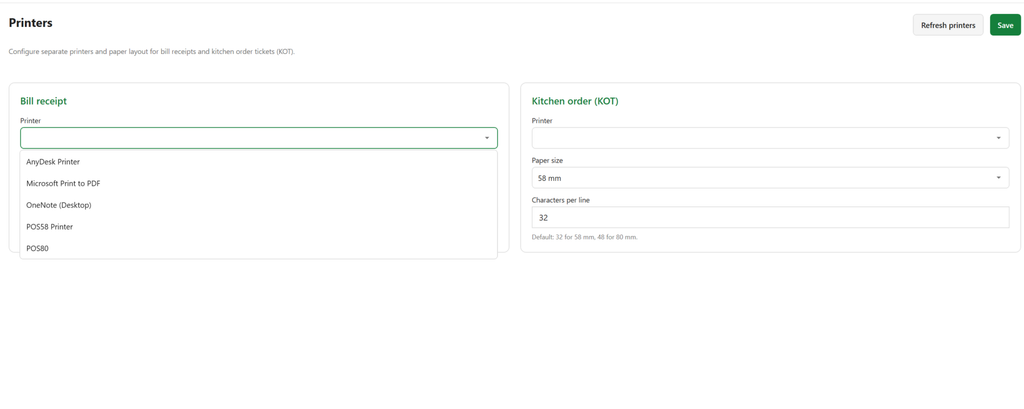
Figure 2. POS: Bill receipt printer dropdown with Windows-installed printers
3.2 Configure Bill Receipt and KOT
Bill receipt: select the printer that should print customer bills/receipts.
Kitchen order (KOT): select the printer that should print kitchen tickets.
Paper size: choose the supported paper width.
Characters per line: set the line width according to the selected paper size and printer.
Click Save to apply the POS-side settings.
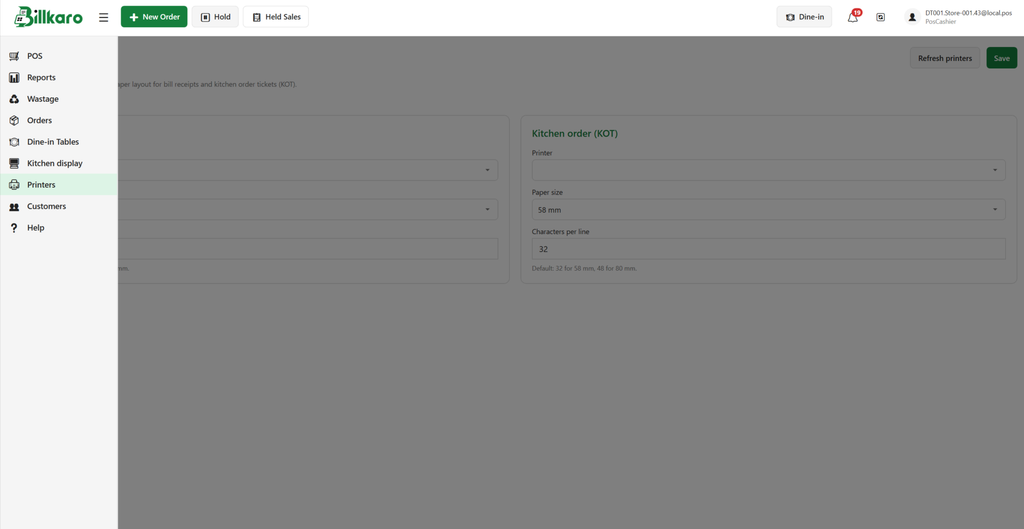
Figure 3. POS: Printer settings for Bill receipt and Kitchen order (KOT)
4. End-to-End Portal → POS Flow
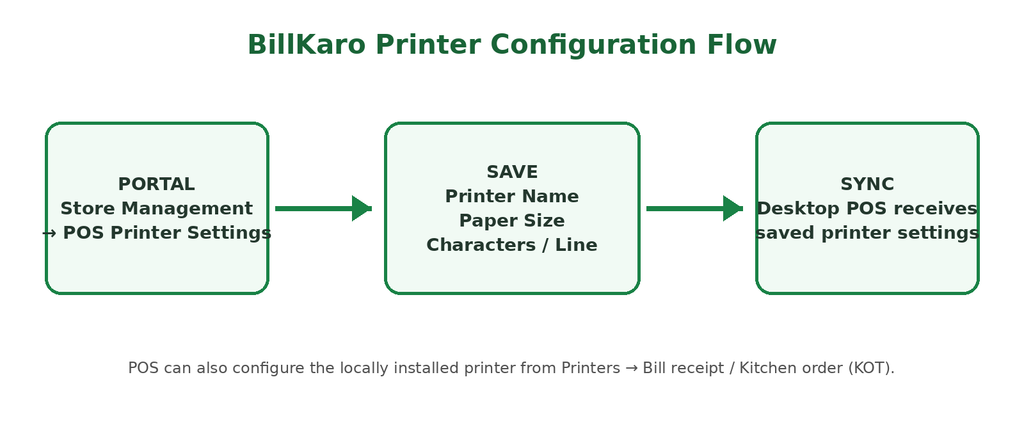
| Stage | Action |
| 1. Portal | Open Store Management → POS Printer Settings for the selected store. |
| 2. Configure | Enter Printer Name, Paper Size, and Characters per line. |
| 3. Save | Save the configuration in the Portal. |
| 4. Sync | Run Desktop POS synchronization so the latest store configuration is received. |
| 5. POS | The configured printer name/settings become available on the POS. |
| 6. Print | Bill receipts and KOTs use the configured printer according to the POS print flow. |
5. Important Printer Name Rule
The Portal configuration does not physically install a printer on the Windows machine. The actual printer must be installed/available on the POS computer. The Portal stores the intended printer configuration, and the POS applies it after synchronization. Therefore, the configured printer name should match the printer name available to the Desktop POS.
7. Summary
Portal is the centralized place to define the store’s printer name and layout settings. Desktop POS is responsible for discovering/selecting the actual Windows printer and using the synced configuration. This keeps printer settings consistent while still allowing local printer selection.