
1. Purpose
This document explains the Reports module in BillKaro Portal using the supplied screenshots. It describes how to open each report, apply filters, read summary cards, and understand the report tables.
2. General report workflow
Open Reports from the left navigation menu.
Select the required report from the Reports submenu.
Choose the relevant date range or business date.
Set report-specific filters such as order type, category, item, payment method, stock item, or movement type.
Click Apply Filters or Search, depending on the report.
Review summary cards and the detailed table.
Use Refresh to reload the current report; use Reset to clear selected filters where available.
Use the export icons where available if a report copy is needed.
3. Reports included
Sales Summary — Sales performance by store and order type.
Item Sales — Item/category quantity and sales performance.
Day Sales Summary — Item-level sales for one business date, including measurement-aware quantities.
Payment Summary — Payment reconciliation by payment method, source, provider, and status.
Stock Movement — Inventory opening, movement, and closing quantities.
Semi Finished FCR — Material consumption, produced quantity, and cost per unit for semi-finished conversions.
Expense Summary — Expense totals grouped by store, category, and expense type.
Cash Flow — Customer-payment inflows compared with expense outflows.
Profit Snapshot — High-level sales-versus-expenses view.
Expired Materials — Expired or near-expiry material batches and related wastage values.
Orders — Searchable order register with status, amount, customer, and payment details.
4. Detailed report flows with screenshots
1. Reports menu overview
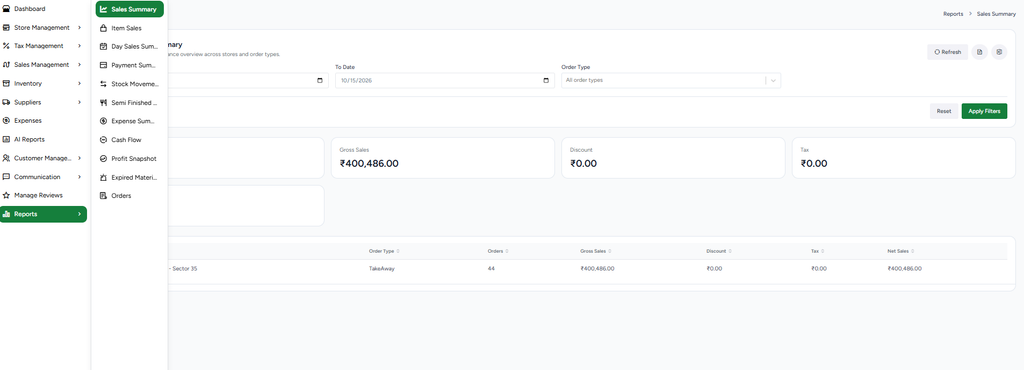
Open Reports from the Portal sidebar. The submenu provides Sales Summary, Item Sales, Day Sales Summary, Payment Summary, Stock Movement, Semi Finished FCR, Expense Summary, Cash Flow, Profit Snapshot, Expired Materials, and Orders.
2. Sales Summary
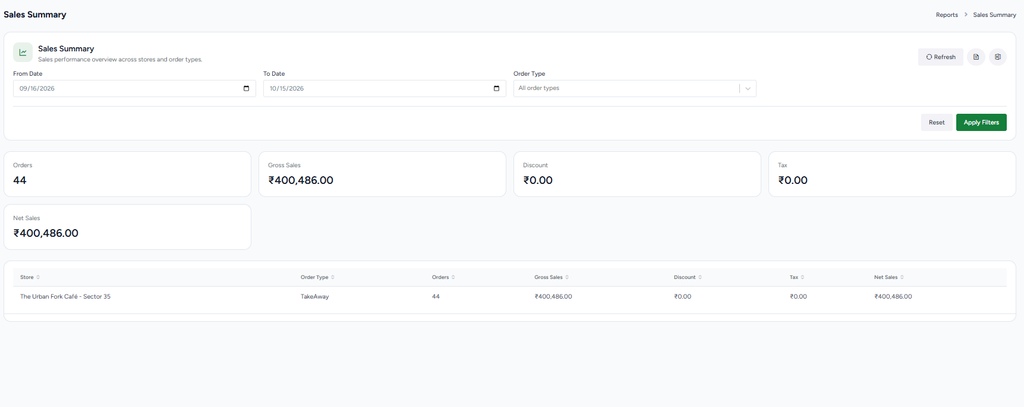
Use Sales Summary to review sales performance across stores and order types. Select From Date and To Date, choose an Order Type, and click Apply Filters. Reset clears the filters, while Refresh reloads the report. Summary cards show order count, gross sales, discount, tax, and net sales. The table groups results by store and order type.
3. Item Sales
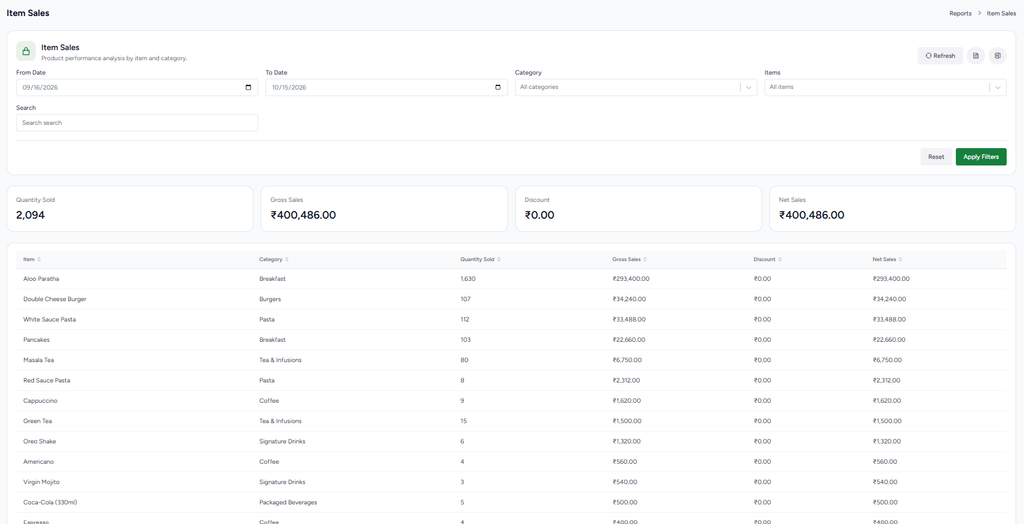
Use Item Sales to analyze product performance. Select a date range, category, and item; optionally search by item name, then click Apply Filters. Summary cards show quantity sold, gross sales, discount, and net sales. The table lists item, category, quantity sold, gross sales, discount, and net sales.
4. Day Sales Summary
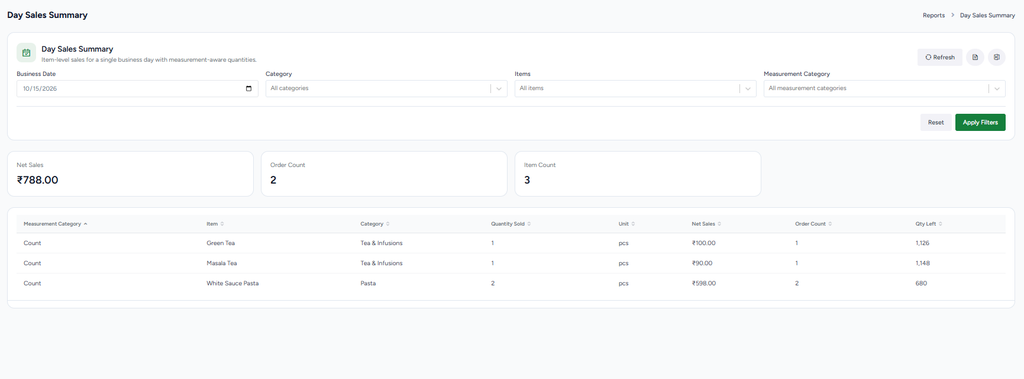
Use Day Sales Summary for a single business date. Select the Business Date, category, item, and measurement category, then apply filters. The report shows net sales, order count, and item count, followed by item-level quantity, unit, net sales, order count, and quantity left.
5. Payment Summary
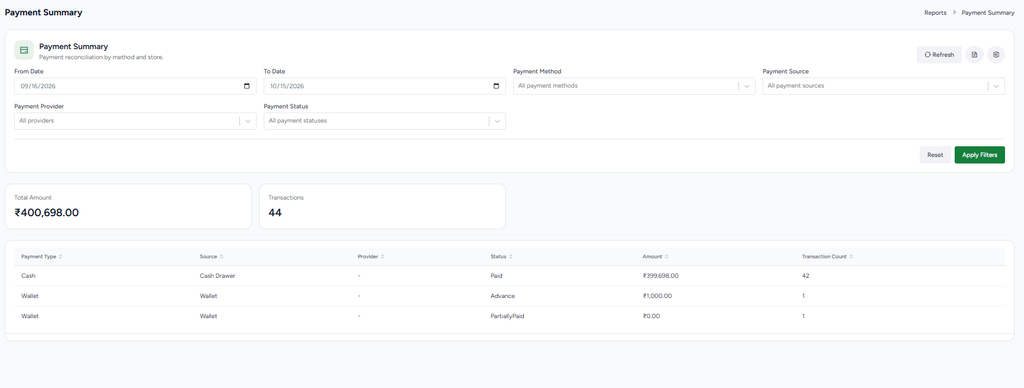
Use Payment Summary to reconcile payments. Select the date range, payment method, payment source, payment provider, and payment status, then apply filters. The summary shows total amount and transaction count. The table breaks results down by payment type, source, provider, status, amount, and transaction count.
6. Stock Movement
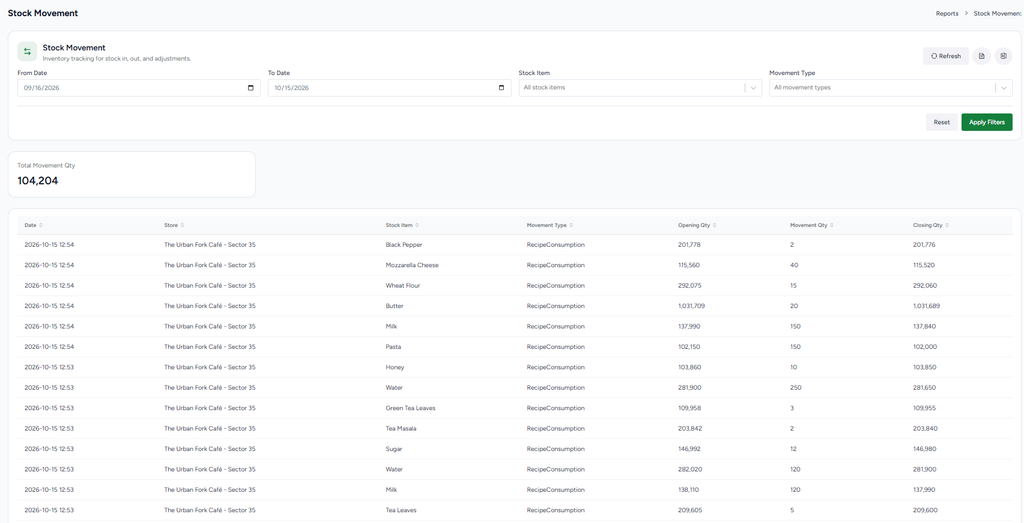
Use Stock Movement to track inventory changes. Select the date range, stock item, and movement type, then apply filters. The report shows total movement quantity and rows containing date, store, stock item, movement type, opening quantity, movement quantity, and closing quantity. For example, RecipeConsumption rows show stock consumed by sales recipes.
7. Semi Finished FCR
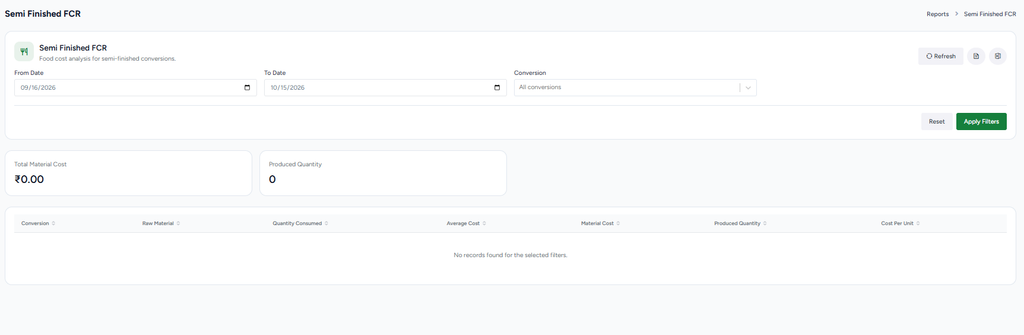
Use Semi Finished FCR to review food-cost information for semi-finished conversions. Select a date range and conversion, then apply filters. Summary cards show total material cost and produced quantity. The table shows conversion, raw material, quantity consumed, average cost, material cost, produced quantity, and cost per unit. No records may appear when no matching conversion activity exists.
8. Expense Summary
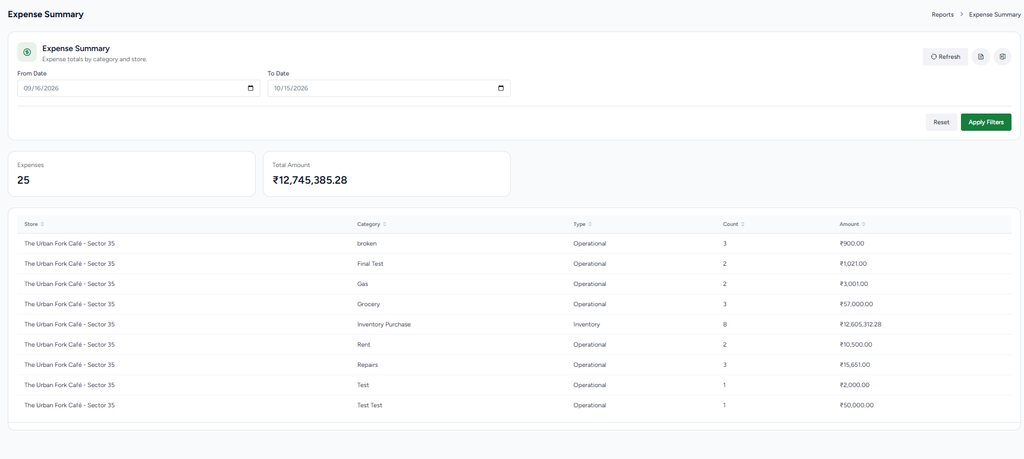
Use Expense Summary to review expense totals by category and store. Select From Date and To Date and click Apply Filters. The cards show the number of expenses and total amount. The table lists store, category, type (Operational or Inventory), count, and amount. Inventory Purchase settlements are reported separately from operational expenses.
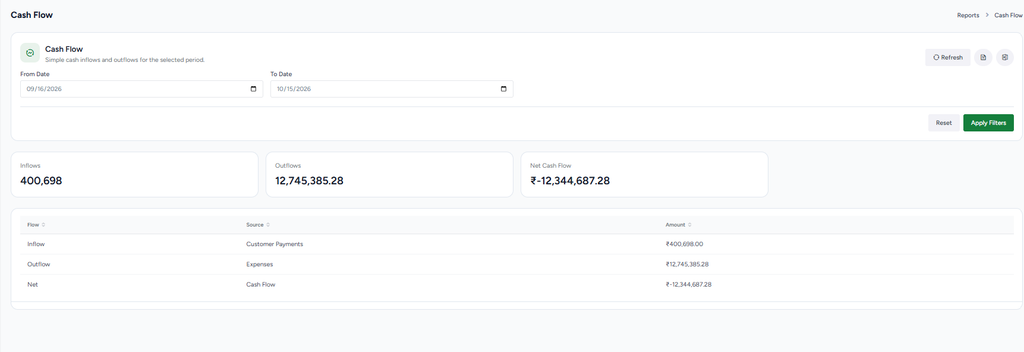
9. Cash Flow
Use Cash Flow to compare inflows and outflows for a selected period. Set the date range and apply filters. The cards show inflows, outflows, and net cash flow. The table lists each flow, its source, and amount. In the displayed example, customer payments are inflows and expenses are outflows.
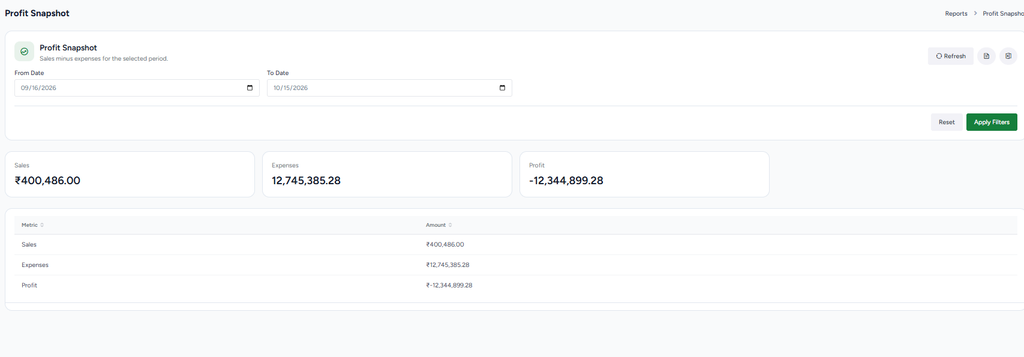
10. Profit Snapshot
Use Profit Snapshot for a high-level comparison of sales and expenses. Select the date range and apply filters. The report shows sales, expenses, and profit, with a simple metric-and-amount table. The displayed value is a snapshot based on the report’s sales and expense totals, not a substitute for a full accounting statement.
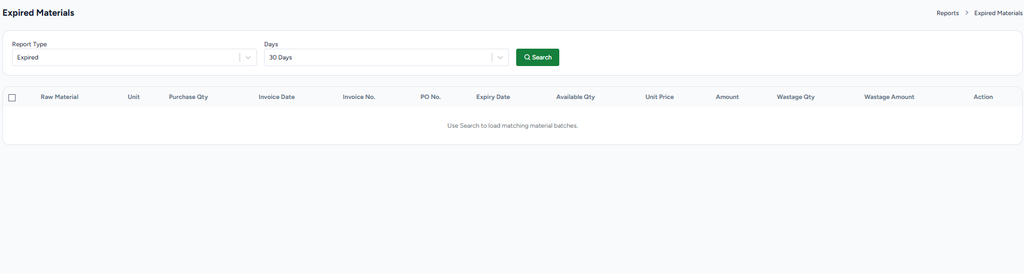
11. Expired Materials
Use Expired Materials to find inventory batches that are expired or approaching expiry. Select Report Type and Days, then click Search. Matching batches can show raw material, unit, purchase quantity, invoice date and number, PO number, expiry date, available quantity, unit price, amount, wastage quantity, wastage amount, and action. Use this report to identify stock that needs review.
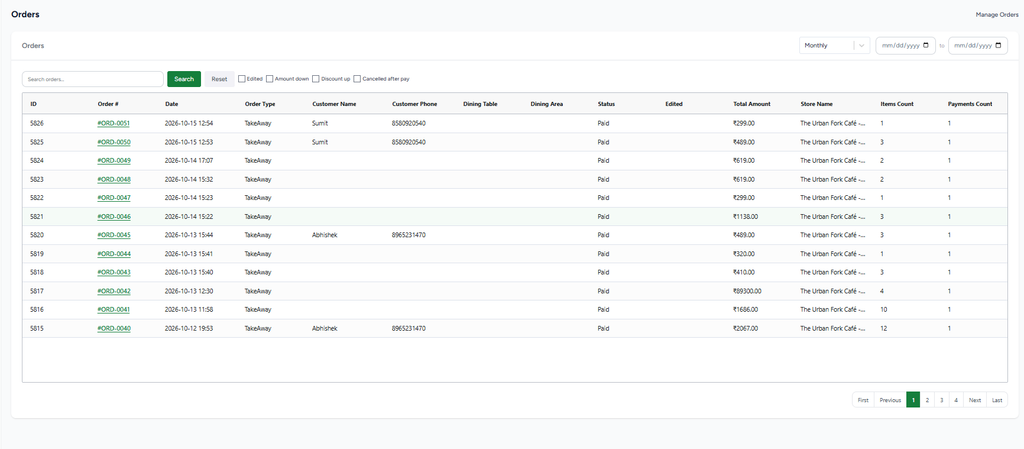
12. Orders report
Use Orders to search order records. Select the reporting period (for example Monthly), optionally set dates, search by order details, and apply available checkboxes such as Edited, Amount down, Discount up, or Cancelled after pay. The table shows order ID and number, date, order type, customer details, dining table/area when relevant, status, edit indicator, total amount, store, item count, and payment count. Use pagination to browse additional rows.
5. checklist
☐ Reports submenu displays the expected reports for the logged-in user.
☐ Date and report-specific filters can be changed and applied.
☐ Reset returns filters to their default values where supported.
☐ Refresh reloads the report without navigating away.
☐ Summary cards match the filtered report results.
☐ Table columns display the expected values for each report.
☐ Empty-result states display clearly when no matching records exist.
☐ Export actions work where shown.
☐ Orders search, status filters, and pagination return the expected records.
☐ Expired Materials search returns batches matching the selected report type and day range.