
Dashboard Overview, KPI Cards, Revenue Chart and Filters
1. Overview
The BillKaro Portal Dashboard provides a quick business overview for the selected store. It summarizes important sales and customer information and provides a revenue trend chart for analysing store performance.
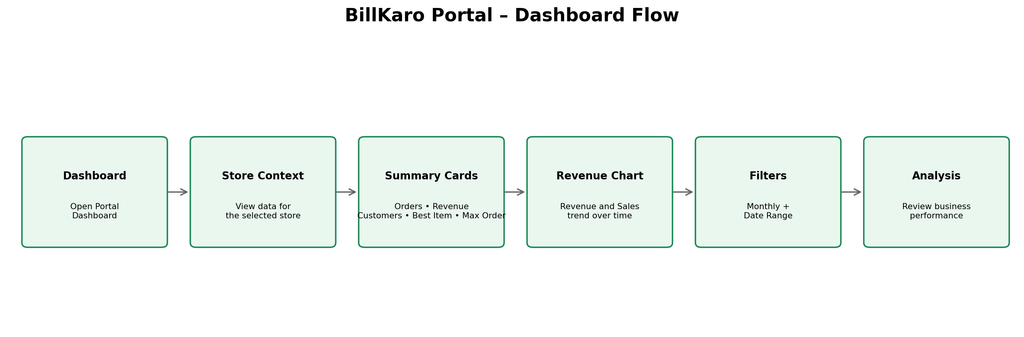
2. Dashboard Flow
3. Dashboard Navigation
Log in to the BillKaro Portal.
Open Dashboard from the left navigation menu.
The dashboard loads information for the currently selected store.
Review the KPI summary cards and revenue chart.
Use the period selector and date range to analyse a required time period.
4. Summary Cards
| Card | Purpose |
| Orders | Shows the number of orders represented by the current dashboard data/filter. |
| Revenue | Shows the revenue amount for the selected dashboard period. |
| Customers | Shows the customer count represented by the dashboard data. |
| Best Sales Item | Shows the item with the strongest sales performance in the dashboard data. |
| Max Order | Shows the highest order value represented in the dashboard data. |
5. Revenue & Sales Chart
The Revenue section displays a time-based chart for business performance. The chart provides Revenue and Sales series so users can compare monetary revenue with the number of sales/orders over the selected period.
Revenue is represented as the monetary performance series.
Sales represents the number of sales/orders over time.
The chart labels the dates on the horizontal axis.
The chart can be reviewed for daily/monthly performance patterns.
6. Dashboard Filters
Period selector: Select the required reporting frequency, such as Monthly.
From date: Select the starting date for the analysis.
To date: Select the ending date for the analysis.
Changing the period/date range updates the dashboard view according to the available data.
7. Typical User Flow
A store/admin user can use the dashboard as the first screen for checking store performance: open Dashboard → confirm the selected reporting period → review Orders and Revenue → check Customers and top-performing item → review the Revenue/Sales trend → adjust the date range when deeper analysis is required.
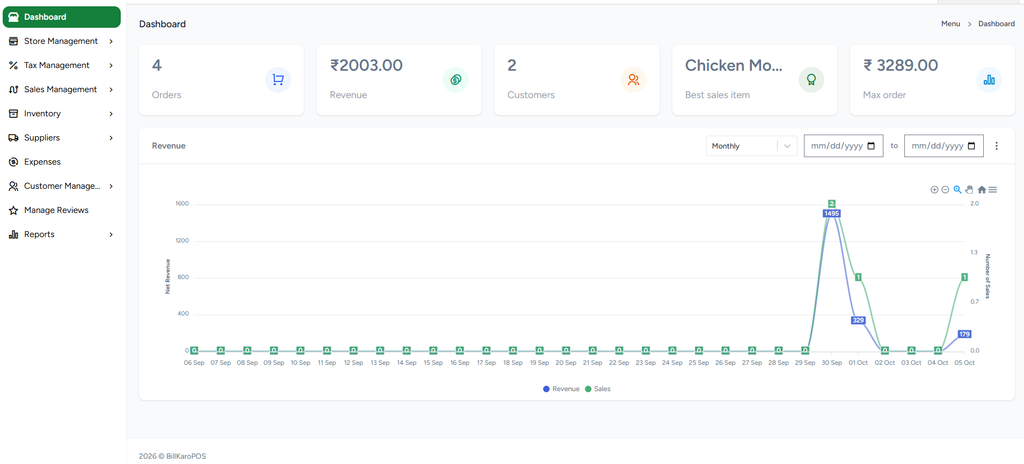
8. Reference Screenshot
Portal Dashboard – Reference
9. Dashboard Layout – Key Areas
Left navigation: Dashboard, Store Management, Tax Management, Sales Management, Inventory, Suppliers, Expenses, Customer Management, Manage Reviews and Reports.
Top KPI area: Orders, Revenue, Customers, Best Sales Item and Max Order.
Revenue panel: Reporting period, date range and revenue/sales trend chart.
Footer: BillKaroPOS copyright/version context.