
This document explains how tax is configured in BillKaro POS and how the configured tax is assigned to a menu item. Tax Management provides two main configuration areas: Tax Slabs and Tax Profiles.
1. Overall Flow
Tax Management → Tax Slabs / Tax Profiles → Create or select the required tax configuration → Menu Builder → Add/Edit Menu Item → Select Tax Profile → Save Item
| 1 | Tax Management | Open Tax Management from the left menu. | ||
| 2 | Tax Slabs | Create the required GST/tax rate. | ||
| 3 | Tax Profiles | Create a profile and link one or more tax slabs. | ||
| 4 | Menu Item | Select the Tax Profile while creating/editing the item. | ||
| 5 | Billing | The selected tax configuration is used for the item during billing. |
2. Open Tax Management
From the left navigation, click Tax Management. Two options are available:
Tax Slabs – Used to define individual tax rates.
Tax Profiles – Used to group/link tax slabs and assign a tax configuration to menu items.
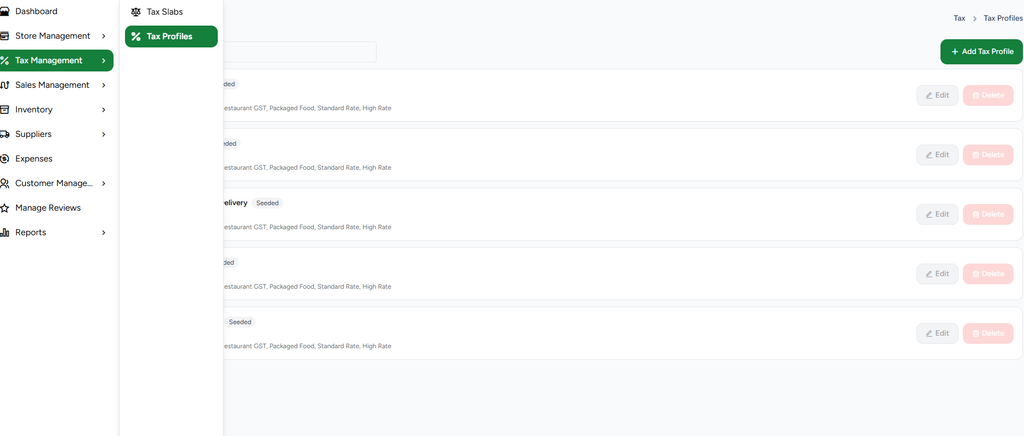
Figure 1 – Tax Management menu showing Tax Slabs and Tax Profiles
3. Create a Tax Slab
Click Tax Slabs → Add Tax Slab. Enter the tax details required for the store.
Name * – Enter a meaningful tax slab name, for example Standard Rate.
Tax Type – Select the applicable tax type, such as GST.
Total Rate (%) * – Enter the total tax percentage, for example 18.
Click Create to save the tax slab.
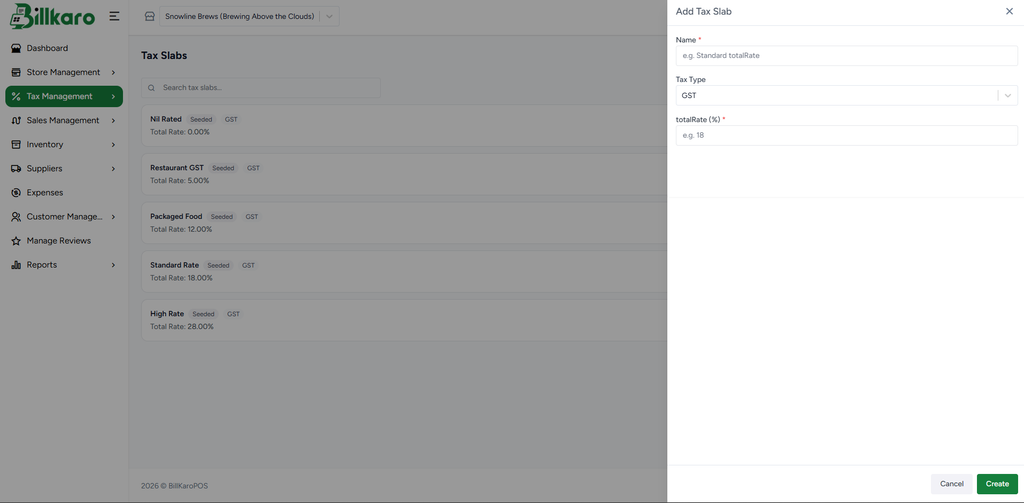
Figure 2 – Add Tax Slab
4. Create a Tax Profile
After the required tax slab is available, open Tax Profiles → Add Tax Profile. A Tax Profile connects the tax information that will later be assigned to menu items.
Name * – Enter the profile name, for example Restaurant GST 5% or Standard GST 18%.
HSN/SAC Code * – Enter the applicable HSN/SAC code for the item/service category.
Tax Slabs – Select one or more tax slabs to link with the profile.
ITC Allowed – Set whether Input Tax Credit is allowed according to the store’s tax setup.
Click Create to save the Tax Profile.
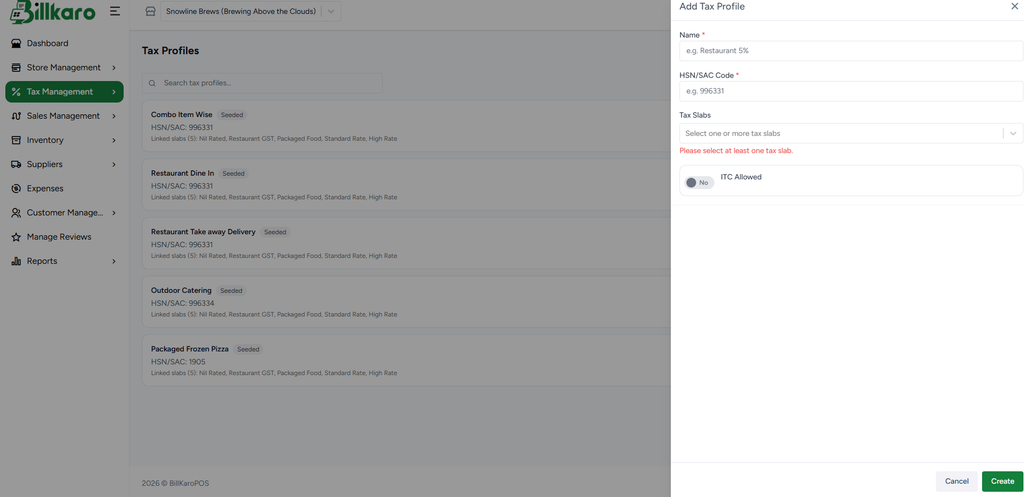
Figure 3 – Add Tax Profile
5. Assign Tax to a Menu Item
When creating or editing a menu item, the tax is assigned through the Tax Profile field. This is the step where you decide which configured tax should apply to that particular item.
Open Menu Builder / Menu Items.
Click Add Menu Item or edit an existing menu item.
Enter the required item information such as item name, base price and category.
Open the Tax Profile dropdown.
Select the appropriate Tax Profile created under Tax Management.
Complete the remaining item details and click Create Item / Save.
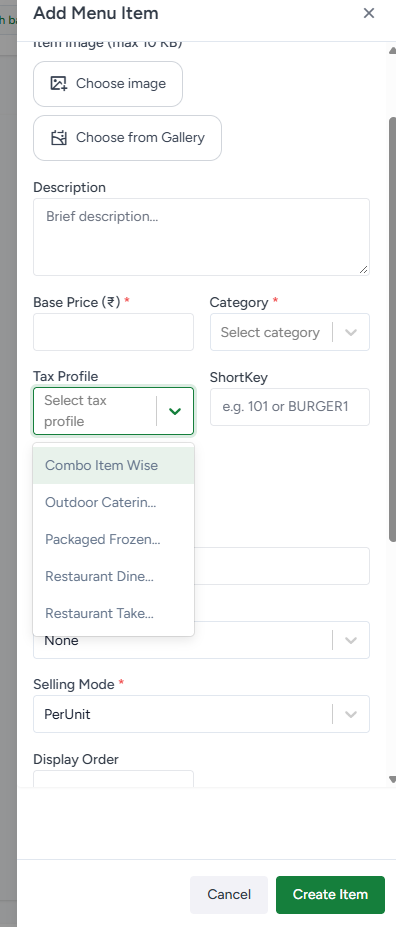
Figure 4 – Selecting a Tax Profile while creating a Menu Item
6. Example
Example: A restaurant creates a Tax Slab named “Restaurant GST” with a 5% GST rate. A Tax Profile named “Restaurant Dine In” is then created and linked to the required tax slab. When creating a menu item such as Paneer Tikka, the user selects “Restaurant Dine In” in the Tax Profile field. The item is therefore associated with that tax configuration for billing.
7. Important Rules
A Tax Slab defines the tax rate; a Tax Profile organizes the tax configuration used by items.
A Tax Profile must have at least one Tax Slab selected.
The correct HSN/SAC code should be maintained for the applicable item or service.
The Tax Profile should be selected on every taxable menu item that requires a specific tax configuration.
If an item should not have the same tax as another item, assign the appropriate Tax Profile instead of changing the existing shared profile.
Tax configuration should be reviewed before billing so that the correct tax is applied to the item.
8. Quick Reference Flow
Tax Management → Tax Slabs → Add Tax Slab → Create → Tax Profiles → Add Tax Profile → Select Tax Slab(s) → Create → Menu Item → Tax Profile → Select Profile → Save Item