
Purpose: Explain the POS screen shown immediately after login, what each section does, and how a cashier uses the screen from item selection to payment.
1. Main POS Screen – Overall View
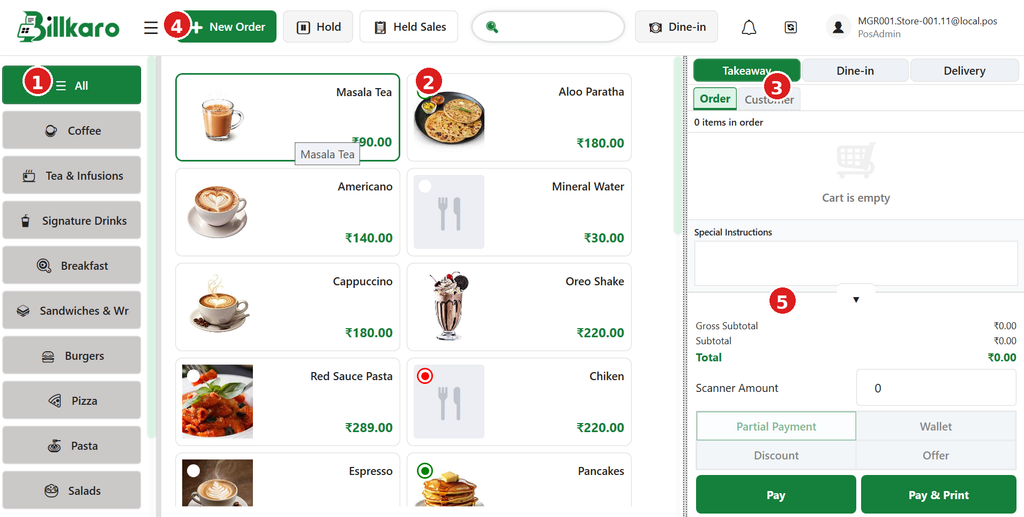
Numbered areas: 1 = Categories, 2 = Menu Item Cards, 3 = Selected Order, 4 = Top Navigation, 5 = Payment & Order Actions.
2. Area 1 – Category Sidebar
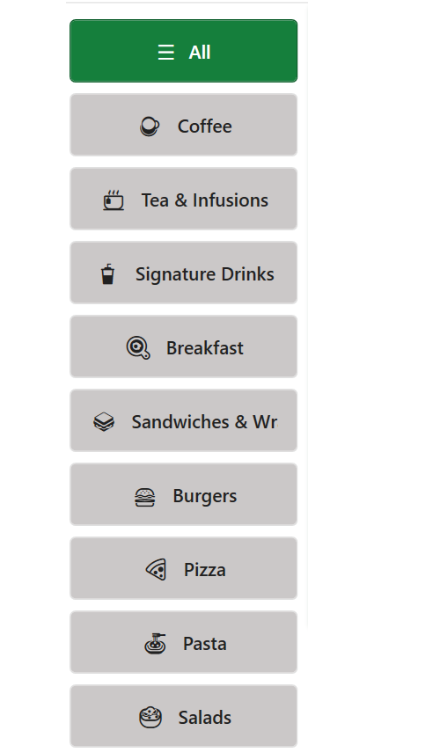
What it is: The left sidebar contains menu categories such as Coffee, Tea & Infusions, Breakfast, Burgers, Pizza, Pasta, and Salads.
Use: The cashier selects a category to filter the menu items shown in the center area. ‘All’ displays items across categories.
Flow: Login → Select Category → Related menu items appear in the center.
3. Area 2 – Menu Item Cards
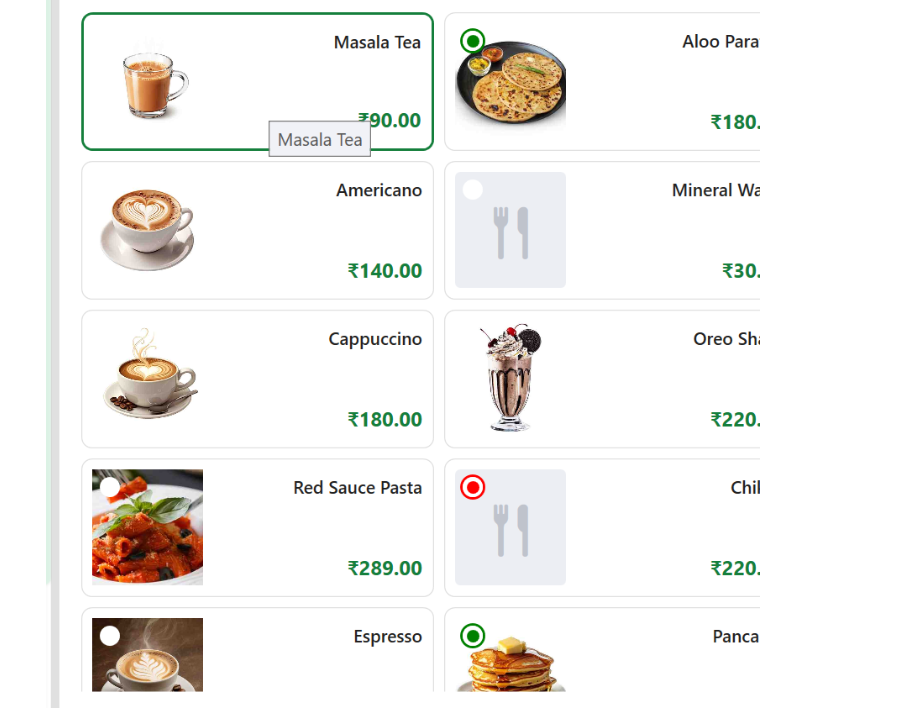
What it is: The center section displays sellable menu items as cards. Each card can show the item image, item name, and selling price.
Use: Clicking an item adds it to the current order. The selected item then appears in the right-side order panel.
Example: Click ‘Masala Tea’ → Masala Tea is added to the order.
4. Area 3 – Selected Order Panel
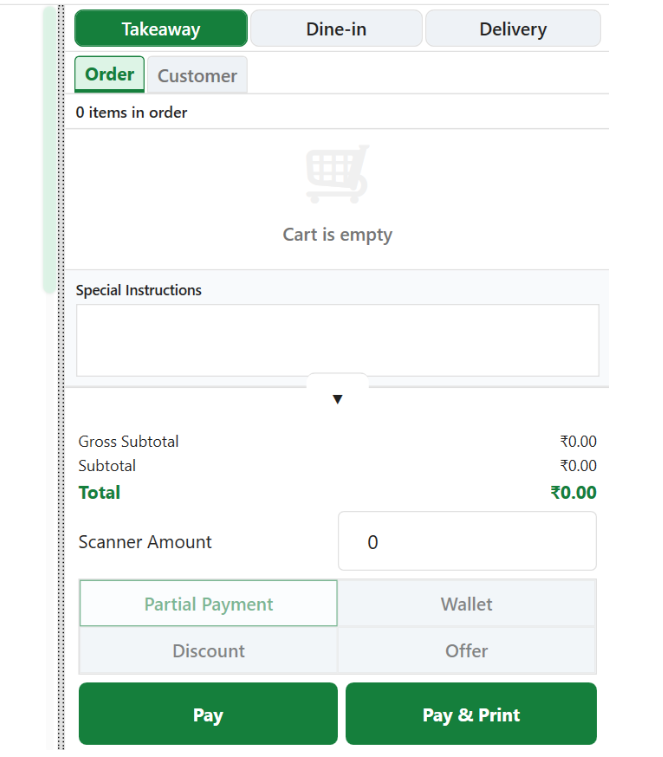
What it is: The right side is the active order/cart area. It contains the order/customer tabs, selected items, special instructions, subtotal/total, and payment controls.
Use: The cashier reviews and manages what the customer is ordering before payment.
Typical flow: Add item → Review quantity/items → Add instructions if required → Check total → Proceed to payment.
5. Area 4 – Top Navigation

Main functions visible here: Menu/navigation, New Order, Hold, Held Sales, search, Dine-in, notifications, sync/utility actions, and logged-in user/store information.
Use: These controls provide quick access to common POS operations without leaving the main billing screen.
6. Area 5 – Payment & Order Actions
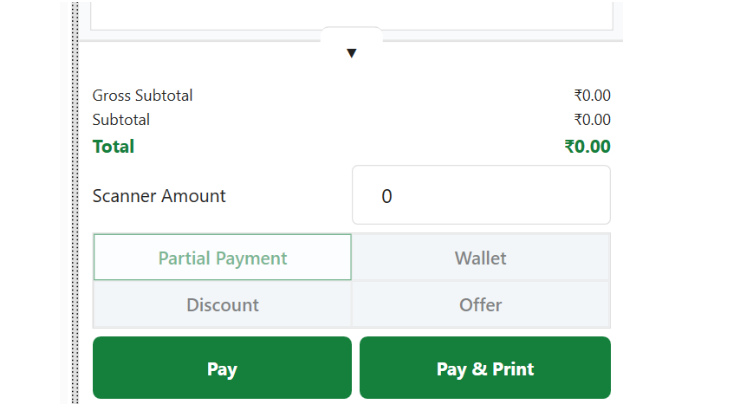
What it is: The lower-right section contains scanner amount, partial payment, wallet, discount, offer, Pay, and Pay & Print actions.
Use: The cashier completes the transaction using the appropriate payment/discount option and can print the receipt with Pay & Print.
7. Complete Working Flow – Cashier Journey
Step 1 – Login: Cashier logs into the BillKaro POS and reaches the main billing screen.
Step 2 – Select Order Type: Choose Takeaway, Dine-in, or Delivery depending on the customer’s order.
Step 3 – Select Category: Use the left category sidebar to find the required menu section.
Step 4 – Select Items: Click menu item cards in the center. Selected items are added to the right-side order.
Step 5 – Review Order: Check selected items, quantities, customer details, and special instructions.
Step 6 – Apply Adjustments: If applicable, use discount, offer, wallet, or partial-payment options.
Step 7 – Check Total: Verify subtotal and final total before collecting payment.
Step 8 – Complete Payment: Use Pay for payment completion or Pay & Print when a receipt should be printed.
Step 9 – Order Completion: After successful payment, the order is completed and the POS can start the next order.