
Order status configuration, drag-and-drop ordering, KOT printing, order receipt printing, and Delivery Order flow
1. Order Status Settings Overview
Order Status Settings are configured from the Portal under Store & Operations → Order Status Settings. This screen controls the delivery order status sequence, display names, status ordering, and print actions for KOT and order receipts.
Statuses are configured separately for the selected store.
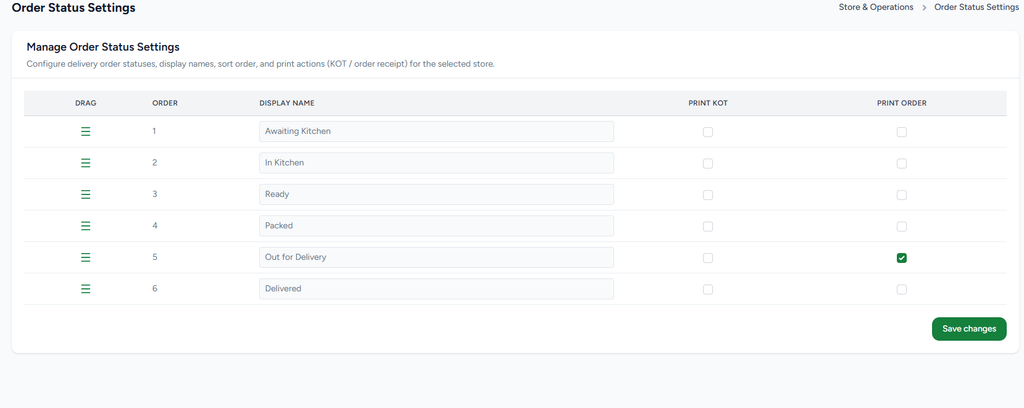
Each status has a Display Name that can be changed according to the store’s workflow.
The Drag handle allows statuses to be reordered using drag and drop.
When a status is moved, its Order number is updated to reflect the new sequence.
Print KOT and Print Order are independent checkboxes for each status.
The Save changes button persists the updated status order, names, and print configuration.
2. Order Status Sequence & Drag-and-Drop
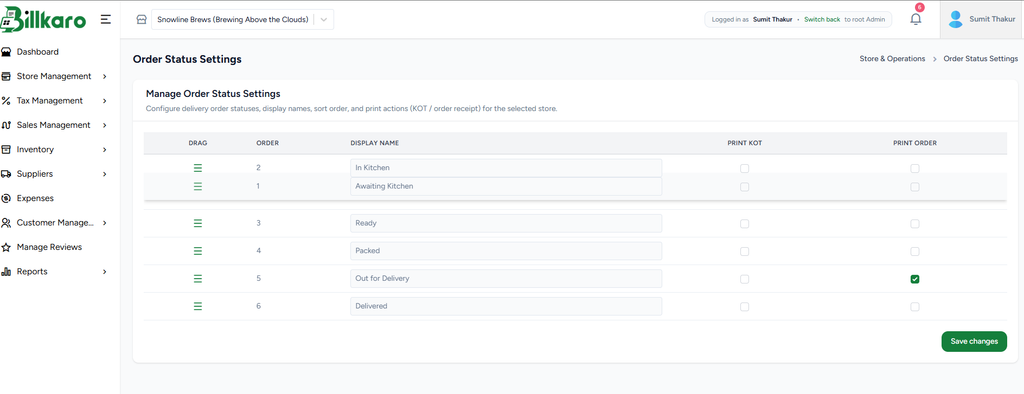
The status list represents the order in which delivery orders move through the operational workflow. Staff can drag a status using the handle in the Drag column and drop it at another position.
The status position determines the workflow order.
The Order number changes automatically after a drag-and-drop operation.
Changing the order does not change the status identity; it changes only its position in the sequence.
After arranging the statuses, click Save changes to persist the new order.
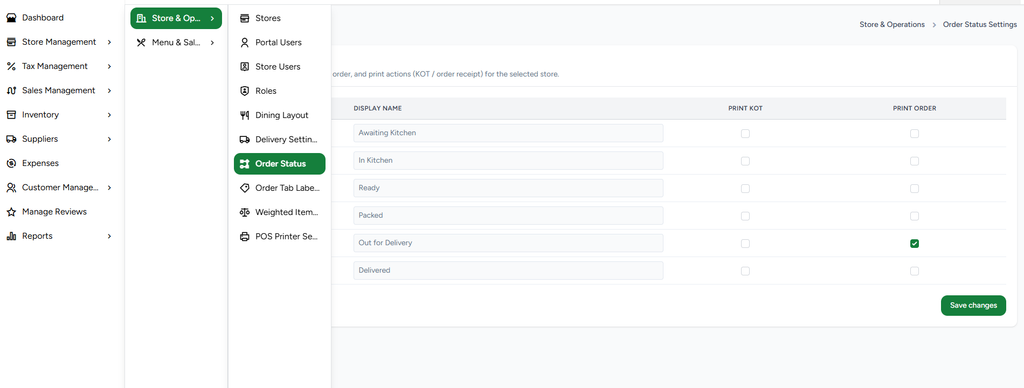
3. Print KOT & Print Order Configuration
Each order status contains two independent print controls: Print KOT and Print Order. These checkboxes determine what is automatically printed when an order reaches that particular status.
Print KOT
When Print KOT is checked for a status, the KOT is printed when the order reaches that status. This is useful for kitchen or preparation-stage printing.
Print Order
When Print Order is checked for a status, the order receipt/order print is generated when the order reaches that status.
Both Checkboxes
If both Print KOT and Print Order are checked for the same status, both outputs are printed when the order reaches that status.
4. KOT Printing Flow
KOT printing is status-driven. The selected status determines when the kitchen ticket is printed.
Select the required delivery/order status.
Enable Print KOT for that status.
Save the settings.
When an order reaches that status, BillKaro POS prints the KOT for the configured status.
If Print KOT is unchecked, that status does not trigger KOT printing.
5. Order Receipt Printing Flow
Order receipt printing follows the same status-driven model, but uses the Print Order checkbox.
Select the required status.
Enable Print Order for that status.
Save the settings.
When an order reaches that status, the order receipt/order print is triggered.
If Print Order is unchecked, that status does not trigger the order receipt print.
6. Combined KOT + Order Printing
The two print actions can be configured independently or together for the same status.
| Print KOT | Print Order | Result when status is reached |
| No | No | No KOT or order receipt is printed. |
| Yes | No | Only KOT is printed. |
| No | Yes | Only order receipt is printed. |
| Yes | Yes | Both KOT and order receipt are printed. |
7. Delivery Order Status Flow
A typical delivery workflow can contain statuses such as Awaiting Kitchen, In Kitchen, Ready, Packed, Out for Delivery, and Delivered. The exact sequence and display names are configurable.
Awaiting Kitchen → order is received and waiting for preparation.
In Kitchen → order is being prepared.
Ready → preparation is completed and the order is ready for the next step.
Packed → order has been packed for dispatch.
Out for Delivery → order has been handed over for delivery.
Delivered → order has reached the customer.
8. Important Behaviour
Print actions are evaluated against the status reached by the order.
Changing a status’s Order number changes the workflow sequence and therefore can change when that status’s print action occurs.
Display Name changes affect the status name shown to users but do not create a new status.
Print KOT and Print Order are independent; selecting one does not automatically select the other.
Selecting both checkboxes intentionally enables both KOT and order receipt printing for that status.
Changes take effect after Save changes is completed and the updated configuration is available to POS.
9. Example Configuration
Example: If ‘Out for Delivery’ has Print Order checked and Print KOT unchecked, the order receipt prints when the order reaches Out for Delivery, but no KOT is triggered by that status. If both boxes are checked, both the KOT and order receipt are printed at that status.
10. End-to-End Flow
Portal: Open Store & Operations → Order Status Settings.
Configure: Edit display names and arrange statuses using drag and drop.
Order Number: Verify that the Order numbers reflect the required sequence.
KOT Print: Check Print KOT for statuses where kitchen printing is required.
Order Print: Check Print Order for statuses where order receipt printing is required.
Both: Check both boxes when both outputs are required at the same status.
Save: Click Save changes.
POS: The POS follows the saved status sequence and print configuration.
Status Change: When an order reaches a configured status, the selected print action(s) are triggered.