
This document explains the menu button located beside the BillKaro logo and the POS features available through it.
1. Top Bar – Menu Button
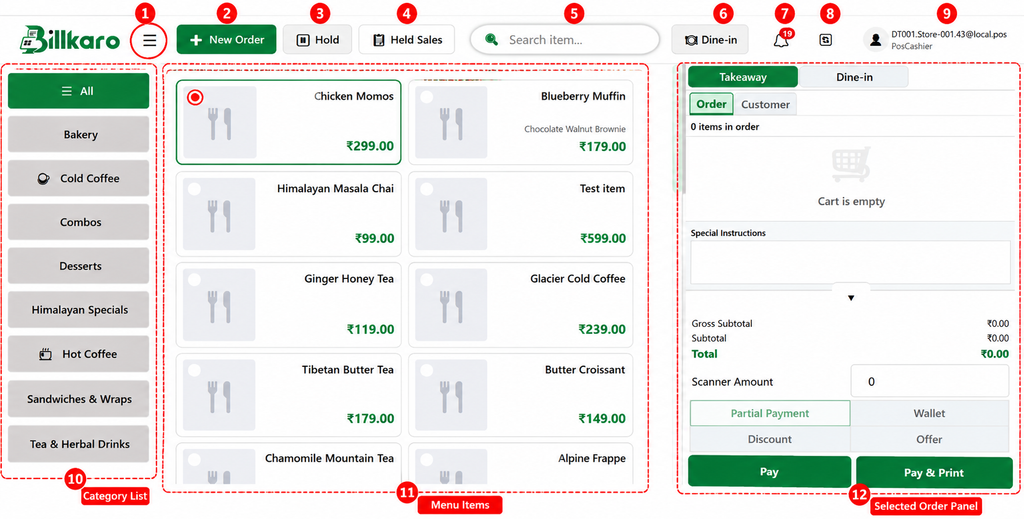
Marked Area 1: The three-line Menu (☰) button located immediately beside the BillKaro logo.
2. What is this Feature?
The Menu button opens the POS navigation panel. It provides quick access to the major operational modules of BillKaro POS without leaving the POS application.
3. Main Purpose
The main purpose of this menu is to provide a single navigation point from which the authorized POS user can open different operational features such as Orders, Wastage, Dine-in Tables, Kitchen Display, Printers, Customers and Help.
4. Features Available in the Menu
POS: Returns to the main billing screen where new orders can be created and payments can be completed.
Reports: Opens POS reports for viewing sales and other operational information.
Wastage: Opens the wastage module for creating, reviewing and managing wastage records.
Orders: Opens order management for reviewing existing orders and performing available order actions.
Dine-in Tables: Opens the dine-in table layout for viewing tables and managing dine-in orders.
Kitchen Display: Opens the Kitchen Display System used by the kitchen to view and process order/KOT items.
Printers: Opens printer management and configured POS printing settings.
Customers: Opens customer management for viewing and managing customer information.
Help: Opens help/support information for using the POS.
5. Working Flow
1. User logs into BillKaro POS.
2. Main POS screen is displayed.
3. User clicks the Menu (☰) button beside the BillKaro logo.
4. The navigation panel opens.
5. User selects the required feature.
6. The selected POS module opens.
7. User completes the required task and can return to POS from the menu.
6. Navigation Examples
Check an existing order: Menu (☰) → Orders → Search/Review Order → Perform the required action.
Check kitchen orders: Menu (☰) → Kitchen Display → View active kitchen orders/KOTs.
Manage wastage: Menu (☰) → Wastage → Create or review wastage records.
Manage dine-in tables: Menu (☰) → Dine-in Tables → Select/manage table.
Manage customers: Menu (☰) → Customers → Search/view customer details.
7. Quick Reference
| Feature | Main Use |
| POS | Billing and order creation |
| Reports | View operational reports |
| Wastage | Manage wastage records |
| Orders | Manage existing orders |
| Dine-in Tables | Manage dine-in tables |
| Kitchen Display | Kitchen order/KOT processing |
| Printers | Printer configuration and management |
| Customers | Customer management |
| Help | POS help/support |
BillKaro POS – New Order
This document explains the New Order feature available on the BillKaro POS top bar and the basic flow used to start a new customer order.
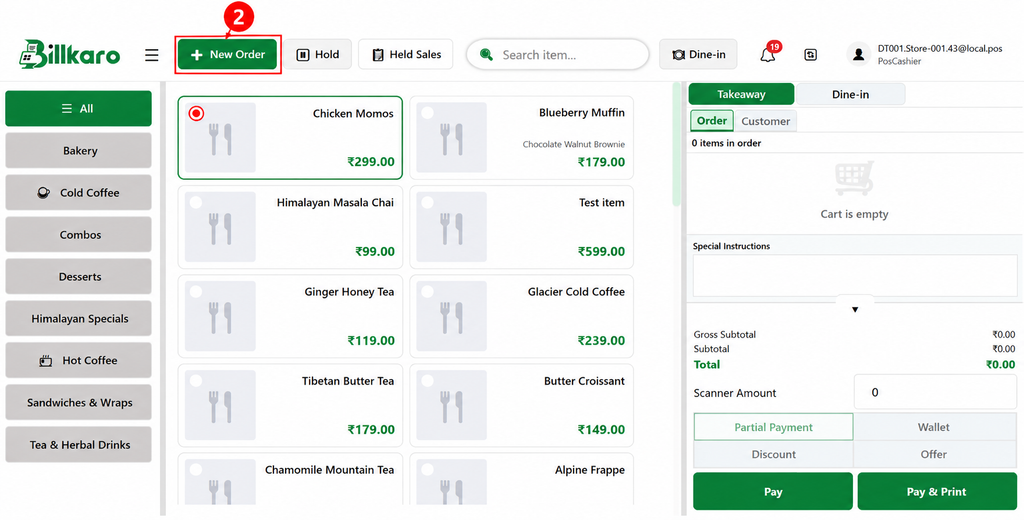
Marked Area 2: The green New Order button in the POS top bar.
2. What is New Order?
New Order is used to start a fresh order in BillKaro POS. When the cashier clicks this button, the POS prepares a new order so the cashier can select items and continue with billing.
3. Main Purpose
The main purpose of New Order is to begin a new billing transaction independently from the previous order. It provides a clean order context for the next customer.
4. Basic Working Flow
1. Cashier clicks New Order.
2. POS creates/opens a fresh order.
3. Cashier selects the required order type, such as Takeaway or Dine-in, when applicable.
4. Cashier selects or adds the customer if customer information is required.
5. Cashier selects menu items from the category/item area.
6. Selected items are added to the order/cart on the right side.
7. Cashier reviews quantity, price, taxes, discount/offer and total.
8. Cashier selects the required payment option.
9. Cashier clicks Pay or Pay & Print to complete the transaction.
5. Example
10. A new customer comes to the counter and wants to purchase 2 Chicken Momos and 1 Cold Coffee.
11. Click New Order.
12. Select Takeaway, if the order is takeaway.
13. Select the customer or continue as a guest.
14. Add Chicken Momos × 2.
15. Add Cold Coffee × 1.
16. Review the order total.
17. Collect payment.
18. Click Pay & Print if the customer requires a printed receipt.
6. Important Behavior
New Order starts a separate order instead of adding items to an already completed order.
The cashier can add customer information when required.
The order can contain multiple menu items and quantities.
Applicable discounts/offers can be considered before payment.
The final payment completes the new order according to the selected payment flo
7. Quick Reference
| Feature | Purpose |
| New Order | Start a fresh customer order |
| Order Type | Define how the order is being served |
| Customer | Attach customer information when required |
| Items | Add products/services to the order |
| Payment | Collect payment and complete the order |
| Pay & Print | Complete payment and print the receipt |
BillKaro POS – Hold & Held Sales
This document explains the Hold and Held Sales buttons in the BillKaro POS top bar.
1. Hold & Held Sales
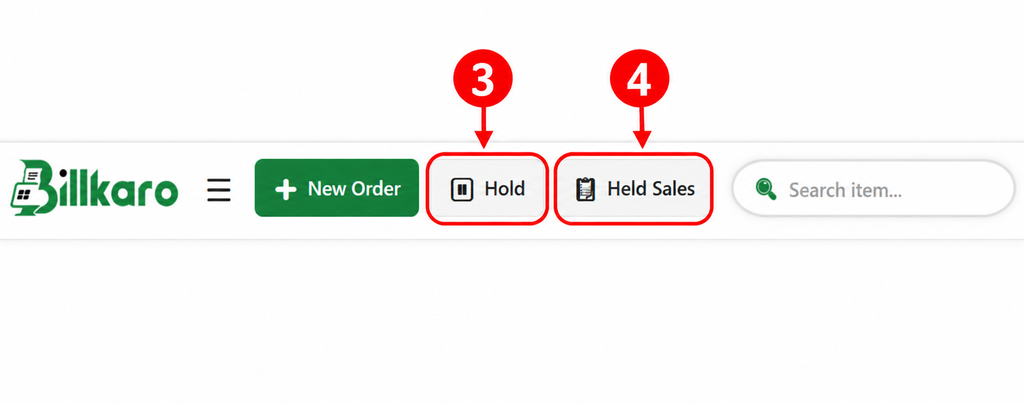
No. 3 – Hold: Temporarily saves the current unfinished order.
No. 4 – Held Sales: Opens the list of orders that have previously been placed on hold.
2. Hold – Main Purpose
Hold is used when the cashier has started an order but cannot complete it immediately. The current order is temporarily saved so the cashier can serve another customer without losing the items already added.
3. Hold – Working Flow
- Create a New Order.
2. Add the customer’s items.
3. Customer is not ready to pay, or the cashier needs to serve another customer.
4. Click Hold.
5. The unfinished order is saved as a held sale.
6. Continue with another customer/order.
4. Held Sales – Main Purpose
Held Sales is used to find and restore orders that were previously placed on hold. The cashier can select a held order and continue the billing process from where it was paused.
5. Held Sales – Working Flow
7. Click Held Sales.
8. View the available held orders.
9. Find the required customer/order.
10. Select the held order.
11. The order is restored to the POS.
12. Review or update the order if required.
13. Continue to payment and complete the order.
6. Real-World Example
Customer A’s order is ₹800. The cashier adds the items, but Customer A needs some time before payment. The cashier clicks Hold. The order is saved.
The cashier then serves Customer B. After Customer B is completed, the cashier clicks Held Sales, selects Customer A’s order, restores it, and completes the ₹800 payment.
7. Hold vs Held Sales
| Feature | Purpose | Action |
| Hold | Temporarily save the current unfinished order | Click Hold |
| Held Sales | View previously held orders | Click Held Sales |
| Resume Held Order | Continue a saved order | Select the required held order |
BillKaro POS – Search
This document explains the Search feature available in the BillKaro POS top bar and how the cashier can quickly find menu items during billing.
1. Search Feature
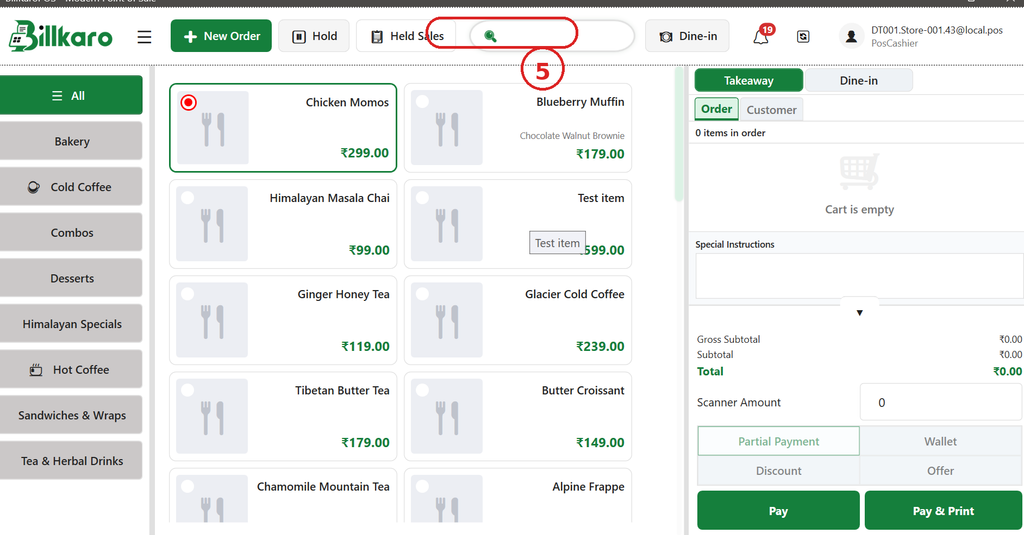
No. 5 – Search: The search field in the POS top bar used to quickly find menu items.
2. What is Search?
The Search feature allows the cashier to find a menu item without manually opening different categories and scrolling through the item list.
3. Main Purpose
Quickly find a menu item by typing its name.
Reduce the time required to search through categories.
Help the cashier handle orders faster during busy hours.
Make frequently used or hard-to-find items easier to access.
4. Working Flow
- Click inside the Search field.
2. Type the name or relevant part of the menu item.
3. POS searches the available menu items.
4. Matching items are displayed in the item area.
5. Select the required item.
6. The selected item is added to the current order.
7. Continue adding items or proceed with the normal payment flow.
5. Real-World Example
A customer wants a Chicken Momos, but the cashier is currently viewing another category. Instead of opening categories one by one, the cashier clicks Search and types “Chicken Momos”. The matching item appears, and the cashier selects it to add it to the order.
6. Search vs Category Selection
| Method | Purpose | Best Use |
| Search | Find an item directly by name | When the item/category is not currently visible |
| Category | Browse items within a category | When the cashier knows the item’s category |
| Item Card | Select the displayed menu item | When the required item is visible |
7. Important Behavior
Search is intended to speed up item selection; it does not replace the order/payment flow.
The cashier can continue adding multiple items after using Search.
After selecting the required item, the item follows the normal cart and billing process.
BillKaro POS – Dine-in
Overview
This document explains the Dine-in feature available in the BillKaro POS and how the cashier can manage restaurant tables from opening a table through item ordering, KOT, payment, and cancellation.
Complete Dine-in Flow
- Configure dining areas and tables from Portal → Store & Operations → Dining Layout.
2. Save the dining layout and synchronize the data to POS.
3. Open Dine-in from the POS top bar.
4. Select a Free or Occupied table.
5. Add items to the table order.
6. Send KOT to the kitchen when required.
7. Continue adding items or proceed to Pay.
8. Settle the bill using one or multiple payment methods.
9. Cancel the table when required using the configured authorization flow.
1. Dine-in Feature
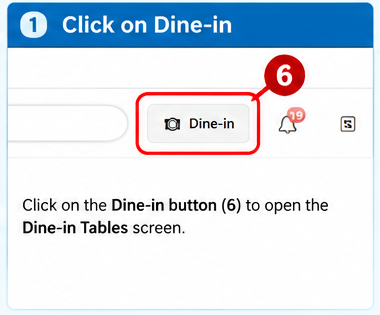
No. 6 – Dine-in: The Dine-in button in the POS top bar used to open and manage dining tables.
What is it?
The Dine-in feature allows the cashier to manage restaurant tables, add items to a table, generate KOTs, settle payments, and cancel tables when required.
Main Purpose
Quickly open the dining table screen.
Manage Free and Occupied tables.
Handle table orders separately from normal takeaway orders.
Access table-related actions such as Add Items, Pay, KOT, and Cancel.
Working Flow
Click the Dine-in button in the POS top bar.
The Dine-in Tables screen opens.
Select the required dining area and table.
Continue with Add Items, KOT, Pay, or other table actions.
Real-World Example
A customer wants to sit at Table 1. The cashier clicks Dine-in, selects Table 1, and starts the table order.
2. Dine-in Tables Screen
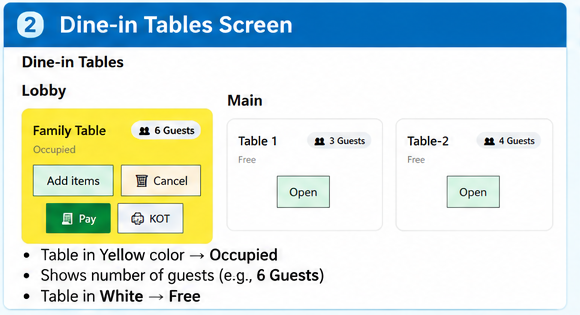
Dine-in Tables: The screen where all configured dining areas and tables are displayed with their current status.
What is it?
The cashier can see which tables are Free and which tables are Occupied. Occupied tables can show the guest count and available table actions.
Main Purpose
View all configured dining tables.
Identify Free and Occupied tables quickly.
See the guest count for an occupied table.
Open a table to continue the order flow.
Working Flow
Open Dine-in.
Select the required dining area.
Check the table status.
Open a Free table for a new order or select an Occupied table to continue its existing order.
Real-World Example
Table 1 is Free, while Family Table is Occupied with 6 Guests. The cashier can open the Free table for a new customer or continue working on the occupied table.
3. Table Actions
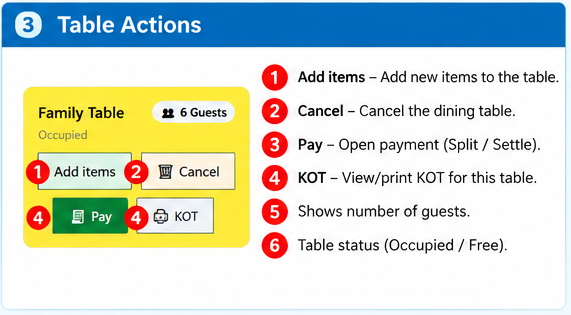
Table Actions: Actions available for the selected dining table, such as Add Items, Pay, KOT, and Cancel.
What is it?
After selecting a table, the cashier can perform the required operation without leaving the Dine-in workflow.
Main Purpose
Add new items to the table order.
Open payment and settle the bill.
Create or manage the KOT.
Cancel the dining table when required.
Working Flow
Select an occupied or available table.
Choose the required table action.
Complete the selected operation.
Return to the table workflow for the next action.
Real-World Example
For an occupied table, the cashier clicks Add Items to add another dish, or clicks Pay when the customer is ready to settle the bill.
5. KOT for Dine-in
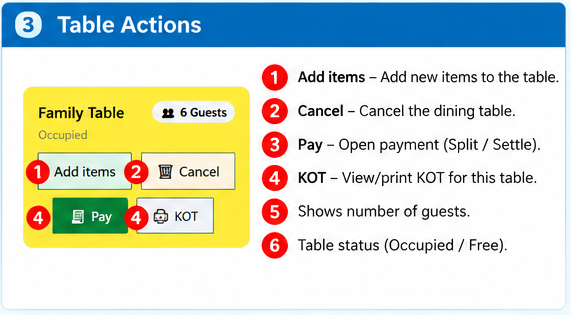
KOT: The KOT action is used to send the table order to the kitchen through the configured KOT/Kitchen workflow.
What is it?
KOT helps the kitchen team receive the items that need to be prepared for the selected table.
Main Purpose
Send ordered items to the kitchen.
Keep kitchen preparation linked to the table.
Support additional items and KOT updates during the visit.
Working Flow
Add items to the table order.
Review the selected items.
Click KOT.
The KOT is generated according to the configured POS/Kitchen workflow.
Kitchen staff prepare the items for the table.
Real-World Example
Table 1 orders Chicken Momos. The cashier adds the item and sends the KOT so the kitchen can start preparing it.
6. Pay / Split / Settle Payment
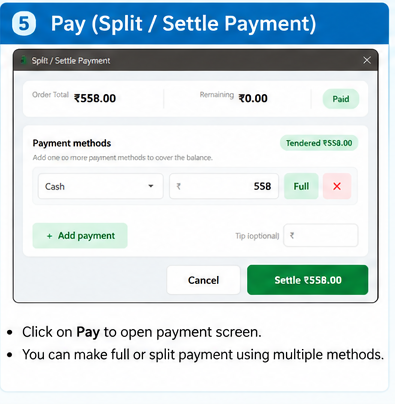
Pay: The Pay action opens the Split / Settle Payment screen for the selected table.
What is it?
The cashier can settle the complete bill using one payment method or split the payment across multiple payment methods.
Main Purpose
View the order total and remaining amount.
Accept one or more payment methods.
Support split payments.
Complete settlement of the table bill.
Working Flow
Select the occupied table.
Click Pay.
Review the order total and remaining amount.
Select a payment method and enter the amount.
Add another payment method if required.
Click Settle to complete the payment.
Real-World Example
A table has a ₹558 bill. The customer pays ₹300 by Cash and ₹258 by another payment method. The cashier adds both payments and settles the bill.
7. Cancel Dining Table
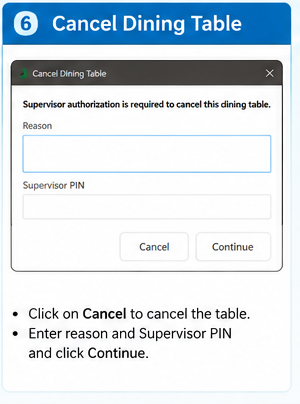
Cancel: The Cancel action is used to cancel an active dining table after the required authorization.
What is it?
The cancellation screen requires the cancellation reason and supervisor authorization according to the configured permission flow.
Main Purpose
Cancel an active dining table when required.
Record the reason for cancellation.
Apply supervisor authorization where required.
Working Flow
Select the table.
Click Cancel.
Enter the cancellation reason.
Enter the required Supervisor PIN.
Click Continue.
The table is cancelled according to the configured flow.
Real-World Example
A customer leaves before ordering and the occupied table needs to be released. The cashier selects Cancel, enters the reason, provides the required authorization, and completes the cancellation.
8. Add Dining Tables from Portal
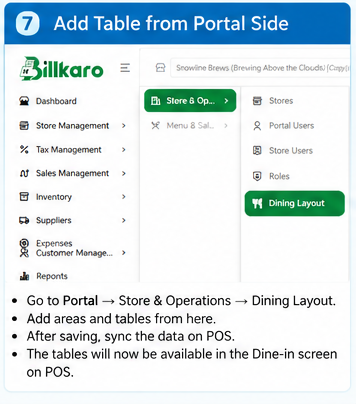
Portal – Dining Layout: Dining areas and tables are configured from the BillKaro Portal and then synchronized to the POS.
What is it?
The Portal is used to create the dining layout. After synchronization, the configured areas and tables become available in the POS Dine-in screen.
Main Purpose
Create dining areas such as Lobby, Main, Outdoor, or Family Area.
Add and configure tables inside each area.
Maintain the restaurant’s table layout centrally.
Sync the configured tables to POS.
Working Flow
Open the BillKaro Portal.
Go to Store & Operations → Dining Layout.
Add or select the required dining area.
Add the required tables.
Save the dining layout.
Sync the data to POS.
Open Dine-in on POS and verify the new tables.
Real-World Example
The restaurant adds Table 3 and Table 4 under the Main area in the Portal. After saving and syncing, both tables appear in the POS Dine-in Tables screen.
Dine-in vs Normal Billing
| Feature | Dine-in | Normal / Takeaway |
| Order Location | Linked to a dining table | Regular POS order |
| Table Status | Free / Occupied | Not applicable |
| Guest Count | Available | Not applicable |
| Add Items | Items are added to selected table | Items are added to current order |
| KOT | Kitchen flow linked to table | Normal order KOT flow |
| Payment | Settle the table bill | Settle the regular order |
BillKaro POS – Notification Feature
This document explains the Notification feature available in the BillKaro POS top bar and how the cashier can view important POS notifications.
1. Notification Feature
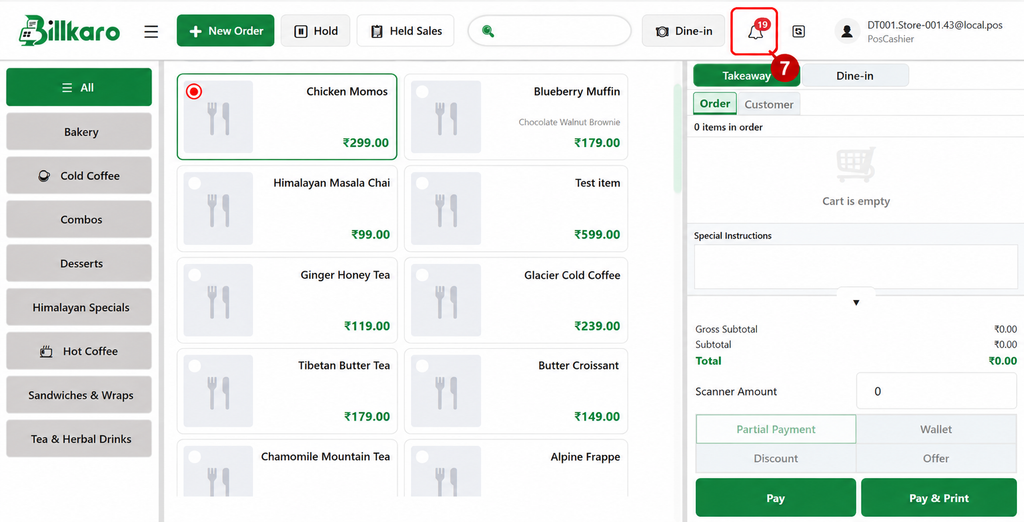
No. 7 – Notification: The bell icon in the POS top bar used to view important notifications.
2. What is Notification?
The Notification feature allows the cashier or POS user to quickly check important alerts, updates, and messages related to the POS system. A notification badge is displayed on the bell icon when new notifications are available
3. Main Purpose
Quickly identify when new POS notifications are available.
View important alerts or updates without leaving the POS screen.
Keep the cashier informed about relevant system or operational events.
Provide a central place to check pending notifications.
4. Working Flow
1. Locate the Notification bell icon in the top bar.
2. Check the notification badge displayed on the bell icon.
3. Click the Notification icon.
4. The notification panel or notification list opens.
5. Review the available notifications.
6. Open or select a notification when more details are required.
7. After reviewing the notification, continue with the normal POS workflow.
5. Notification Badge
The red badge on the Notification bell indicates that notifications are available. The number shown in the badge represents the notification count displayed by the POS.
6. Real-World Example
During a busy shift, the cashier notices a red notification badge on the bell icon. The cashier clicks the Notification icon, checks the available alert, and then returns to the current billing workflow.
7. Important Behavior
The Notification icon is available in the POS top bar.
A badge is shown when notifications are available.
Clicking the bell opens the notification area.
Notifications can be reviewed without disrupting the normal billing flow.
The notification feature does not replace the normal order, payment, or billing workflow.
8. Quick Reference
| Feature | Purpose |
| Notification Bell | Open the notification area |
| Red Badge | Shows available notification count |
| Notification List | Review available alerts and updates |
BillKaro POS – Sync Feature

No. 8 – Sync: The Sync button in the POS top bar is used to synchronize the latest data and changes from the BillKaro Portal to the POS.
Purpose
Use Sync when new or updated information is added in the Portal and needs to be available on the POS.
Working Flow
Make the required change in the BillKaro Portal.
Ensure the POS has an active internet/network connection.
Click the Sync button marked No. 8 in the POS top bar.
POS fetches the latest available Portal data.
After successful synchronization, the updated data is available on the POS.
Examples of Data Synced
New or updated menu items and categories
Item price and tax changes
Stock and inventory updates
Purchase information
Tax profiles
Offers and promotions
Store, user, dining, and other POS settings
Important
An active network connection is required for synchronization. After Sync completes successfully, the latest Portal changes can be used on the POS.
BillKaro POS – User Profile Menu: Click & Options
This document explains what happens when the cashier clicks the User Profile icon (No. 9) in the BillKaro POS top bar and what each available option is used for.
1. Click the User Profile Icon – No. 9
The cashier clicks the User Profile icon marked No. 9 in the top-right area of the POS screen. A dropdown menu opens below the icon.
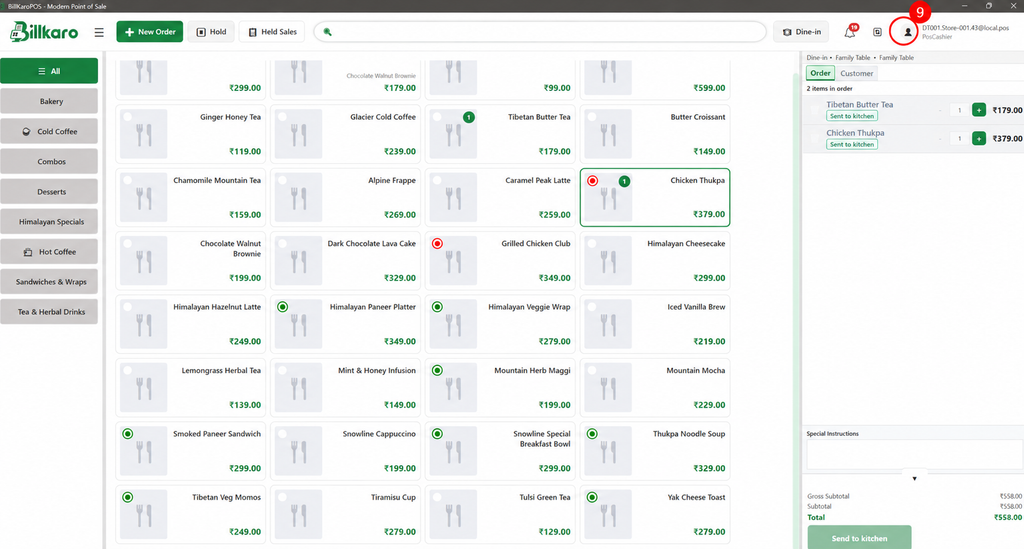
2. Options Shown After Clicking the Icon
1. Settings
Opens the POS settings area. The user can view or configure available POS settings and preferences.
2. Help
Opens the Help section for assistance, guidance, or information related to using the POS.
3. Synchronization Center
Opens the Synchronization Center. This is used to check and manage synchronization between the Portal and POS, including newly added or updated data that needs to reach the POS.
4. Sign out
Logs out the currently signed-in POS user. The user can then sign in again with the required account.
3. Step-by-Step Flow
1. Open the BillKaro POS screen.
2. Locate the User Profile icon at the top-right of the POS screen.
3. Click the icon marked No. 9.
4. The dropdown menu appears.
5. Select the required option: Settings, Help, Synchronization Center, or Sign out.
6. Perform the required action and return to the POS workflow when finished.
4. Synchronization Center – Main Use
When changes are made in the BillKaro Portal, such as adding or updating menu items, stock, purchases, or other store data, the POS needs to synchronize with the Portal. The Synchronization Center provides the place to check and perform this synchronization.
5. Important Behavior
Clicking the User Profile icon does not change the current order. It only opens the account/system options menu. The cashier can choose the required option and continue the normal POS workflow.
BillKaro POS – Help & Keyboard Shortcuts
1. Help & Shortcuts Screen
The Help & Shortcuts screen is available in the BillKaro POS application to help users understand available keyboard shortcuts, quick actions, and the current POS application version.
What is available on this screen:
App Version – Shows the currently installed BillKaro POS version.
Check for Updates – Allows the user to check whether a newer POS application version is available.
Keyboard Shortcuts – Displays the available shortcuts grouped by purpose.
Quick Tips – Provides useful guidance for common POS actions.
Conflicts / Suggestions – Shows shortcut conflicts or usage suggestions where applicable.
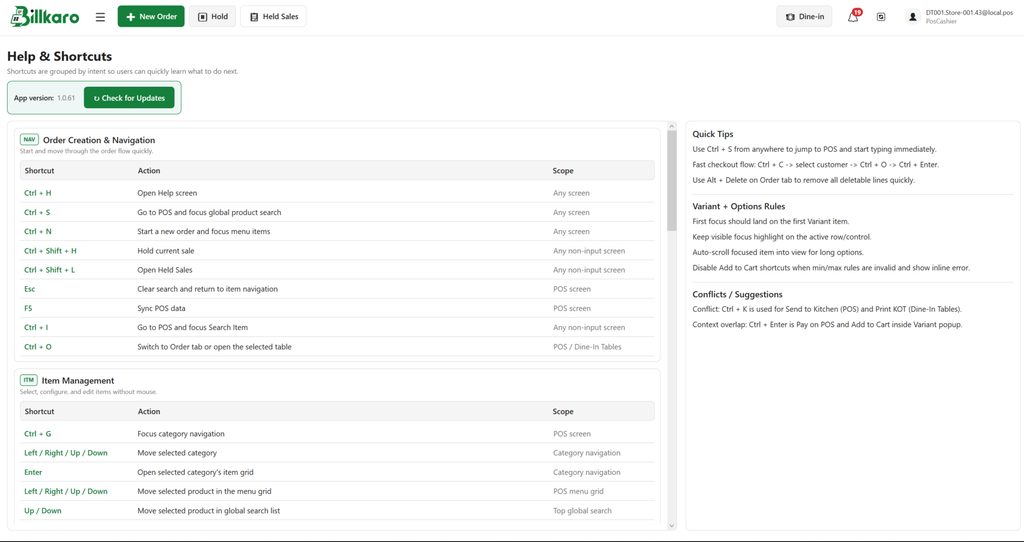
Image 1 – BillKaro POS Help & Shortcuts screen
2. How to Open and Use Help
Open the BillKaro POS application.
Open the Help screen using the configured Help shortcut or the available POS navigation option.
Check the App Version shown at the top.
Use Check for Updates when you want to check for a newer application version.
Review the shortcut list and Quick Tips to learn the available POS actions.
3. Keyboard Shortcuts – Default and Store Configuration
The shortcut list shown on the POS is primarily for reference. Store-specific shortcut values can be configured from the BillKaro Portal. If no custom values are configured, the default shortcut mapping is shown and used.
4. Configure Shortcuts from the Portal
Log in to the BillKaro Portal.
Go to Store Management.
Open Store & Options and select Stores.
Find the required store.
Click the three-dot menu on the store card.
Select Keyboard Shortcuts.
The Keyboard Shortcuts page opens for that store.
Review the available shortcut mappings and modify the shortcut values as required.
Save/apply the configuration as provided by the Portal.
The configured shortcuts become available on the Desktop POS after the next store synchronization.
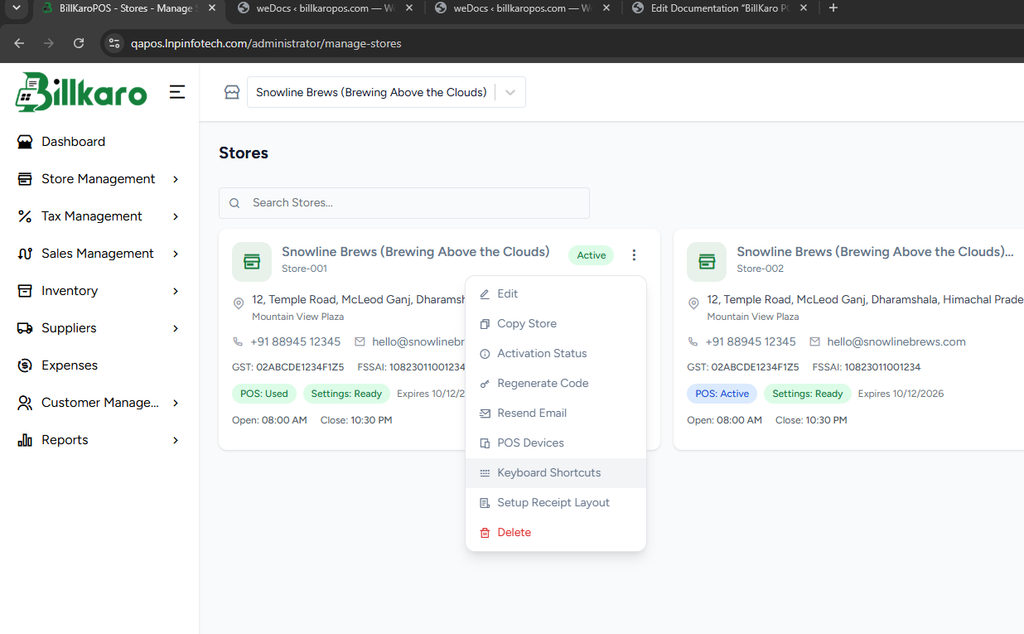
Image 2 – Store three-dot menu with Keyboard Shortcuts option
5. Keyboard Shortcuts Configuration Page
The Keyboard Shortcuts page lists each shortcut, its action, and its scope. The store can use the default shortcut map or customize shortcut values according to its workflow.
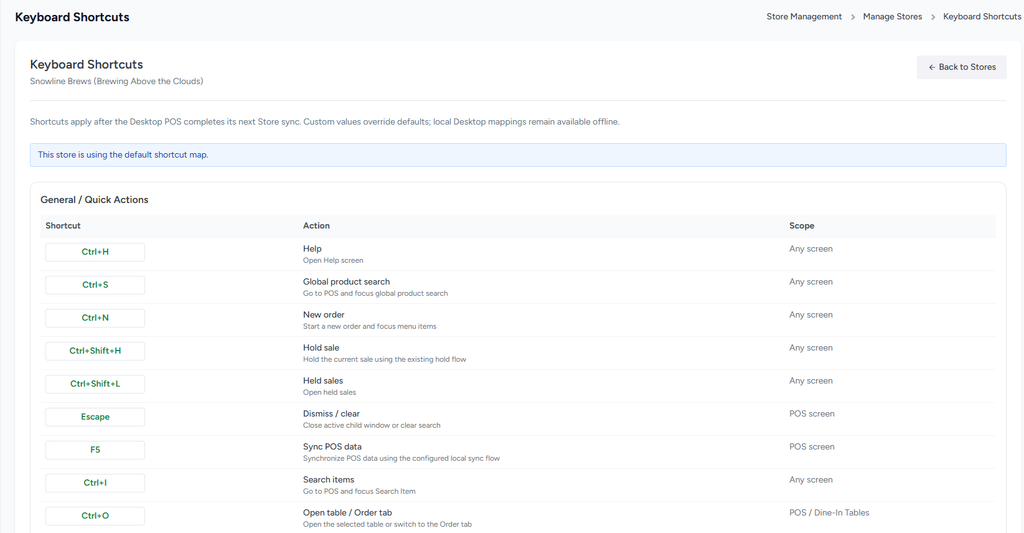
Image 3 – Store Keyboard Shortcuts configuration page
6. Default vs Custom Shortcuts
| Type | Behavior | Where Managed |
| Default | BillKaro provides the standard shortcut mappings. | POS / default configuration |
| Custom | Store can change shortcut keys according to its workflow. | Portal → Store Management → Stores → Three-dot menu → Keyboard Shortcuts |
| POS Display | POS shows the shortcuts available to the user for quick reference. | POS Help & Shortcuts screen |
7. Example Shortcuts
Ctrl + H – Open Help screen.
Ctrl + S – Go to POS and focus global product search.
Ctrl + N – Start a new order.
Ctrl + Shift + H – Hold the current sale.
Ctrl + Shift + L – Open Held Sales.
F5 – Sync POS data.
Ctrl + I – Go to POS and focus Search Item.
Ctrl + O – Switch to the Order tab or open the selected table.
8. Important Notes
The Help & Shortcuts screen is read-only for the cashier; it is mainly used to view available shortcuts and guidance.
Shortcut values can be customized from the Portal for the selected store.
If a store does not define custom values, the default shortcut mapping is used.
After changing shortcut configuration in the Portal, the Desktop POS must complete its next store synchronization before the updated mapping is applied.
Users should choose shortcut keys that do not conflict with existing POS actions or common system/browser shortcuts.
9. Complete Flow
Portal: Store Management → Store & Options → Stores → Three-dot menu → Keyboard Shortcuts → Configure shortcuts → Store sync → POS receives the updated configuration → User views/uses the shortcuts from Help & Shortcuts.