
1. Overview
The Expenses module in BillKaro POS allows staff to view expenses available on the POS, record a new operating expense, allocate its amount across one or more payment methods, and save the entry. The screen also indicates that POS expenses are sent to the Portal automatically when synchronization is available.
2. Purpose
View expenses saved on the POS and expenses synced from the Portal.
Filter expense records by a date range and review the total expense amount.
Create an expense with a date, category, title, amount, vendor/payee, and optional notes.
Add a new expense category when the required category is not already available.
Split an expense across multiple payment methods and optionally record reference numbers.
Save the expense and return to the expense list for verification.
3. Open the Expenses module
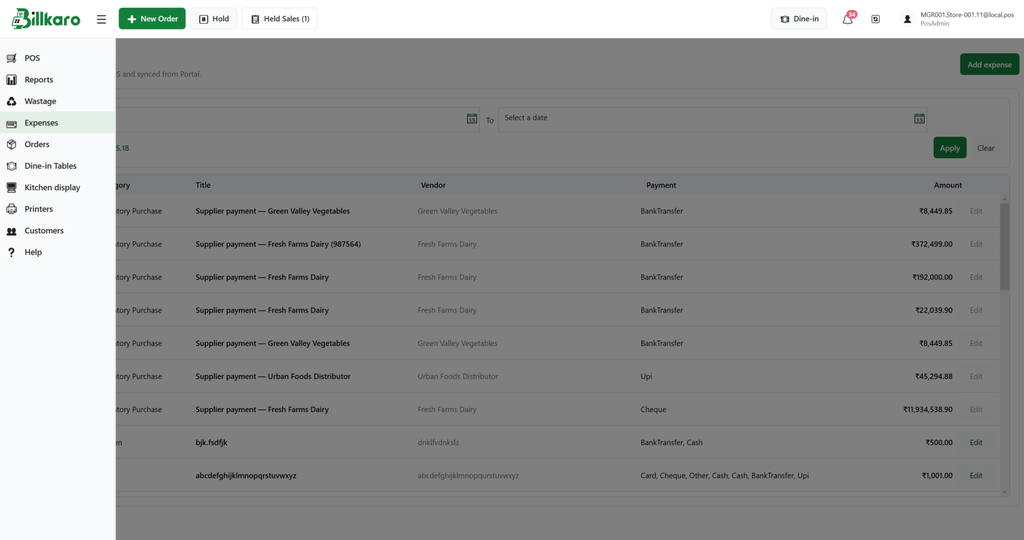
Open the POS navigation menu and select Expenses. The Expenses page displays the date filters, total expenses, the expense list, and the Add expense button.
4. Review and filter the expense list
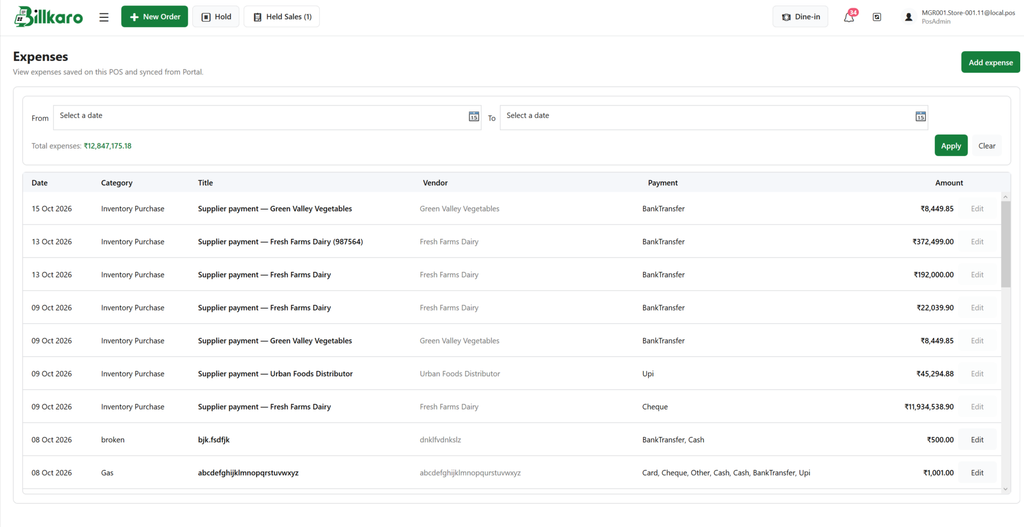
The list includes Date, Category, Title, Vendor, Payment, and Amount. Use From and To to choose a date range, then select Apply to filter the records. Select Clear to remove the date filters. The total expenses value summarizes the displayed expense data.
5. Start adding a new expense
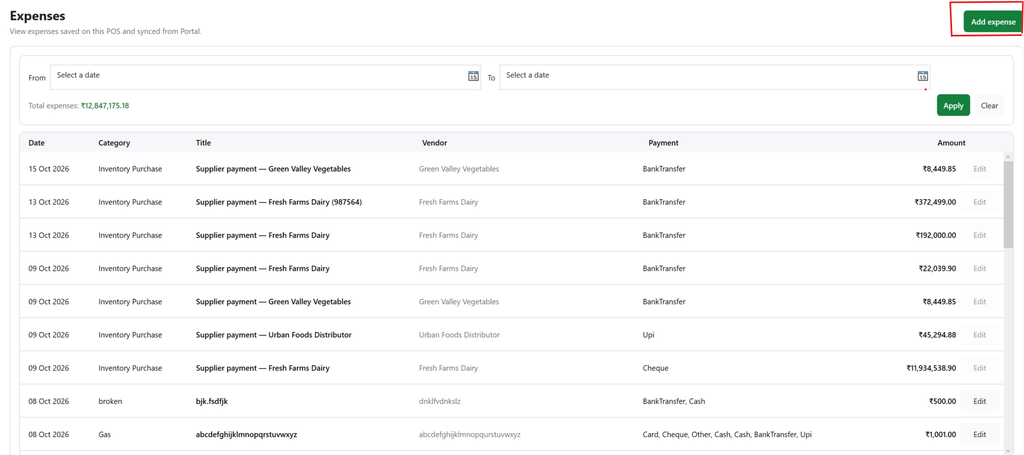
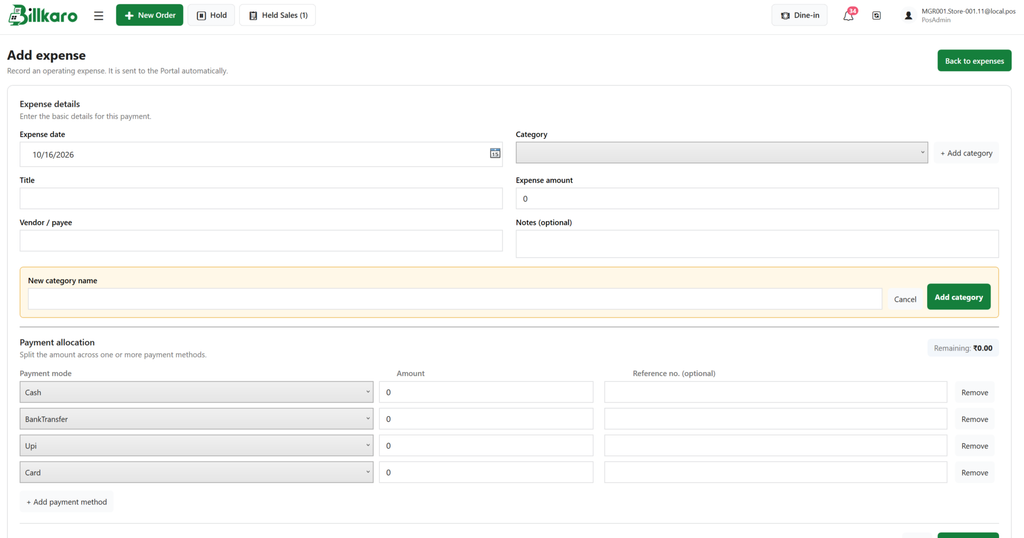
Select Add expense from the Expenses page. This opens the Add expense form. Use Back to expenses to return to the listing without continuing the creation flow.
6. Enter expense details
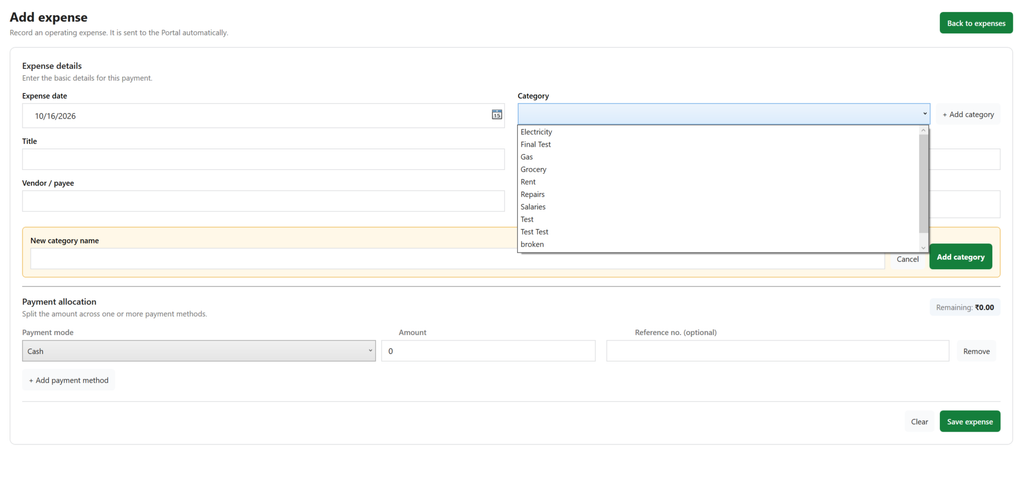
Complete the expense information shown on the form:
Expense date: the date on which the expense was incurred.
Category: select an existing category.
Title: enter a short description of the expense.
Expense amount: enter the total expense value.
Vendor / payee: enter the supplier or recipient, where applicable.
Notes (optional): add supporting information if needed.
If the required category does not exist, select Add category, enter the new category name, and choose Add category to create it. Use Cancel to close the category-entry area.
7. Allocate payment methods
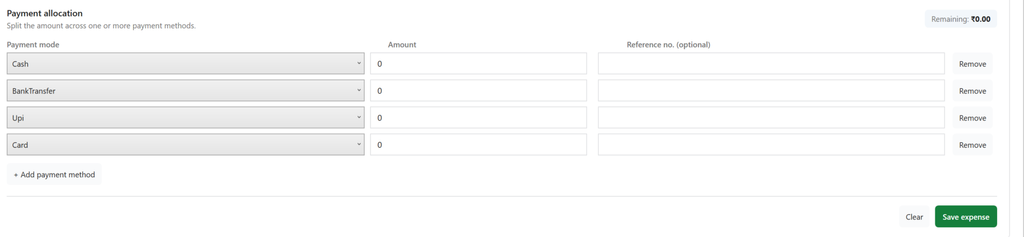
The Payment allocation section lets the user distribute the expense amount across one or more payment methods. Each row contains Payment mode, Amount, and an optional Reference no. field. Use Add payment method to add another row and Remove to delete a row that is not required.
The Remaining indicator shows the amount that is not yet allocated. Enter amounts so the total allocated across payment rows matches the expense amount before saving. Reference numbers can be used for bank transfers or other traceable transactions when applicable.
8. Save and verify the expense
Review the expense details and payment allocation, then select Save expense. Use Clear only when you intend to reset the form. After saving, return to the Expenses list and verify that the new record appears with the expected date, category, title, vendor, payment method, and amount.
9. Expected behavior and validation checklist
The Expenses page loads the list of available expense records.
Date filters update the list when Apply is selected; Clear resets the filter.
A new category can be created from the Add expense form.
Multiple payment methods can be added or removed.
The Remaining amount reflects the difference between the expense amount and allocated payments.
The expense should not be considered fully allocated until the payment amounts reconcile with the expense amount.
After saving, the expense is visible in the list.
POS-created expenses are intended to sync to the Portal automatically; verify sync status or Portal visibility according to the current environment.
10. Quick flow summary
POS Menu → Expenses → Add expense → Enter details → Allocate payment methods → Save expense → Verify in list / Portal sync
Note: This documentation is based on the supplied POS screenshots. Exact mandatory fields and validation messages should be confirmed against the current application build.