
Purpose: This document explains how wastage is recorded from POS or Portal, how order-related wastage is entered, and how the resulting record and ingredient-level loss details can be reviewed in Portal.
Complete Flow
| 1. Create Wastage in POS / Portal | 2. Add Reason, Date & Items | 3. Save & Synchronize | 4. Review Portal Wastage Details | 5. Check Loss / Reverse if Needed |
Portal navigation: Inventory → Wastage. POS-created wastage can be checked on this Portal page after synchronization.
1. Open Wastage
Go to Inventory → Wastage. The page provides summary cards for today, this week, this month, top item, and top raw material. Use the date filters and search field to locate records by number, reason, or order. Select + Add wastage to create a Portal record.
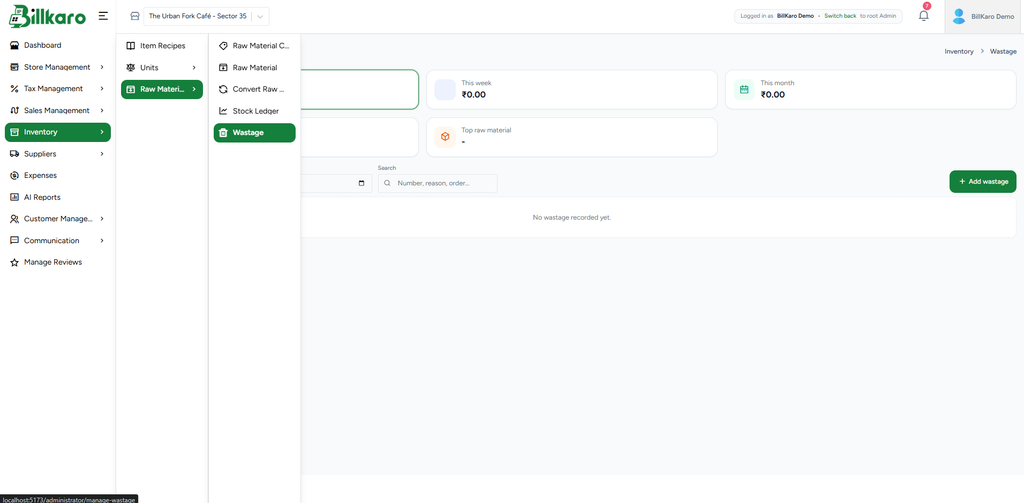
Screenshot 1. Inventory menu and Wastage page
2. Enter Date, Reason and Related Order
Set the wastage date and time.
Select a reason (required), such as Damaged.
Add notes if more explanation is needed.
A related order is optional. Enter its order number and select Find to load order items.
When an order is loaded, review the listed items and adjust quantities to the amount being wasted. Remove items that should not be included.
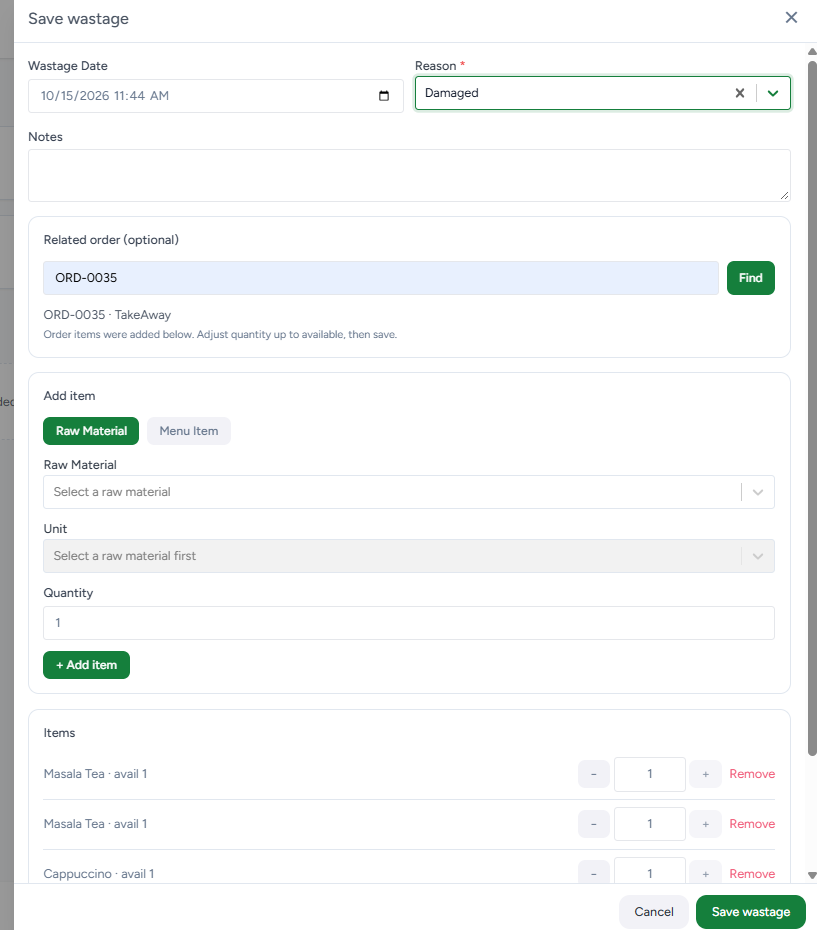
Screenshot 2. Save wastage form with date, reason and related order
3. Add Raw Material or Menu Item
In Add item, select Raw Material to record a direct raw-material loss, or Menu Item to select a prepared menu item.
Raw Material: select the material, confirm its unit, enter the quantity, select + Add item, and verify it appears in the Items list.
Menu Item: select Menu Item, choose the required item, add it, and adjust the quantity to the available amount.
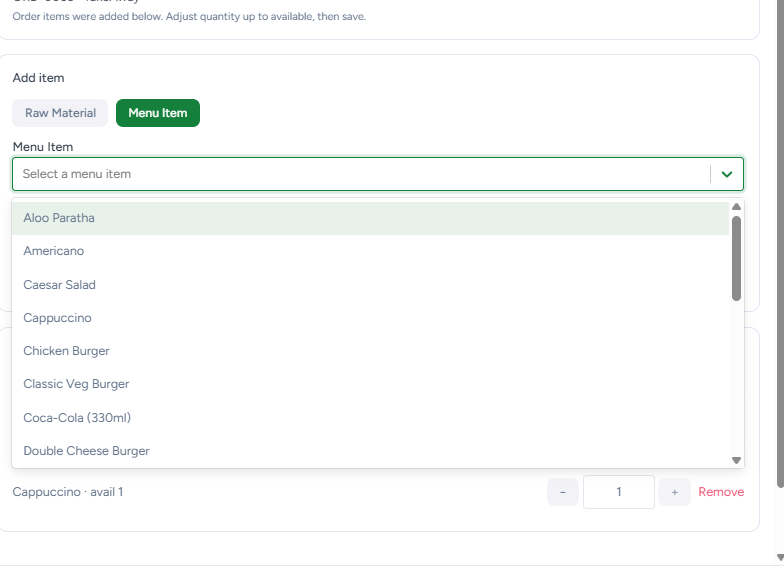
Screenshot 3. Selecting a menu item
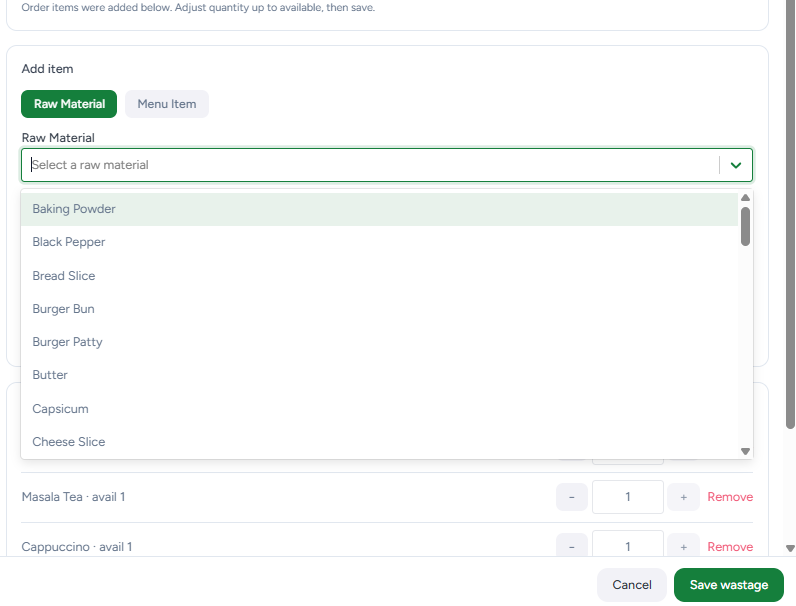
Screenshot 4. Selecting a raw material
4. Save and Verify the Record
Review the date, reason, notes, related order, items, and quantities, then select Save wastage. After saving, the Wastage list shows the wastage number, date, reason, item count, loss amount, related order, creator, and available actions.
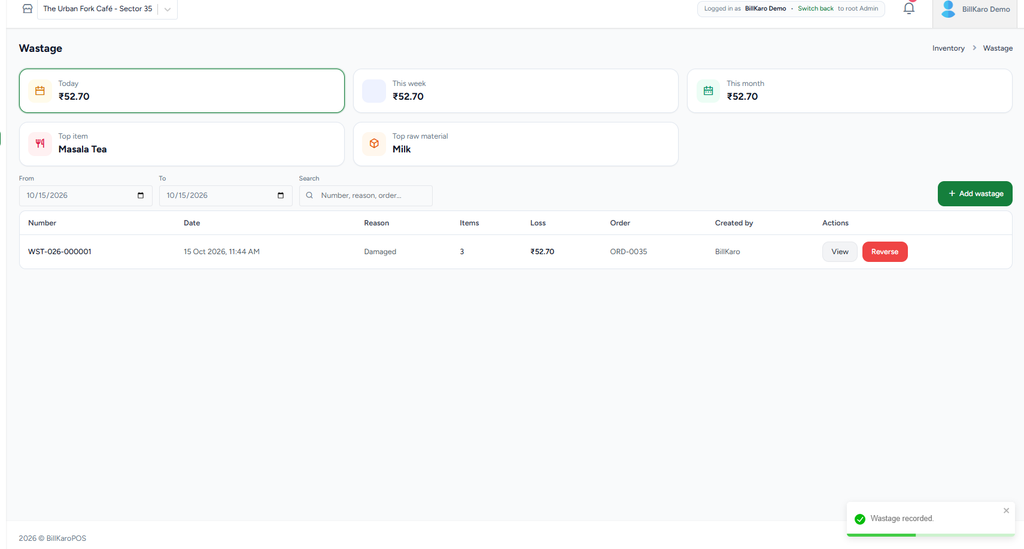
Screenshot 5. Saved wastage record in Portal
5. View Ingredient-Level Loss Details
Select View on the record. Details include the wastage number, date, store, reason, related order, and recorded-by information. For menu-item wastage, the details may show recipe-based raw-material usage, purchase and consumption units, catalog cost, recipe usage, wasted quantity, and calculated loss for each ingredient.
The example screen states that stock was already consumed for the order and no additional stock will be deducted. This prevents the same ingredient usage from being deducted twice when recipe consumption already reduced stock.
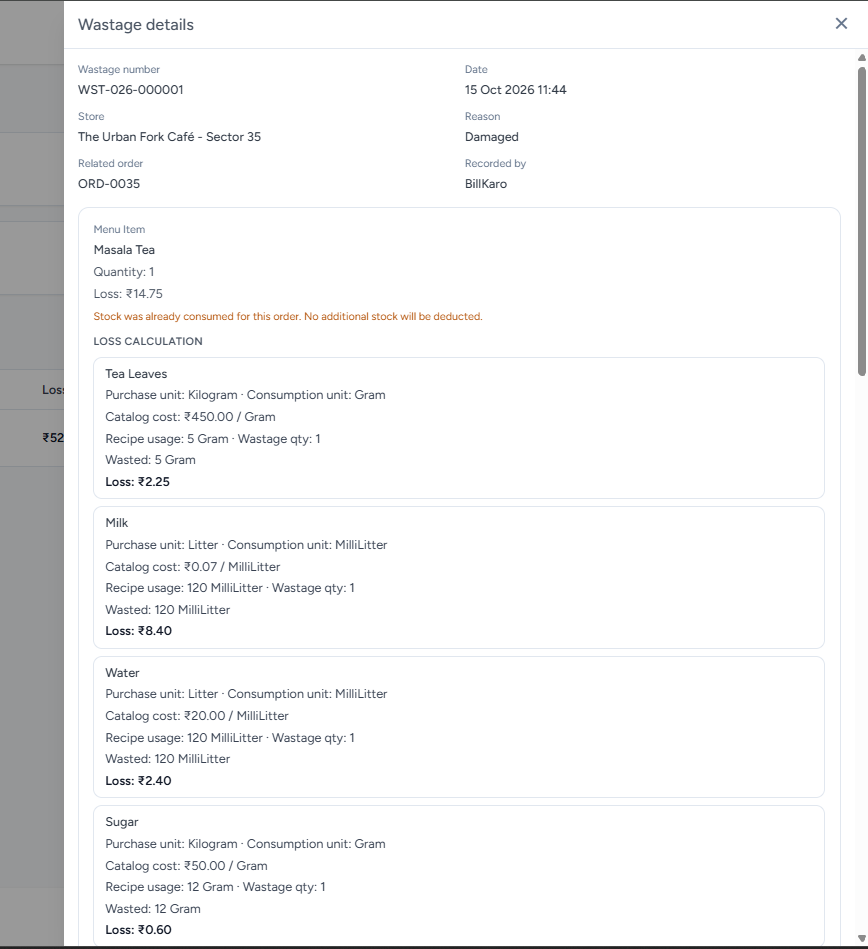
Screenshot 6. Wastage details and ingredient loss calculation
6. Reverse Wastage
Use Reverse only when an existing wastage record needs to be undone. Enter a clear reversal reason in the confirmation dialog and confirm Reverse. The screen indicates that stock will be put back if it was deducted. Verify the original record and stock impact before reversing.
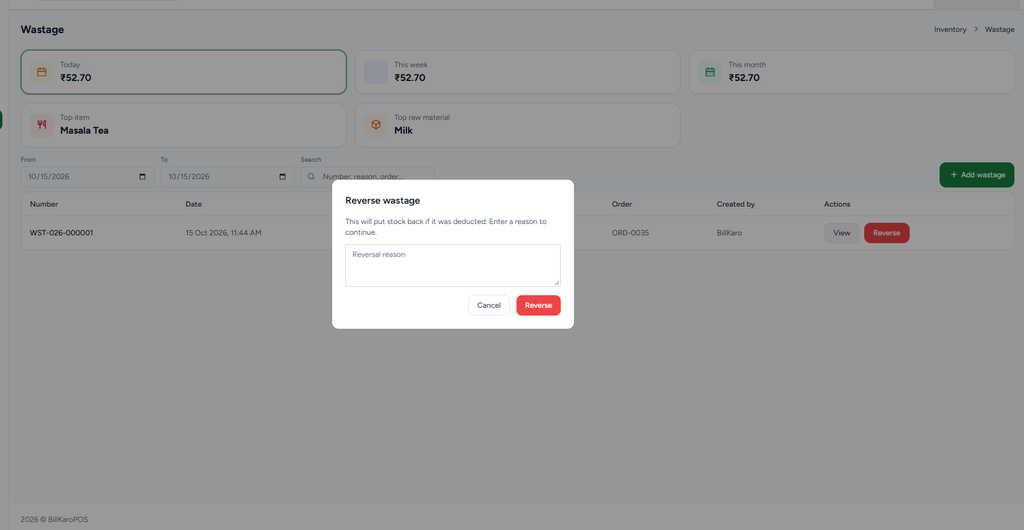
Screenshot 7. Reverse wastage confirmation
7. POS-to-Portal Wastage Flow
Open Wastage in POS.
Choose the supported method: record raw-material wastage directly or load a related order.
Enter the required reason, select item(s), and specify the wastage quantity.
Save the wastage in POS.
When synchronization is available, the POS-created record is sent to Portal.
Open Portal → Inventory → Wastage and search by date, wastage number, reason, or order.
Select View and verify the recorded items, quantities, calculated loss, and related order.
If POS is offline, the record may remain local or pending synchronization until connectivity returns, depending on the installed POS build. Confirm synchronization and verify the record in Portal afterward.
8. Validation and Testing Checklist
☐ Wastage reason is entered.
☐ Related order is used when wastage is order-related.
☐ Quantities do not exceed the available quantity shown for order items.
☐ Saved wastage number and order reference are visible in Portal.
☐ Ingredient-level quantities and loss calculations are reviewed.
☐ Stock Ledger is checked to confirm whether stock was deducted or restored.
☐ Recipe consumption does not cause duplicate stock deduction.
☐ Reversal is performed only with a valid reason.