
Purpose: The Stock Ledger helps track available raw material stock and provides a history of transactions that change stock. When a menu item is sold, the raw materials linked to its recipe are consumed automatically, and the resulting quantities are recorded in Movement History.
Complete Flow
| 1. Stock Balances | 2. Movement History | 3. Filter by Movement Type | 4. Filter by Source | 5. Review Stock Changes |
Navigation: Portal → Inventory → Stock Ledger. Use Stock Balances to review current stock, and Movement History to investigate why stock changed.
1. Stock Balances — Current Stock Position
Open Inventory → Stock Ledger. The Stock Balances tab shows each tracked raw material, its category, current balance, minimum stock level, status, and last movement time.
How to use it:
Search by raw material name.
Select a category to narrow the list.
Enable Show only below minimum to identify materials that are below their configured minimum stock level.
Compare Balance with Minimum Level and check the status shown for each raw material.
If a raw material’s balance falls below its configured minimum stock level, it should be treated as low stock and reviewed for replenishment. The exact status depends on the system’s configured stock rules.
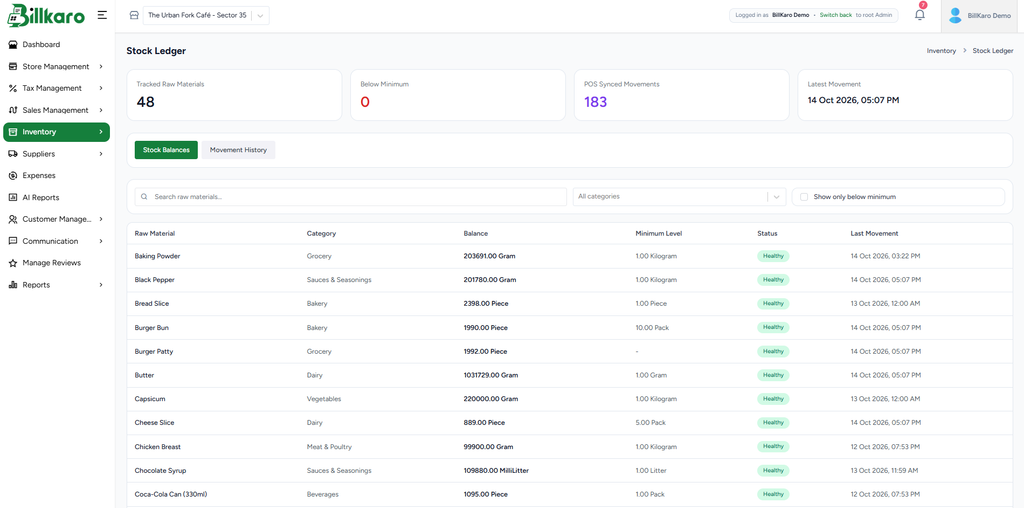
Screenshot 1 — Stock Balances
2. Movement History — All Stock Transactions
Select Movement History to see the transaction history for raw materials. The table can show When, Raw Material, Movement, Direction, Quantity, Balance, Source, and Reference.
Key columns:
When: date and time of the stock movement.
Raw Material: item whose stock changed.
Movement: transaction type, such as Purchase In, Recipe Consumption, Wastage, or Conversion.
Direction: In means stock was added; Out means stock was reduced.
Quantity: quantity added or removed, displayed in the material’s unit.
Balance: previous and new stock balance, where available.
Source and Reference: origin of the transaction and linked document/order reference.
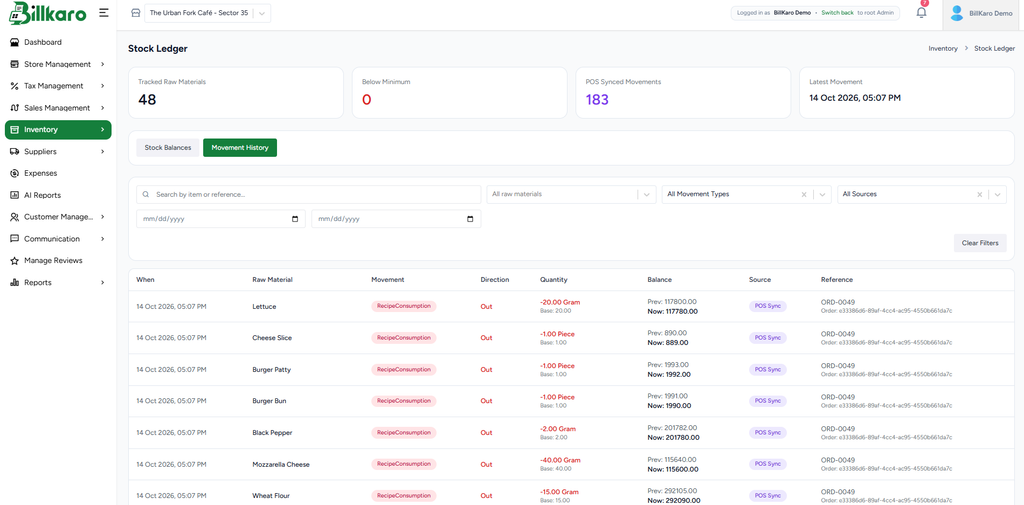
Screenshot 2 — Movement History
3. Filter by Movement Type
Use the Movement Type filter to view a specific type of transaction instead of all records. The visible options include Purchase In, Purchase Reversal, Conversion Input, Conversion Output, Recipe Consumption, Recipe Consumption Reversal, and Direct Stock.
Example: select Recipe Consumption to review raw materials deducted when menu items were sold. Select Purchase In to review stock received through purchases. Select Wastage where available to investigate stock written off due to wastage.
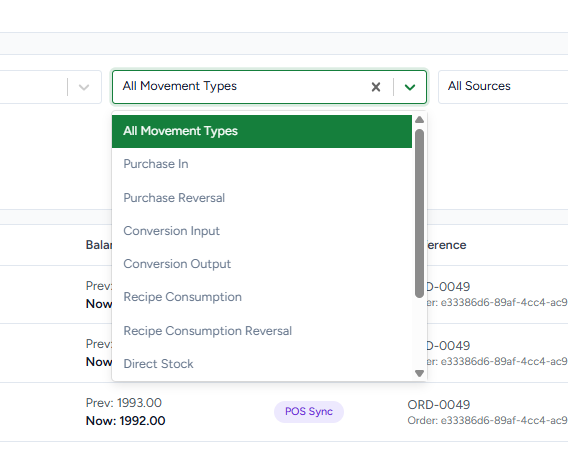
Screenshot 3 — Movement Type Filter
4. Filter by Source
Use the Source filter to narrow movements by where they came from. The visible options include Purchase, Simple Stock In, Stock Conversion, POS Sync, Wastage, Order Sync, and Mobile.
Example: choose Purchase to inspect purchase-related movements, Wastage to inspect wastage transactions, or POS Sync to inspect stock movements received from POS synchronization.
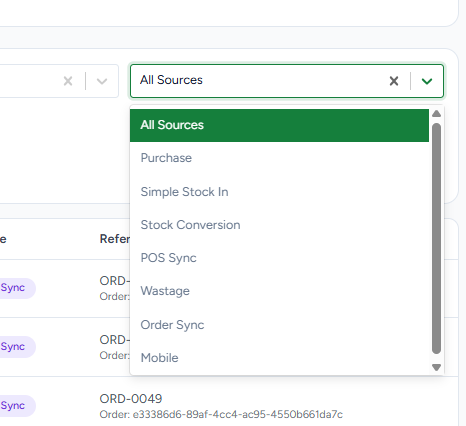
Screenshot 4 — Source Filter
5. Menu Item Sale — Recipe Consumption Flow
This is the main automatic stock deduction flow:
A menu item is added to an order and sold in POS.
The system checks the published recipe configured for that menu item.
The recipe defines the raw materials and quantities required per item.
When the sale is processed, the required raw material quantities are deducted from stock.
Movement History records each consumed raw material as Recipe Consumption, normally with Direction Out, quantity, updated balance, and an order reference.
Example: if one Aloo Paratha recipe uses 2 g Butter, 10 ml Olive Oil, and 15 g Wheat Flour, selling one item consumes those recipe quantities, assuming those values are the published recipe quantities and no other adjustments apply. The movement history shows the actual deduction for each raw material.
6. Purchase Flow — Stock In
Create and complete the purchase using the normal Portal purchase flow.
When the purchase stock movement is recorded, the relevant raw material balance increases.
Movement History shows a Purchase In movement with Direction In, quantity received, balance, source, and purchase reference.
Open Stock Balances to verify the updated quantity.
7. Wastage Flow — Stock Out
Record wastage through the supported POS or Portal wastage workflow.
Select the applicable raw material or use the supported order-related wastage flow, then enter the required quantity and reason.
After the wastage movement is saved and synchronized as applicable, the raw material balance decreases.
Movement History can be filtered by Wastage source to find the entry and check its quantity, direction, and reference.
8. Stock Conversion Flow
When raw material is converted from one stock item to another, the ledger can record Conversion Input and Conversion Output movements. The input material is reduced (Out) and the output material is increased (In), according to the configured conversion quantities and units. Review both entries to confirm the conversion was recorded correctly.
9. How to Check Low Stock
Open Stock Balances.
Check each raw material’s Balance and Minimum Level.
Use Show only below minimum to focus on items that have fallen below the configured threshold.
If stock is low, review Movement History to understand whether sales/recipe consumption, wastage, or another movement caused the reduction.
Replenish stock through the normal purchase process when required, then verify the updated balance.
Final Verification Checklist
☐ Stock Balances shows the expected current balance and minimum stock level.
☐ Movement History displays the expected transaction, quantity, direction, source, and reference.
☐ A menu sale produces Recipe Consumption movements for the recipe ingredients.
☐ A purchase increases the relevant raw material stock.
☐ Wastage reduces stock and can be found using the source filter.
☐ Stock conversion records the expected input and output movements.
☐ Low-stock items can be identified using the minimum-level filter.