
Unit Creation and Unit Conversion Setup
1. Purpose
This document explains the Inventory Unit Management flow in BillKaro POS. The flow covers how to open Unit Management, create a business unit, configure unit conversions, and verify the saved conversions.
2. Flow Summary
Inventory → Units → Unit Management
Add a Unit with Unit Category, Name, Code, and Symbol.
Create Unit Conversion by selecting From Unit, To Unit, and Conversion Factor.
Save and verify the conversion in Unit Conversion Management.
Step 1 — Open Unit Management
From the left navigation, open Inventory and select Units → Unit Management. The Unit Management page displays the existing units and provides the Add Unit option.
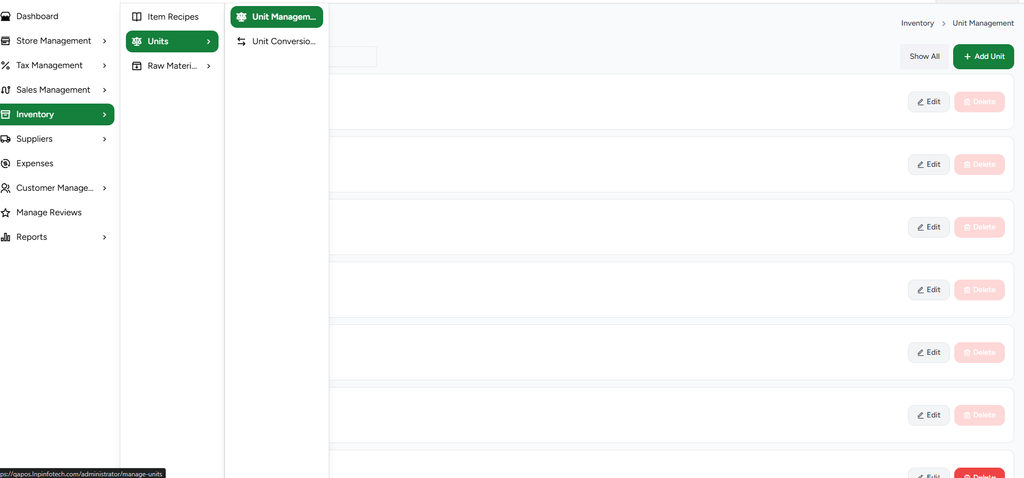
Step 1 — Open Inventory → Units
BillKaro POS — Inventory Documentation
Step 2 — Add a New Unit
Click Add Unit. Select the Unit Category and enter the unit Name, Code, and Symbol. Keep Is Active enabled when the unit should be available for use. Click Save changes to create the unit.
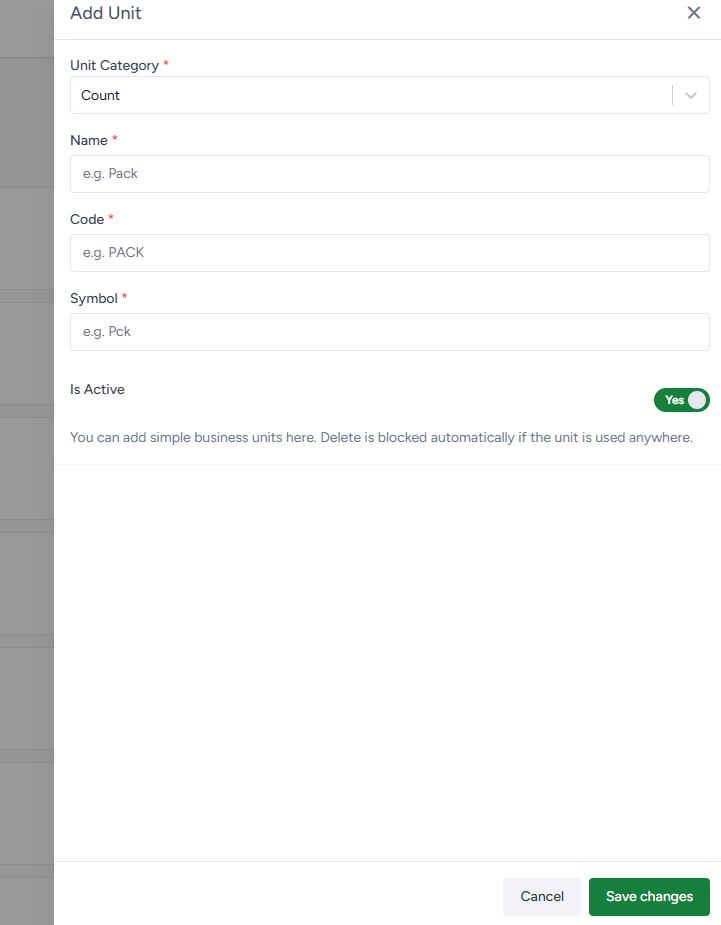
Step 2 — Add a Unit
BillKaro POS — Inventory Documentation
Step 3 — Configure Unit Conversion
Open Units → Unit Conversion and click Add Conversion. Select the From Unit and To Unit, then enter the Conversion Factor. For example, 1 Kilogram = 1000 Gram. Keep Active enabled if the conversion should be available for inventory calculations, then click Save changes.
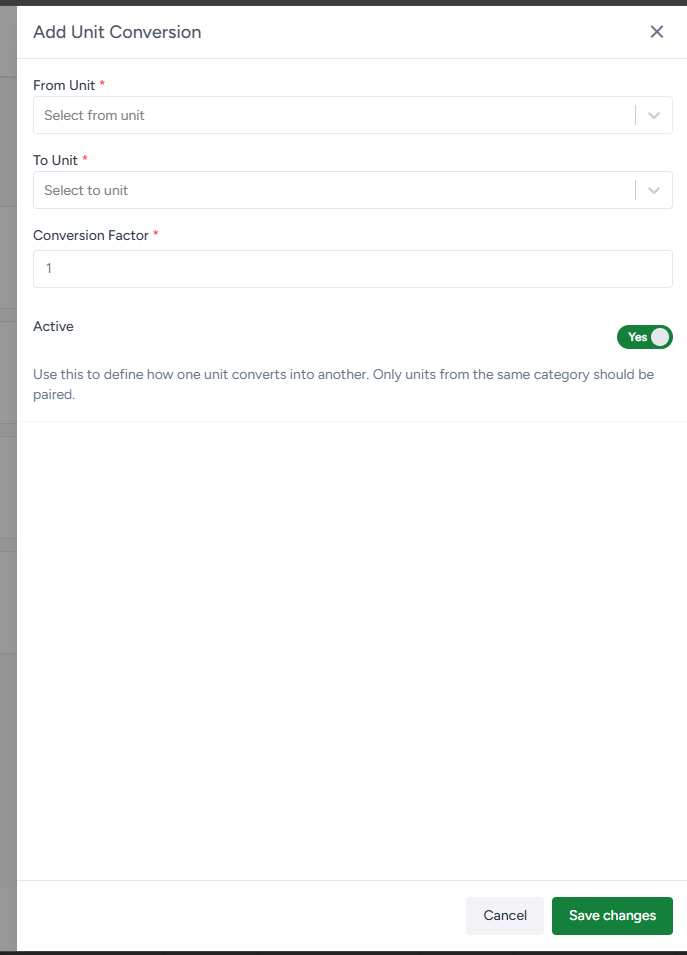
Step 3 — Add Unit Conversion
BillKaro POS — Inventory Documentation
Step 4 — Verify the Conversion
After saving, Unit Conversion Management lists the conversion with its relationship and factor. Verify that the From Unit, To Unit, and conversion factor are correct before using the units in Raw Materials, recipes, stock, or other inventory workflows.
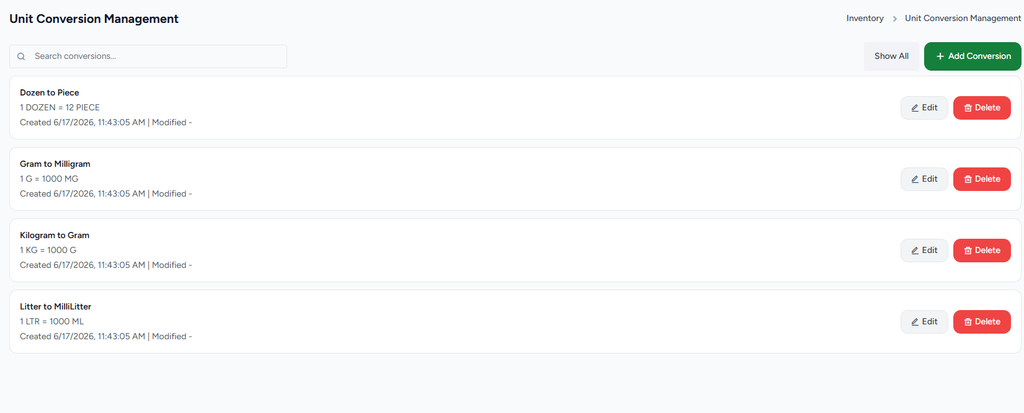
Step 4 — Review Unit Conversions
3. Example
A practical inventory setup could use Kilogram as the purchase unit and Gram as the consumption unit. In Unit Conversion Management, configure:
From Unit: Kilogram
To Unit: Gram
Conversion Factor: 1000
Result: 1 KG = 1000 G
4. Important Notes
Units should be created before they are selected in Raw Material records.
Unit conversions should use units from the same unit category.
The conversion factor defines how one From Unit is converted into the selected To Unit.
Keep required units and conversions active when they are needed by inventory calculations.
Inventory Flow Documentation
Raw Material Categories → Raw Materials → Raw Material Conversion → Recipe Management
Purpose: This document explains the inventory setup flow shown in the provided BillKaro Portal screenshots, from creating raw material categories and raw materials to configuring conversions and adding a recipe to a menu item.
Complete Flow at a Glance
| 1 Raw Material Category | 2 Raw Material Setup | 3 Raw Material Conversion | 4 Recipe Management | 5 Save & Publish Recipe |
Recommended order: create the category first, add raw materials under that category, configure any required conversion rules, then create and publish the recipe for the relevant menu item.
Step 1 — Create a Raw Material Category
Portal navigation: Inventory → Raw Material Management → Raw Material Categories.
1. Open Raw Material Categories and select the option to add a category.
2. Enter the Name (required), for example Bakery, Beverages, Dairy, or Vegetables.
3. Enter a Code if needed, for example BAKERY or VEG.
4. Select Save Changes. Confirm that the category appears in the list.
Purpose: Categories organize inventory materials and make them easier to select during raw material setup.
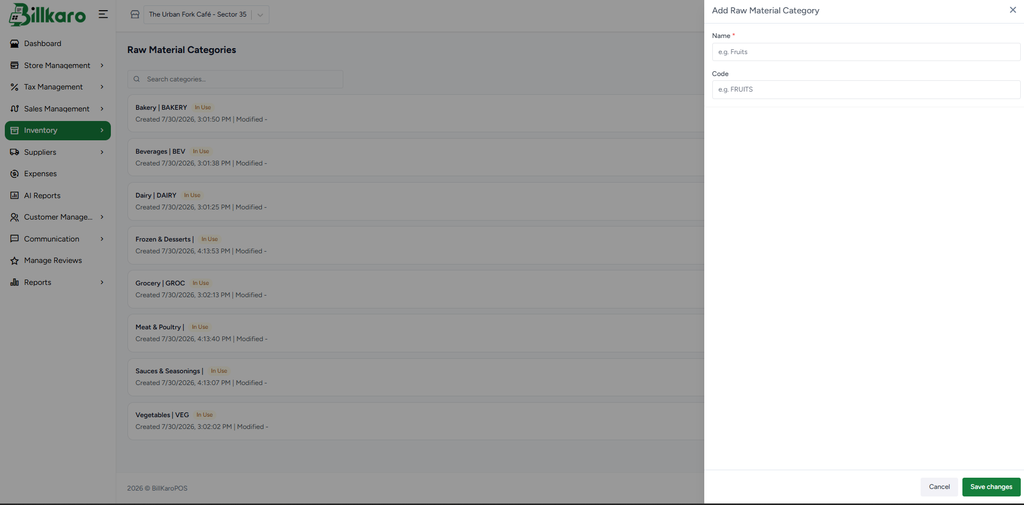
Screenshot 1. Add Raw Material Category
Step 2 — Add a Raw Material
Portal navigation: Inventory → Raw Material Management → Add Raw Material.
1. Enter the raw material Name (required), such as Butter, Wheat Flour, Bread Slice, or Black Pepper.
2. Add optional Description, Code, and Barcode / Short Code.
3. Select the Category and Tax Profile, where applicable.
4. Configure Purchase Units, Purchase Unit, and Consumption Unit. Consumption Unit is required.
5. If needed, set Minimum Stock Level and its unit, Purchase Price, Internal Transfer Price, Reconciliation Price, and Normal Loss (%).
6. Set Closing Stock Frequency and item-specific conversions from purchase units to consumption units if required.
7. Review availability and other options (Favorite, Private Item, Has Expiry, etc.), then select Save Changes.
Validation: complete required fields and ensure selected units match the intended stock workflow.
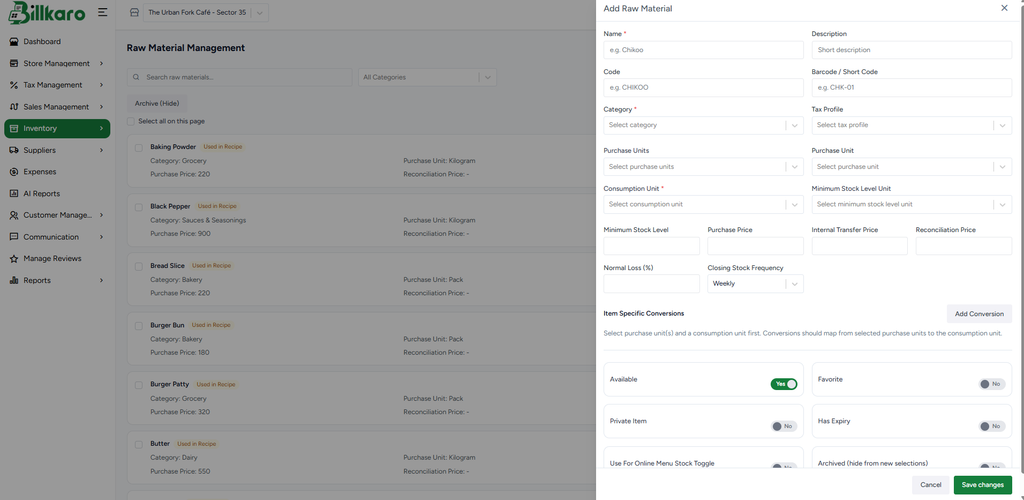
Screenshot 2. Add Raw Material
Step 3 — Configure Raw Material Conversion (if required)
Portal navigation: Inventory → Convert Raw Material Management.
1. Enter a Conversion Name and Default Quantity.
2. Add a description if useful.
3. Under From Raw Material, select the source material, quantity, and unit.
4. Under To Raw Material, select the resulting material, quantity, and unit.
5. Add more rows if the conversion requires multiple source or output materials.
6. Enable Auto Convert only if the conversion should run automatically.
7. Select Save Changes.
Purpose: This setup defines how source materials are converted into another stock item, with quantities and units recorded.
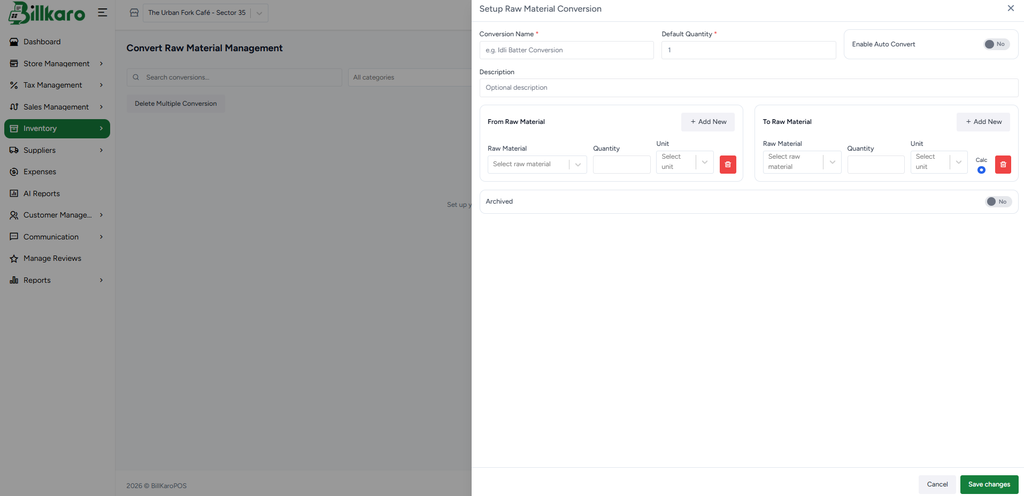
Screenshot 3. Setup Raw Material Conversion
Step 4 — Create or Edit a Menu Item Recipe
Portal navigation: Inventory → Recipe Management.
1. Select Add New Recipe or choose Edit on an existing recipe.
2. Select the menu item for which the recipe is being created, such as Aloo Paratha.
3. Add each raw material used by the menu item.
4. For each material, enter its quantity, select the unit, and choose the applicable area or All Areas.
5. Use Add New Raw Material to add ingredients; remove incorrect rows using the delete control.
6. Select Save Item Recipe to save the current recipe.
Purpose: A recipe links a sellable menu item to the raw materials and quantities used to prepare it.
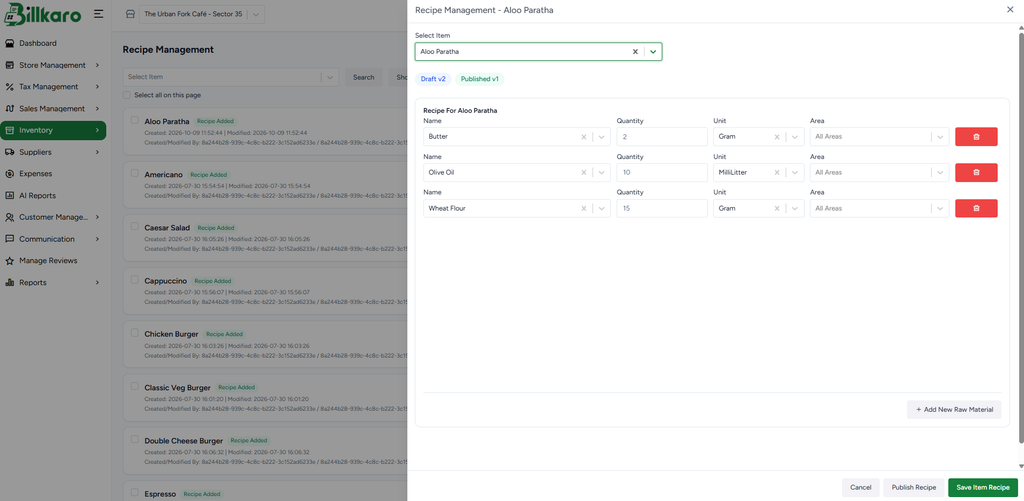
Screenshot 4. Recipe Management — Recipe Details
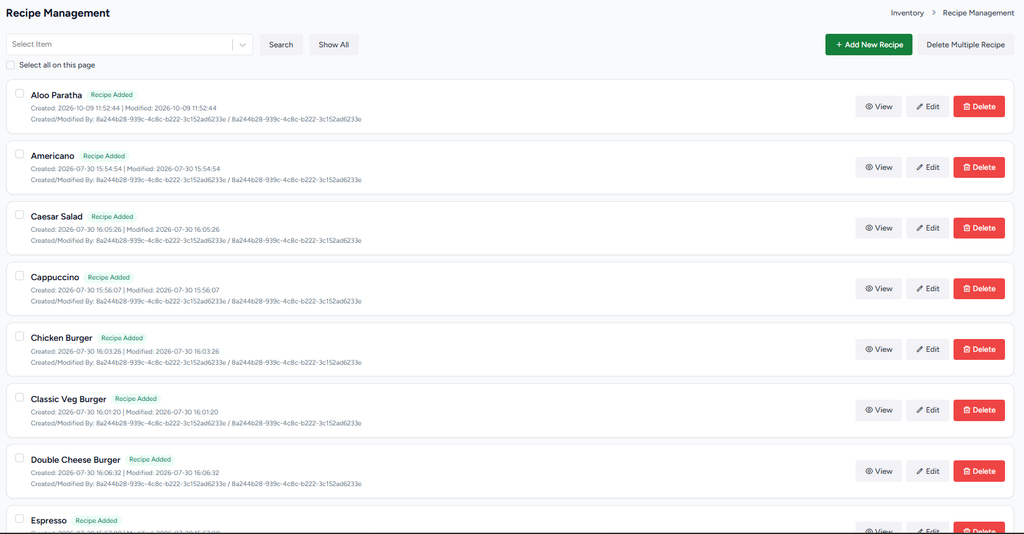
Screenshot 5. Recipe Management — Recipe List
Step 5 — Review and Publish the Recipe
1. Confirm the correct menu item is selected.
2. Verify all raw materials, quantities, units, and areas.
3. Select Save Item Recipe to save the changes.
4. Select Publish Recipe when the recipe is ready for use. Draft and Published versions may be shown separately.
5. Return to the recipe list and confirm that the item shows the recipe-added status.
Important: saving a draft and publishing a recipe are separate actions in the shown workflow. Publish only after review.
Example from the Screenshot
The Aloo Paratha recipe screenshot shows Butter (2 Gram), Olive Oil (10 MilliLiter), and Wheat Flour (15 Gram). These values are examples from the screenshot; use your store’s approved recipe quantities.
Final Verification Checklist
☐ Raw material category is saved and visible in the category list.
☐ Each raw material is saved with the correct category and units.
☐ Required conversion rules have been saved, where applicable.
☐ Recipe has the correct menu item, ingredients, quantities, units, and areas.
☐ Recipe is saved and published when ready.
☐ Recipe list displays the expected recipe-added status.