
Raw Material Category → Raw Material → Recipe → Publish Recipe
This document covers only the Inventory flow requested for BillKaro. The complete dependency flow is: first create a Raw Material Category, then create the Raw Material, then create a Recipe for a menu item using that Raw Material, and finally publish the Recipe.
Flow at a Glance
1. Inventory → Raw Material Categories → Add Category → Save
2. Inventory → Raw Material Management → Add Raw Material → Save
3. Inventory → Item Recipes / Recipe Management → Add New Recipe
4. Select the menu item and add Raw Material ingredients with quantity, unit, and area
5. Save Item Recipe
6. Publish Recipe
7. Verify the recipe appears as Published / Recipe Added
1. Add Raw Material Category
A Raw Material Category is created first so every raw material can be grouped under a valid category.
Navigation
Inventory → Raw Material Management → Raw Material Categories
Step 1 — Open Raw Material Categories
Open Inventory from the left navigation. Expand Raw Material Management and select Raw Material Categories.
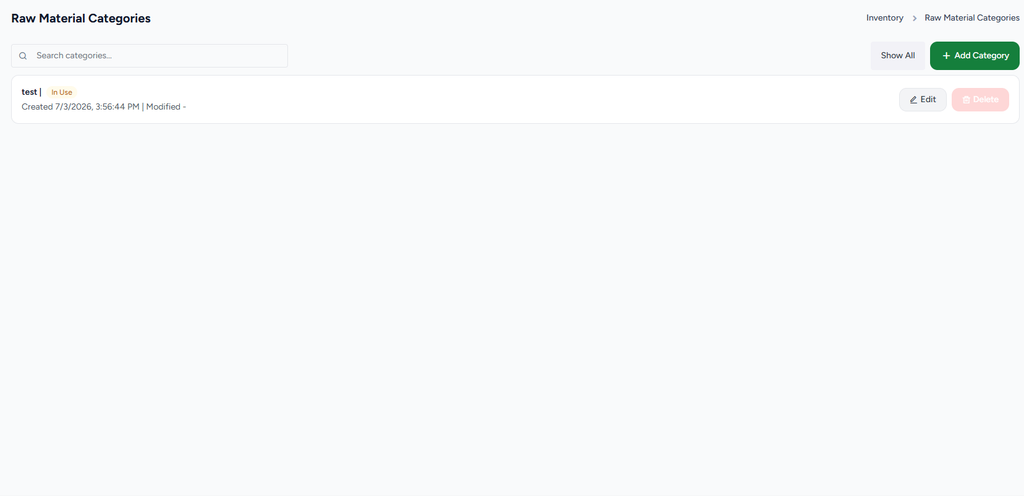
Figure 1 — Raw Material Categories list with the Add Category action.
Step 2 — Click Add Category
Click Add Category to open the Add Raw Material Category form.
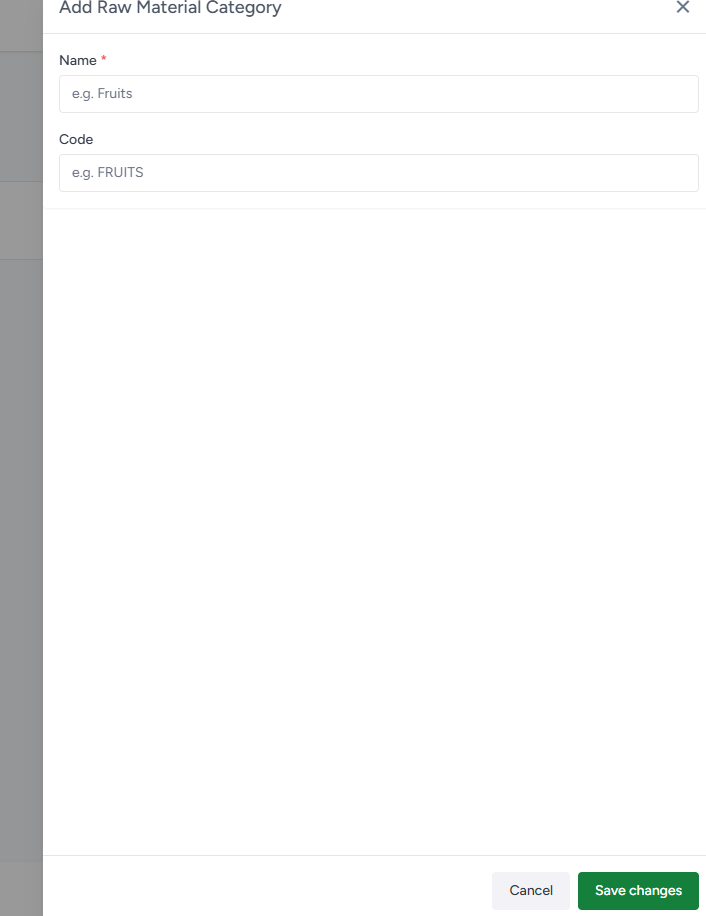
Figure 2 — Add Raw Material Category form.
Step 3 — Enter category details
Enter the mandatory Category Name. Optionally enter a Code for a short identifier. Example: Name = Fruits, Code = FRUITS.
Step 4 — Save the category
Click Save changes. The category is now available when creating raw materials.
Expected result: The newly created category appears in the Raw Material Categories list and can be selected from the Raw Material form.
2. Add Raw Material
After a category exists, create the raw-material master. The raw material will later be selected as an ingredient in a recipe.
Navigation
Inventory → Raw Material Management
Step 1 — Open Raw Material Management
Open the Raw Material section and select Raw Material Management. Use the list to view existing materials or click Add Raw Material.
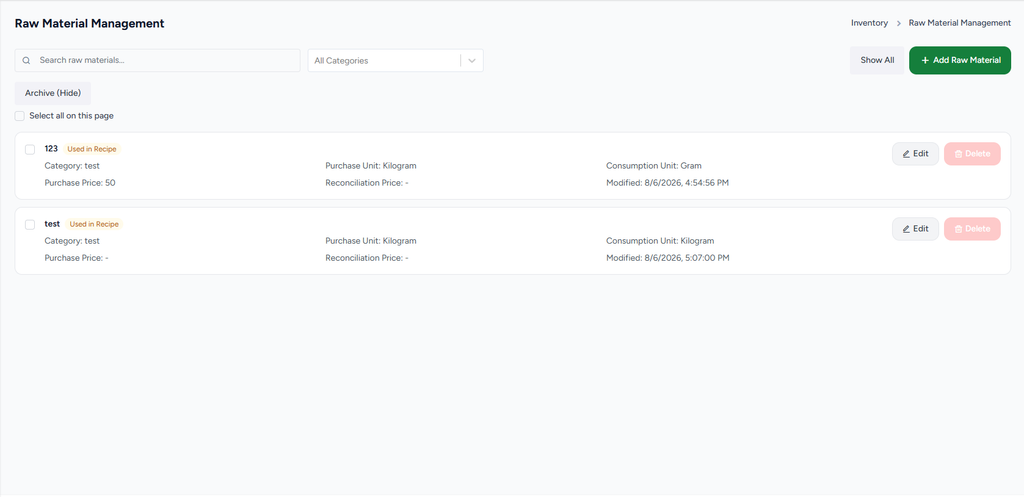
Figure 3 — Raw Material Management list.
Step 2 — Click Add Raw Material
Click Add Raw Material to open the raw-material master form.
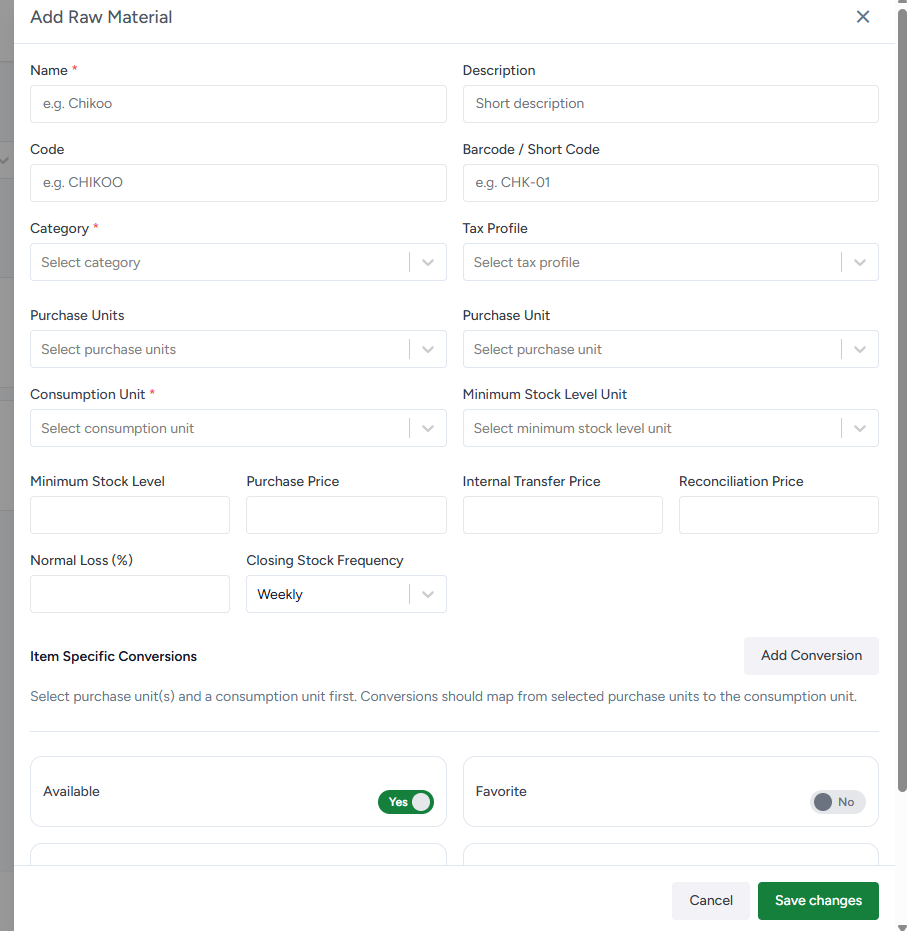
Figure 4 — Add Raw Material form.
Step 3 — Enter basic details
Enter the mandatory Name and select the Category created in the previous step. You can also enter Description, Code, and Barcode / Short Code.
Step 4 — Configure tax and units
Select the applicable Tax Profile. Configure Purchase Units, Purchase Unit, and the mandatory Consumption Unit. If the purchase and consumption units differ, configure the required conversion.
Step 5 — Configure stock and pricing
Enter Minimum Stock Level and, where applicable, Purchase Price, Internal Transfer Price, and Reconciliation Price. Set Normal Loss (%) and Closing Stock Frequency if required by the inventory workflow.
Step 6 — Configure availability
Keep Available enabled when the raw material should be usable in recipes and other inventory flows. Favorite can be enabled for frequently used materials.
Step 7 — Save the raw material
Click Save changes. The raw material is now available for recipe selection.
Expected result: The raw material appears in Raw Material Management with its category, purchase unit, consumption unit, and pricing information.
3. Add Recipe
Once the raw material exists, create a recipe for the menu item. The recipe defines which raw materials are consumed and in what quantity.
Navigation
Inventory → Item Recipes / Recipe Management
Step 1 — Open Recipe Management
Open Inventory and select Item Recipes. The Recipe Management screen provides the recipe list and the Add New Recipe action.
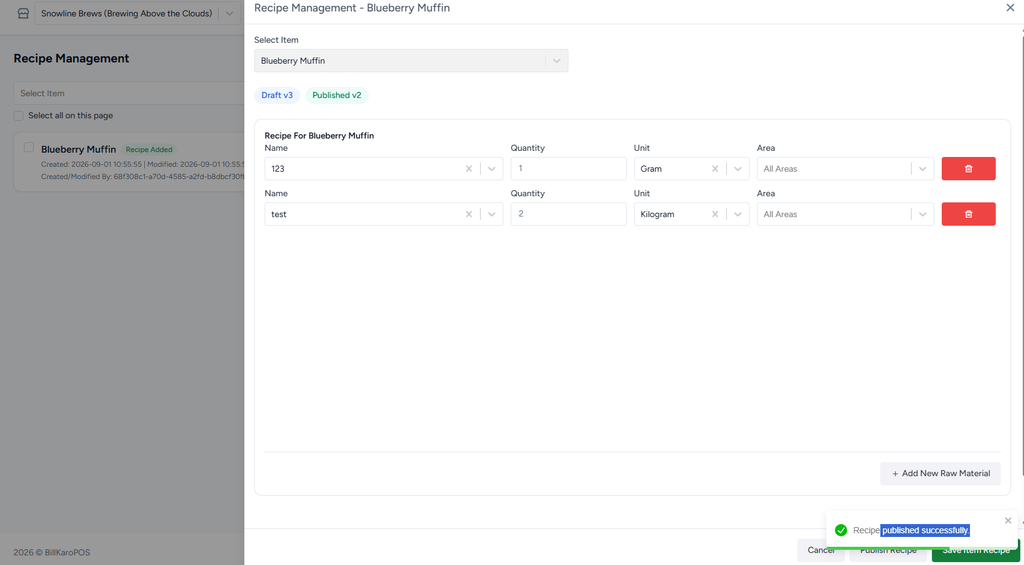
Figure 5 — Recipe Management list.
Step 2 — Click Add New Recipe
Click Add New Recipe to open the recipe editor.
Step 3 — Select the menu item
Use Select Item to choose the menu item for which the recipe is being created. The recipe is linked to this selected menu item.
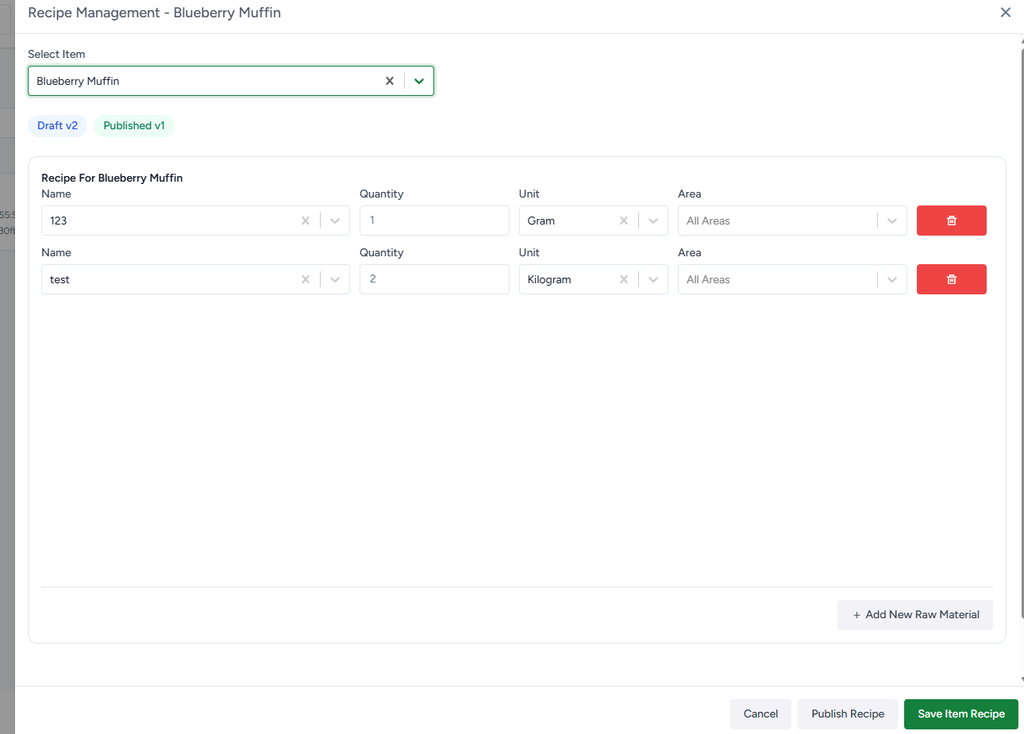
Figure 6 — Recipe Management editor with the selected menu item.
Step 4 — Add Raw Material ingredient
In the recipe section, select the raw material created earlier. Enter the required Quantity, select the appropriate Unit, and choose the Area. Use Add New Raw Material to add additional ingredients.
Step 5 — Review recipe lines
Check every ingredient line for the correct raw material, quantity, unit, and area. Remove any incorrect line using its delete action.
Step 6 — Save the recipe
Click Save Item Recipe. The recipe is stored as the current draft/version and can be reviewed before publishing.
4. Publish Recipe
Publishing makes the prepared recipe version the published recipe for the selected menu item. The UI can show separate Draft and Published version indicators.
Step 1 — Review the saved recipe
Open the recipe editor and confirm that all raw-material lines and quantities are correct before publishing.
Step 2 — Click Publish Recipe
Use the Publish Recipe button at the bottom of the recipe editor. The system publishes the current recipe version.

Figure 7 — Recipe after publishing, showing the successful publish state.
Step 3 — Verify published status
After publishing, verify the Published version indicator and the success confirmation. The recipe should remain associated with the selected menu item.
Expected result: The recipe is published successfully and is available as the operational recipe for the selected menu item, subject to the normal BillKaro synchronization/consumption flow.
5. Complete Inventory Dependency Flow
The correct sequence is important because each stage depends on the previous master data:
Create Raw Material Category.
Save the category and make it available for raw-material selection.
Create Raw Material and select the category.
Save the raw material with valid units and inventory settings.
Create Recipe and select the menu item.
Add the raw material as a recipe ingredient with quantity and unit.
Save the recipe.
Publish the recipe.
Verify the Published version / Recipe Added status.
6. Key Validation Points
Raw Material Category should exist before creating the raw material.
Raw Material must have a valid category and mandatory consumption unit.
A recipe ingredient should reference an existing raw material.
Recipe quantity should be valid and greater than zero.
The selected recipe unit should be compatible with the raw material’s configured units.
Save the recipe before publishing it.
Publish only after reviewing all recipe ingredients and quantities.
7. Final User Flow
Category Created → Raw Material Created → Recipe Created → Recipe Saved → Recipe Published