
Store creation, users, roles, permissions and store actions
Module: Store Management → Store & Operations
BillKaro Portal – Store Management Flow Document
1. Store Management Overview
Store Management is used by administrators to create and manage stores and to control Portal Users, Store Users, roles and permissions. Subscription limits determine how many stores and users can be created under the selected plan.
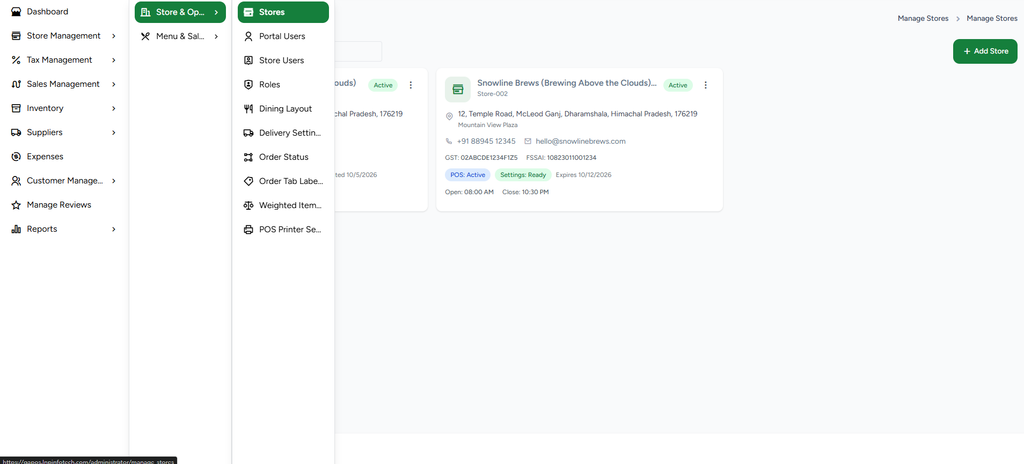
Figure 1 – Store Management → Store & Operations navigation
2. Main Store Management Flow
Dashboard
↓
Store Management
↓
Store & Operations
↓
Stores / Portal Users / Store Users / Roles
The Store & Operations menu provides access to the main configuration areas used for store setup and user access management.
3. Stores
The Stores screen displays all stores created for the account. Each store card provides key information such as Store Name, Store ID, address, contact details, GST/FSSAI details, POS status, settings status, expiry/activation information and opening/closing time.
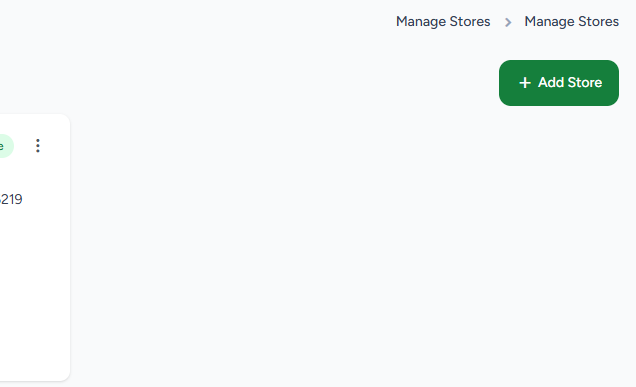
Figure 2 – Stores page with Add Store option
4. Add Store
To create a new store, open Stores and click the “+ Add Store” button. The Add New Store form is divided into Basic, Address, Contact and Settings sections.
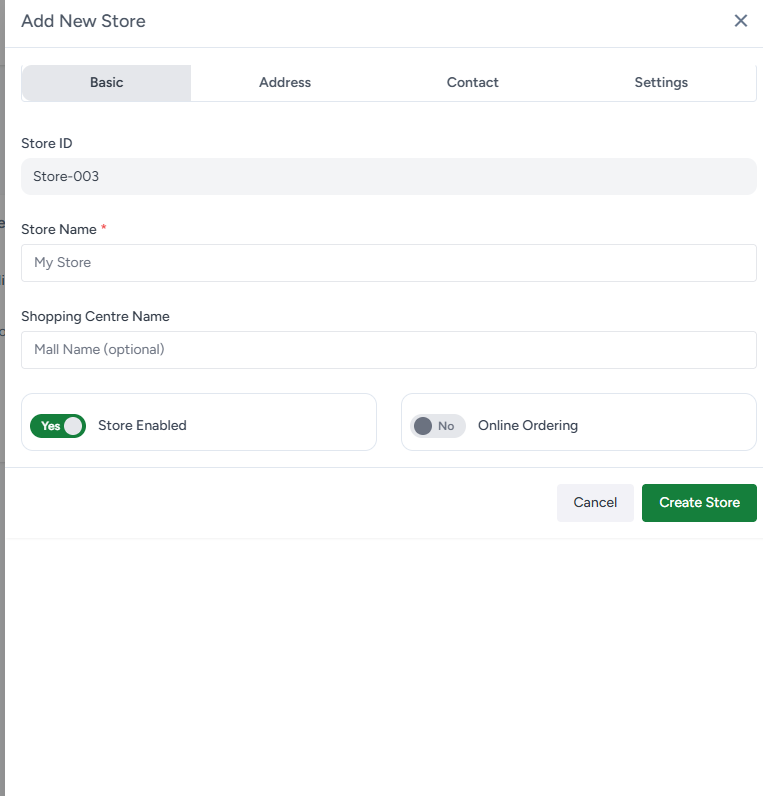
Figure 3 – Add New Store: Basic section
4.1 Basic Details
Store ID – generated/used as the store identifier.
Store Name * – required field.
Shopping Centre Name – optional.
Store Enabled – controls whether the store is enabled.
Online Ordering – controls online ordering availability.
Fields marked with * are mandatory.
4.2 Address Details
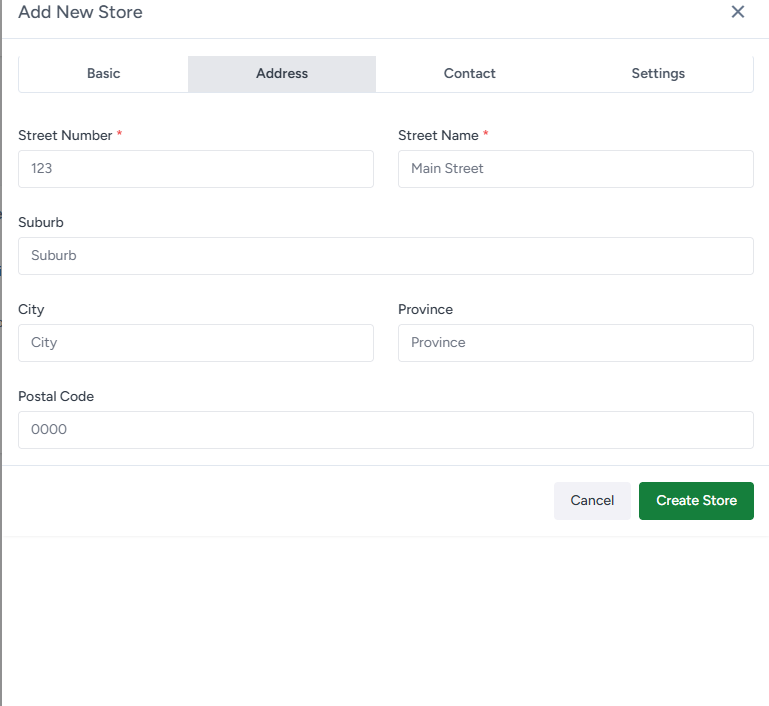
Figure 4 – Add New Store: Address section
Street Number *
Street Name *
Suburb
City
Province
Postal Code
4.3 Contact Details
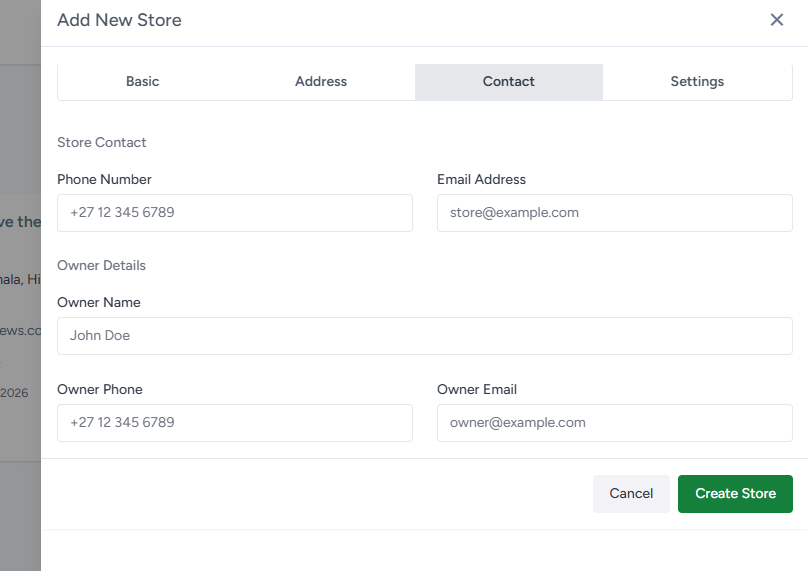
Figure 5 – Add New Store: Contact section
Store Contact: Phone Number and Email Address.
Owner Details: Owner Name, Owner Phone and Owner Email.
4.4 Settings
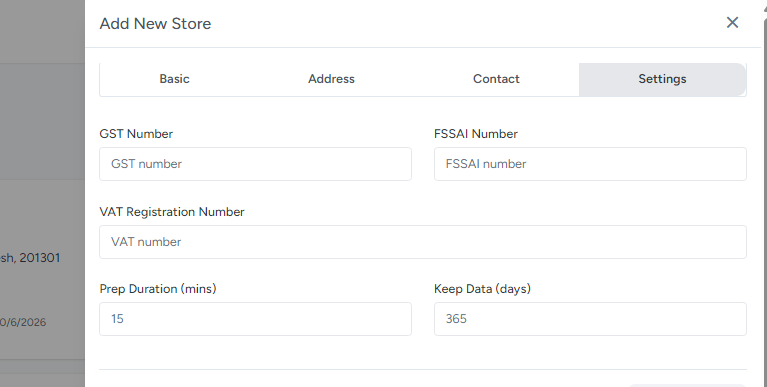
Figure 6 – Add New Store: Settings section
GST Number
FSSAI Number
VAT Registration Number
Prep Duration (mins)
Keep Data (days)
5. Create Store Flow
Stores
↓
Click + Add Store
↓
Enter Basic Details
↓
Enter Address Details
↓
Enter Contact Details
↓
Enter Store Settings
↓
Validate required (*) fields
↓
Click Create Store
↓
Store is added to the Stores list
6. Subscription-Based Limits
Store and user creation is controlled by the subscription plan. The allowed limits depend on the plan purchased by the account. The plan can define the number of Stores, Portal Users and POS/Store Users available to the account.
Subscription Plan
↓
Allowed Stores / Portal Users / POS Users
↓
Create Store or User
↓
System validates available subscription limit
↓
Creation allowed when capacity is available
7. Portal Users
Portal Users are users who can log in to and work in the BillKaro Portal. Their access is controlled through the Portal Role assigned during user creation.
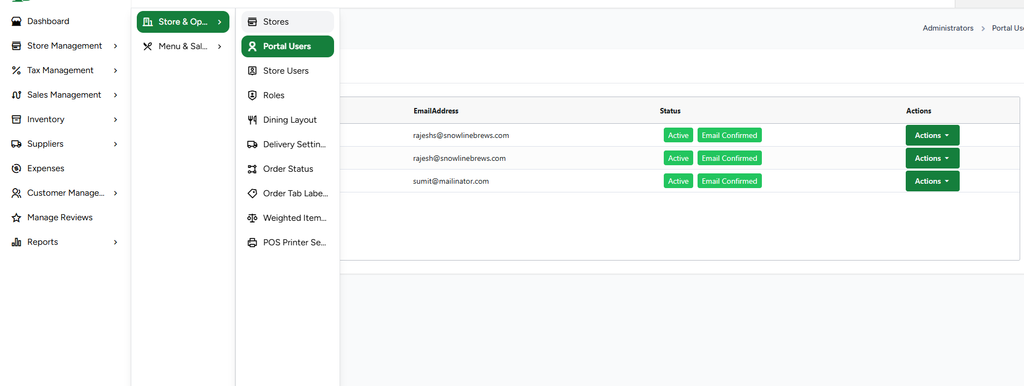
Figure 7 – Portal Users list
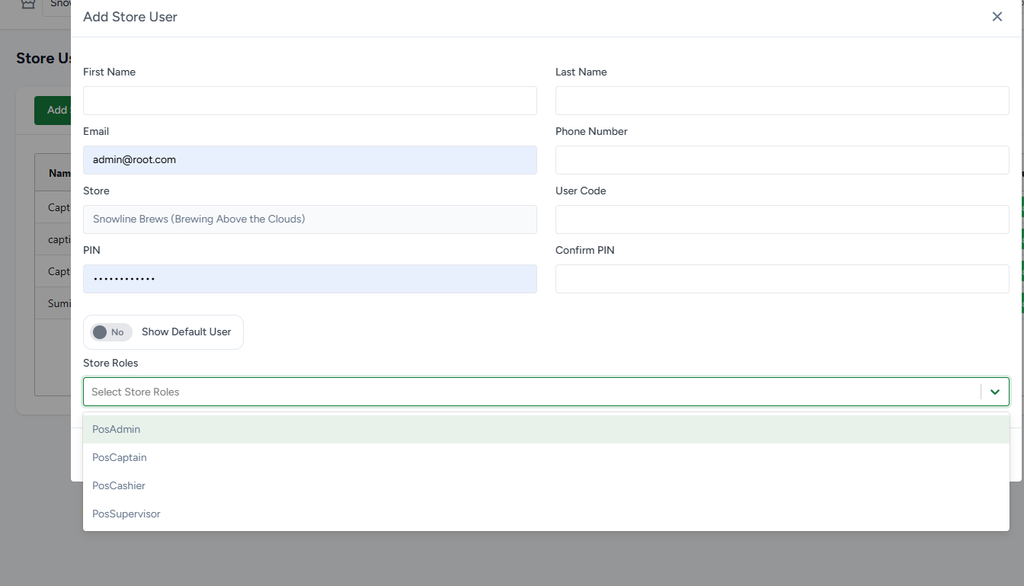
Figure 8 – Add Portal User form
First Name *
Last Name *
Email Address *
Phone Number
Password *
Confirm Password *
Role *
After the required information is entered and a role is selected, click Save to create the Portal User.
8. Store Users
Store Users are associated with a specific store and are primarily used for store/POS operations. A Store User can be assigned one or more Store Roles.
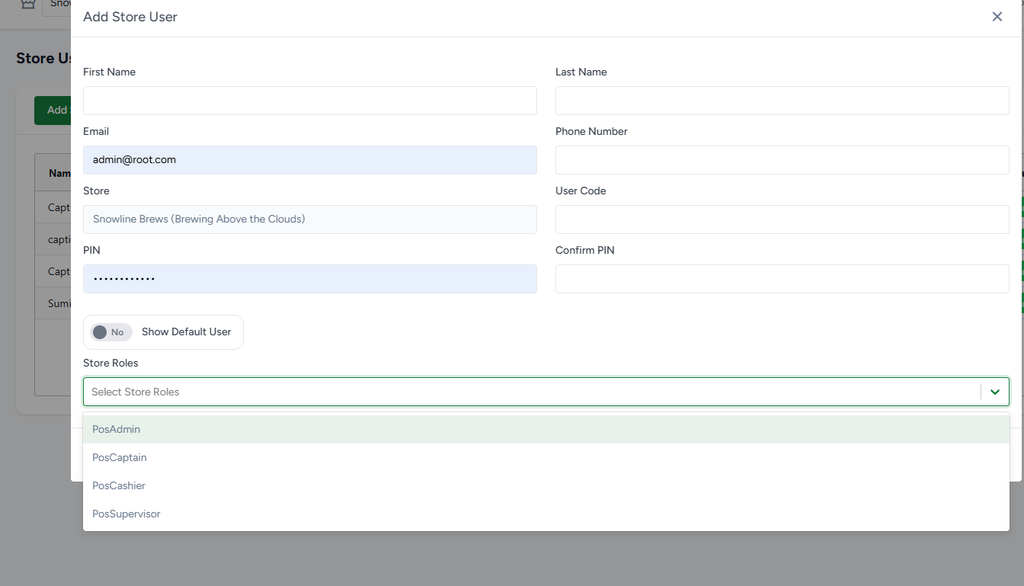
Figure 9 – Add Store User form with Store Roles
First Name and Last Name
Email and Phone Number
Store
User Code
PIN and Confirm PIN
Show Default User
Store Roles
8.1 Store Role Selection
The Store Roles dropdown can contain roles such as:
PosAdmin
PosCaptain
PosCashier
PosSupervisor
The exact roles available depend on the roles configured for the account/store.
9. Roles and Permissions
Roles define what a Portal User or Store User is allowed to access and perform. Administrators can create and configure Portal Roles and Store Roles and then assign those roles to users.
Roles
↓
Add Portal Role / Add Store Role
↓
Configure permissions
↓
Save Role
↓
Assign Role to User
↓
User receives configured permissions
9.1 Permission Example
Permissions are action-based. For example, if a Store User can access Billing but the Print permission is not assigned to the user’s role, that user cannot print the bill.
Store User
↓
Assigned Store Role
↓
Billing: Print Permission = OFF
↓
User cannot print the bill
If the Print permission is enabled in the assigned role, the user can perform the print action.
9.2 Admin Role Protection
The primary Admin role is protected from editing its own critical role/permission settings. This prevents an administrator from accidentally removing or compromising its own administrative access.
10. Store Three-Dot Actions
Each store card contains a three-dot (⋮) action menu. The menu provides store-level actions such as editing or copying the store and checking its activation/status.
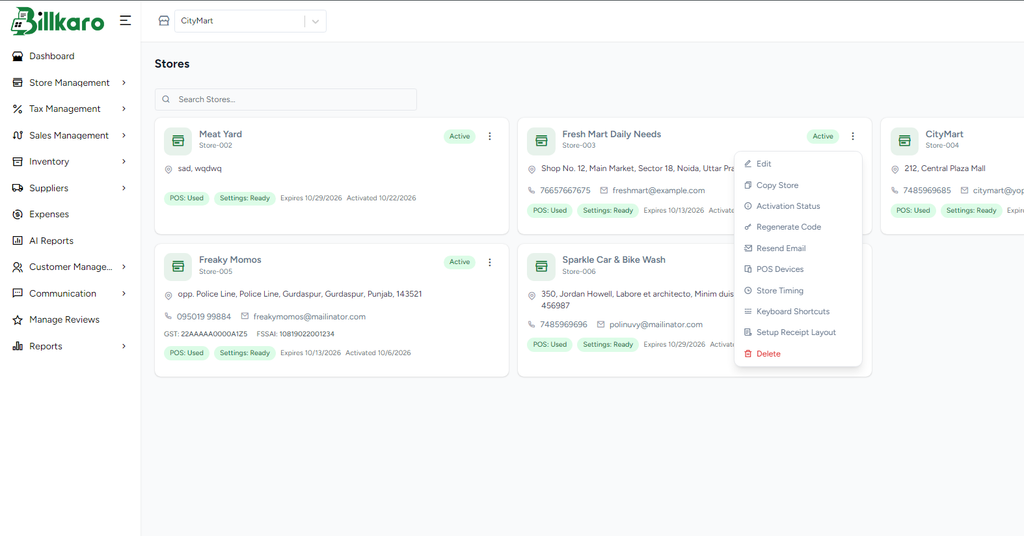
Figure 10 – Store three-dot action menu
Edit Store – update existing store information.
Copy Store – create a store based on an existing store configuration.
Activation Status – indicates whether the store is active/activated.
11. Complete Store Management Flow
Dashboard
↓
Store Management
↓
Store & Operations
↓
Stores
↓
Add Store
↓
Basic → Address → Contact → Settings
↓
Create Store
↓
Store Added
↓
Create Portal Users / Store Users
↓
Assign Portal / Store Roles
↓
Configure Permissions
↓
User Access Controlled by Role
12. Summary
Store Management provides centralized control over store setup and access management. Administrators can create stores, manage store information, add Portal Users and Store Users, create roles, configure permissions, and manage store activation. Subscription limits control the number of stores and users that can be created.
13. First-Time POS Login & Store Activation
When a Desktop POS is used for the first time, the POS requires a Store Activation Code. The code is generated from the Portal and is then entered into the POS activation screen.
Activation Flow
Portal Store → Activation Code → Copy Code → First POS Login → Paste Code → Activate POS → Store Sync
Step 1 — Check Store Activation
Open the store’s three-dot menu and select Activation Status.
Review the store status, expiry date, activation date and activation email status.
The activation status helps confirm whether the store is active and whether its activation period is valid.
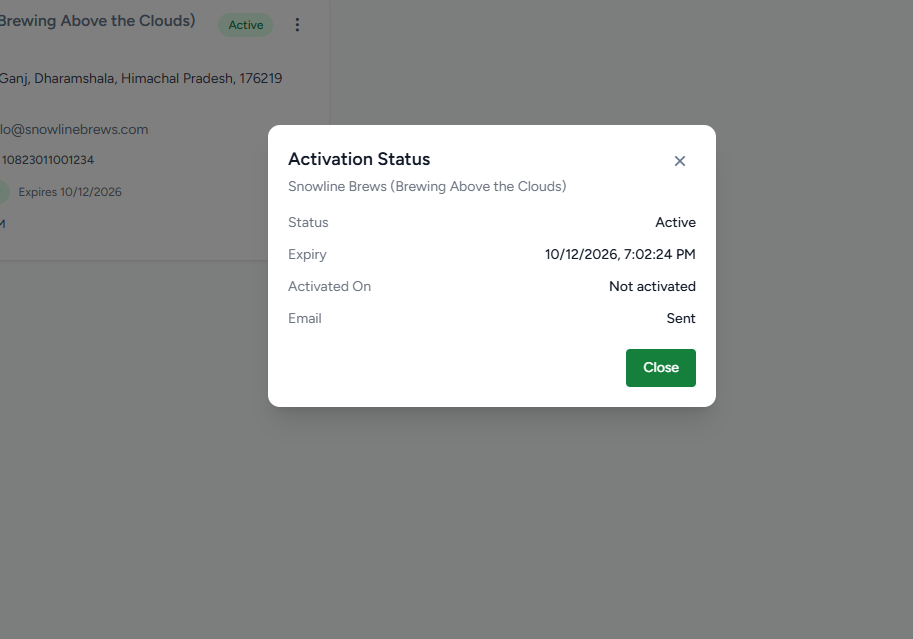
Figure 1 — Store Activation Status
Step 2 — Generate / Copy the Store Activation Code
Open the store’s activation option and select the Store Activation Code action.
The activation code is displayed and is intended to be copied when it is generated.
Click Copy Code, or copy the displayed code manually.
The activation code may also be sent to the store owner by email.
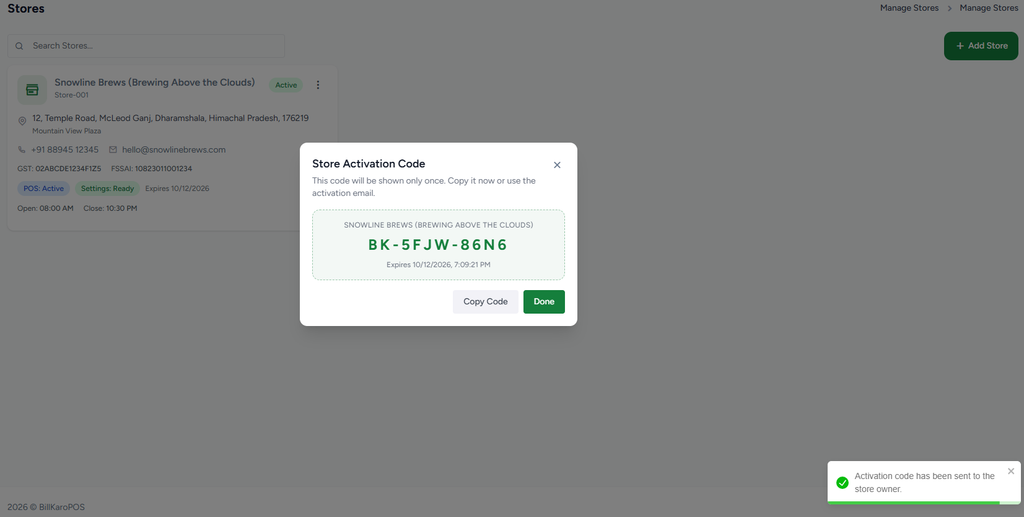
Figure 2 — Store Activation Code
Step 3 — Activate the Desktop POS
Open the BillKaro Desktop POS for the first time.
When the activation screen asks for the Store Activation Code, paste the code copied from the Portal.
Submit/activate the POS and allow the initial store synchronization to complete.
After successful activation, the device is associated with the selected store.
Important: Treat the activation code as a store activation credential. Copy it carefully and use it for the intended store/device activation flow.
BillKaro POS — Store Management & POS Setup Guide
14. POS Devices — Active & Revoked Devices
The POS Devices screen provides a store-level view of devices that have connected or been activated. Each device entry shows the device name/identifier and its current status.
Open the store’s three-dot menu.
Select POS Devices.
Review all registered devices for that store.
Active devices can be identified by the Active status.
If a device is no longer authorized, use Revoke. A revoked device is shown with a Revoked status.
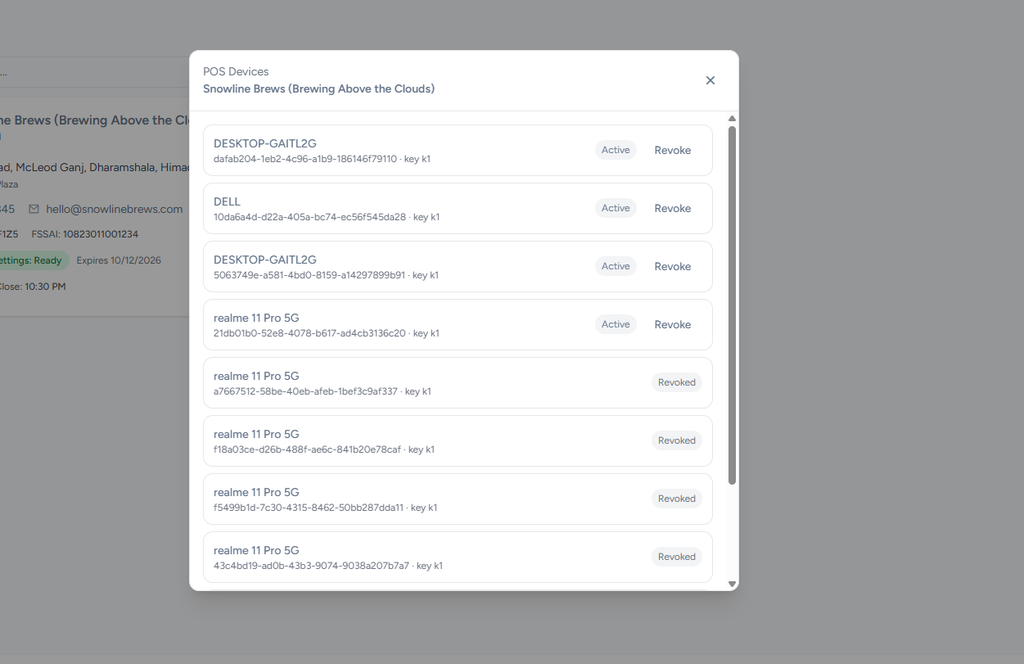
Figure 3 — POS Devices / Active Devices
Why Device Management Matters
Shows which computers/devices are currently active for a store.
Helps identify old or unwanted POS installations.
Allows an authorized device to be revoked without changing the store itself.
Supports operational control when a store has multiple POS terminals.
BillKaro POS — Store Management & POS Setup Guide
15. Store Timing
The Store Timing module allows users to configure daily opening, closing, and trade-until times for each day of the week. Users can also mark specific days as closed and save or cancel changes.
Open the store’s three-dot menu.
Select Store Timing
Set Open Time , Close Time & Trade Untile Time
Check the Is Closed Check box if the store is closed
Click on Save Button
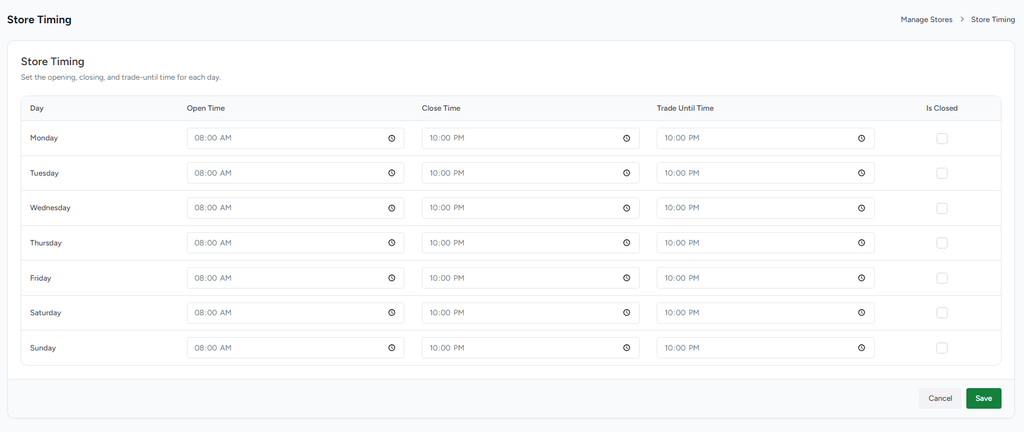
16. Store Keyboard Shortcuts
Keyboard Shortcuts are configured at store level for Desktop POS. The store can use the default shortcut map or custom values where supported. Custom shortcut values override defaults after the Desktop POS completes its next store sync.
Open the store’s three-dot menu.
Select Keyboard Shortcuts.
Review the shortcut, action and scope.
Configure custom shortcut values where permitted.
The Desktop POS receives the updated mapping during the next store synchronization.
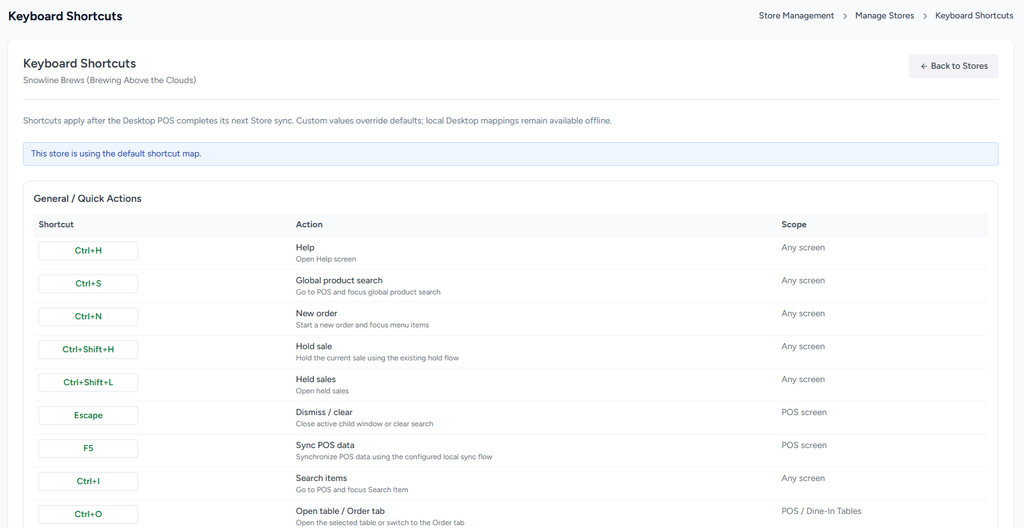
Figure 4 — Keyboard Shortcuts
Example Shortcuts
Ctrl+H — Help
Ctrl+S — Global product search
Ctrl+N — New order
Escape — Dismiss / clear
F5 — Sync POS data
Ctrl+I — Search items
Ctrl+O — Open table / order tab
The exact shortcut list can be extended or customized according to the store’s configured shortcut map.
BillKaro POS — Store Management & POS Setup Guide
17. Setup Receipt Layout
Each store can design its own receipt layout according to its business requirements. The receipt designer allows the store to decide what information should be displayed, what should be hidden, and which components such as text, item lists, QR codes, spacers and sections should be included.
Open Store Management → Manage Stores.
Select the required store.
Open Setup Receipt Layout.
Choose the required document type such as Receipt, Invoice or KOT.
Select a layout style such as Classic or Standard where available.
Use the designer components to add, remove or arrange content.
Configure component properties such as text, alignment, typography and other available settings.
Use Live Preview to verify the final output.
Click Save to store the layout for that store.
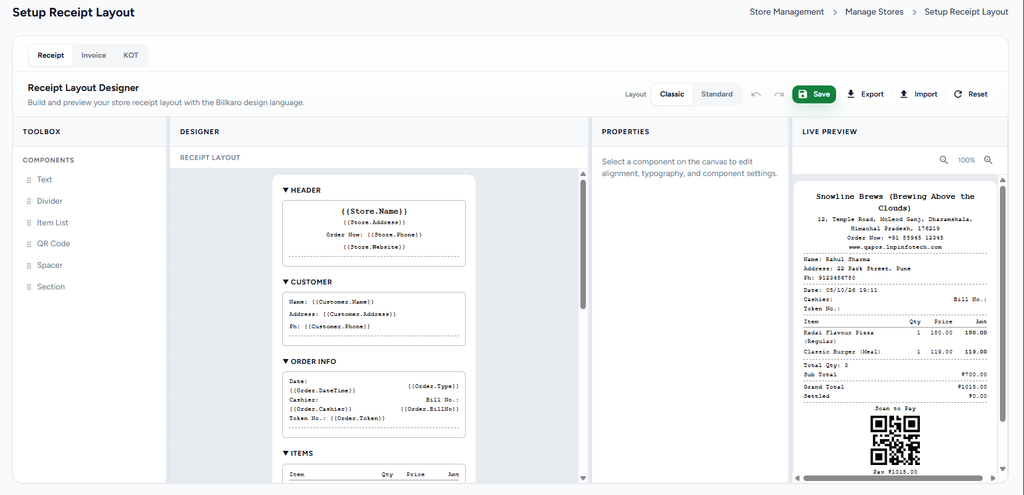
Figure 5 — Setup Receipt Layout
Receipt Designer — What Can Be Configured
Store header information such as store name, address, phone and website.
Customer information such as name, address and phone.
Order information such as date/time, order type, cashier, bill number and token number.
Item list including item name, quantity, price and amount.
Totals such as subtotal, grand total and settled amount.
QR Code / Scan-to-Pay area when required.
Text, Divider, Item List, QR Code, Spacer and Section components.
Visibility and presentation can be customized so the store prints only the information it needs.
Store-Specific Receipt Example
A cafe may show the store name, address, customer, order number, items, taxes, totals and payment QR code. Another business may choose a simpler receipt and remove customer or QR information. The layout is controlled independently at store level.
BillKaro POS — Store Management & POS Setup Guide
18. Store Three-Dot Actions & Store Lifecycle
Edit Store — update store information after creation.
Copy Store — create a new store using the existing store configuration as a starting point.
Activation Status — review activation state, expiry and activation information.
POS Devices — view active/revoked devices connected to the store.
Keyboard Shortcuts — manage Desktop POS shortcut configuration.
Setup Receipt Layout — configure the store’s Receipt/Invoice/KOT print design.
Activation Status indicator on the store card provides a quick view of the store’s current activation state.
19. End-to-End Store Setup Flow
| Step | Activity | Flow |
| 1 | Create Store | Store Management → Manage Stores → Add Store |
| 2 | Configure Store | Enter required (*) details → Create Store |
| 3 | Configure Users | Add Portal Users / Store Users according to subscription limits |
| 4 | Configure Roles | Create/assign Portal Roles and Store Roles with required permissions |
| 5 | Activate POS | Generate Store Activation Code → Copy → Paste on first POS login |
| 6 | Verify Devices | Open POS Devices → confirm Active devices → Revoke unauthorized devices |
| 7 | Configure Shortcuts | Open Keyboard Shortcuts → review/customize → sync POS |
| 8 | Design Receipt | Open Setup Receipt Layout → customize → preview → save |
20. Key Business Rules
Required store fields are identified with a red * during store creation.
Subscription limits determine how many stores and users can be added.
Portal Users and Store Users are managed separately according to their access needs.
Roles determine the permissions available to each user.
A user without a required permission cannot perform the restricted operation.
Admin role/permission editing is protected to prevent an Admin from changing their own access improperly.
POS first-time login requires the Store Activation Code.
POS device status can be reviewed and devices can be revoked from the store.
Receipt layouts are store-specific and can be customized according to the store’s printing requirements.
Store-level configuration changes are applied to Desktop POS through the applicable synchronization flow.
21. Summary
The Store Management module provides a complete control layer for each BillKaro POS store — from creating the store and managing users/roles to activating POS devices, controlling device access, configuring shortcuts, and designing store-specific receipts. This keeps each store independently configurable while remaining controlled by subscription limits and permission rules.
22. Delete Store
Delete Store: From the store’s three-dot options menu, the authorized user can select Delete Store. The system should require confirmation before deletion and prevent accidental removal of the store and its related data.